
How to Fix the “PCSX2 Requires a PS2 BIOS” Error (Step-by-Step Guide)
The “PCSX2 requires a PS2 BIOS” error appears when the emulator cannot find a valid BIOS file or no BIOS is selected in its settings. You may see this message during first-time setup or when launching a game, even if you already have BIOS files on your computer.
To fix it, extract the BIOS files, select their folder in PCSX2’s BIOS settings, and choose a detected BIOS from the list. Knowing which PS2 BIOS to use can help you choose a suitable file before setup. The steps below explain the process and what to check if your BIOS still does not appear.
What does “PCSX2 requires a PS2 BIOS” mean?
This message means PCSX2 cannot access a usable PlayStation 2 BIOS. The BIOS is the console’s firmware. It handles startup, provides the PS2 system menu, and contains functions that PCSX2 needs to run PS2 games.
PCSX2 requires this firmware separately, so installing the emulator or adding a game file does not complete BIOS setup. The error commonly appears when:
- BIOS files are missing from your computer.
- PCSX2 is looking in the wrong folder.
- The files are still inside a ZIP or 7Z archive.
- A detected BIOS has not been selected in the settings.
How to fix the “PCSX2 requires a PS2 BIOS” error
Start by preparing your BIOS files, then select them in PCSX2. If you already have extracted BIOS files on your computer, skip to Step 3.
Step 1: Download the PS2 BIOS files
Open the PS2 BIOS download page, click Download PS2 BIOS, and save the file somewhere easy to find, such as your Downloads folder.
The PS2 BIOS is Sony’s copyrighted firmware. Make sure you obtain and use it lawfully. PCSX2 recommends dumping the BIOS from a PlayStation 2 console you own.

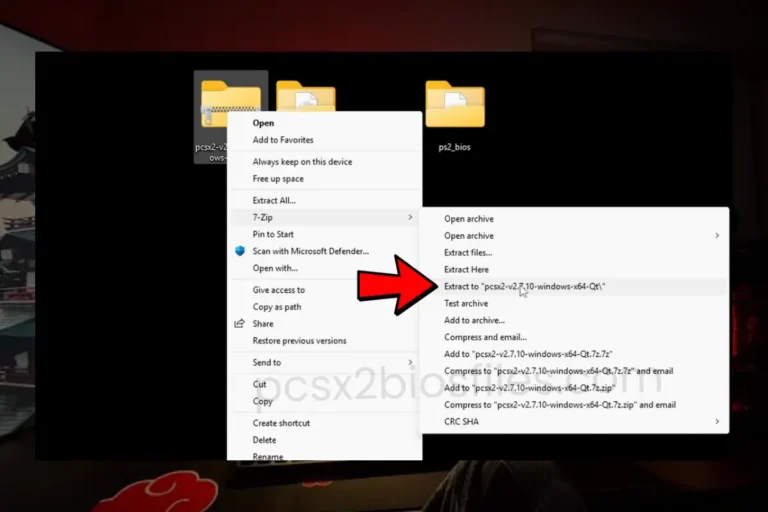
Step 2: Extract the BIOS files into a folder
If the file is a ZIP or 7Z archive, extract it before continuing. On Windows, right-click a ZIP file and choose Extract All. For a 7Z archive, use an extraction tool such as 7-Zip.
Place the extracted files in a folder such as Documents/PS2 BIOS. PCSX2 needs access to the BIOS files inside the archive, so selecting the compressed download will not complete setup.
Step 3: Open the BIOS settings in PCSX2
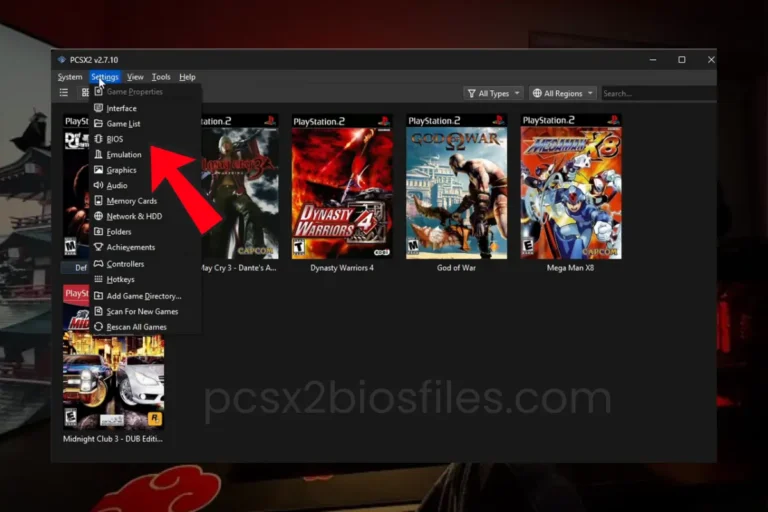
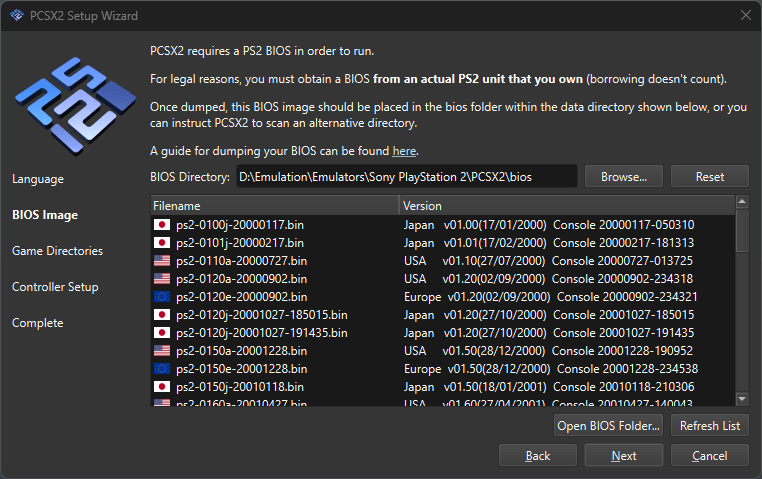
During first-time setup, continue through the setup wizard until you reach the BIOS selection screen.
If you have already completed setup, open PCSX2 and go to Settings > BIOS. This screen lets you choose the BIOS folder and select a detected BIOS.
Step 4: Select the correct BIOS folder
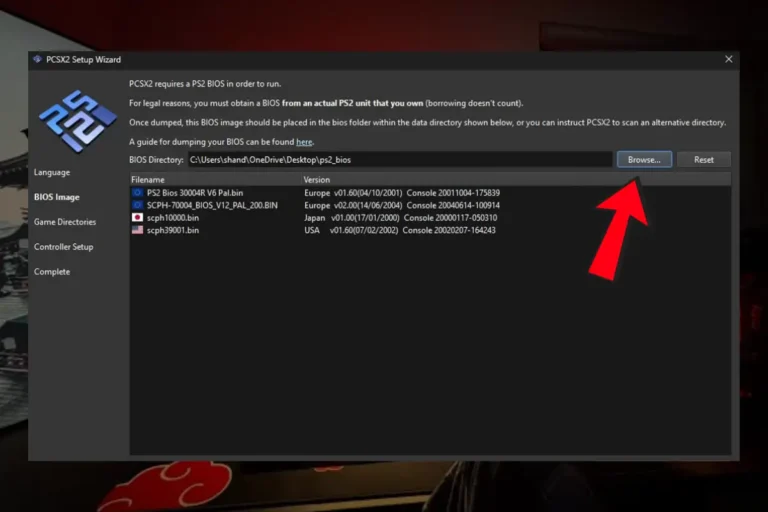
Click Browse beside the BIOS directory field and choose the folder containing your extracted BIOS files. If extraction created an extra subfolder, select the folder where the files are actually stored.
Refresh the BIOS list if it does not update automatically. A detected BIOS entry should display identifying information, such as its console model, region, version, or date. If the list stays empty, recheck the folder and confirm that the files are extracted.
Step 5: Choose a BIOS and save the settings
Click a detected BIOS entry to select it. During first-time setup, continue through the wizard. In the settings window, apply the change if prompted, then close the window.
Use a valid BIOS that PCSX2 recognizes. You generally do not need to switch BIOS regions for every game.
Step 6: Test the BIOS and launch a game
Open the System menu and select Start BIOS. If the PS2 system menu or initial console setup screen appears, PCSX2 has loaded the selected BIOS.
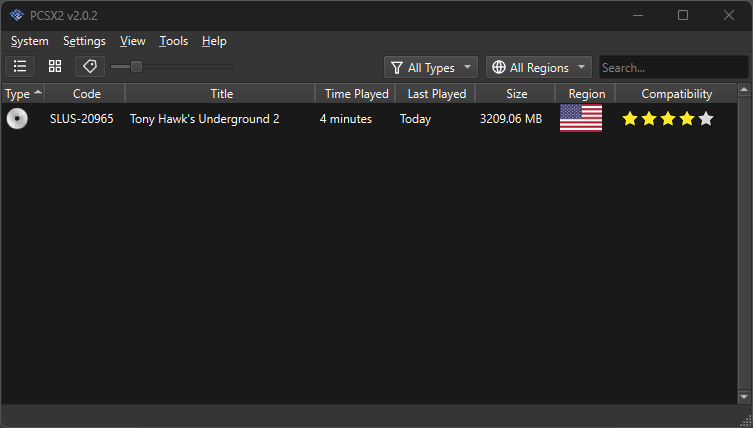
After the test, shut down the emulated system and launch a game from your game list. Successful BIOS setup should remove the “PCSX2 requires a PS2 BIOS” message. If a different error appears, troubleshoot that message separately.
Why is the BIOS not showing up in PCSX2?
If the BIOS list stays empty, check the folder location, extraction status, file validity, and access permissions. Start with the check below that matches your setup.
The selected folder is incorrect
Open Settings > BIOS and check the configured folder path. Make sure it points to the folder containing your extracted BIOS files.
Extraction may create an extra subfolder. For example, your files might be inside Documents/PS2 BIOS/PS2 BIOS. Browse to that inner folder, then refresh the BIOS list.
The BIOS files are still compressed
Check whether your download still ends in .zip, .rar, or .7z. PCSX2 needs the extracted BIOS files to detect a usable image.
Extract the archive with a compatible tool, then select the folder containing the extracted files. If extraction shows an error, resolve it before trying again.
The BIOS file is incomplete or invalid
Check whether the archive extracted successfully and whether any files are empty. An interrupted download, failed extraction, or incomplete BIOS dump can leave PCSX2 unable to recognize the file.
Changing a file extension to .bin does not turn it into a valid PS2 BIOS. If extraction keeps failing, obtain a complete copy through a lawful source or repeat the dump from your own console.
PCSX2 cannot access the folder
Make sure your user account has permission to read the folder and its files. If the BIOS is on an external drive, confirm that the drive is connected and its folder path has not changed.
For files stored in OneDrive, iCloud, or another cloud service, download them to your computer first. You can also move them to a local folder, select that location in PCSX2, and refresh the BIOS list.
Also Read> Best PS2 Emulators for PC
How to find your BIOS folder on Windows, macOS, and Linux
Open PCSX2 and go to Settings > BIOS. Check the BIOS directory field to see which folder the emulator currently uses. This is the location to check on Windows, macOS, and Linux, since the path can vary with your installation and settings.
Copy that path into File Explorer on Windows, Finder’s Go > Go to Folder on macOS, or your Linux file manager. Check that the folder contains your extracted BIOS files. You can also use Browse in PCSX2 to select a different folder.
Portable installations may keep the BIOS folder alongside the PCSX2 program files. If you move the portable folder to another location or drive, recheck the BIOS directory and update it if necessary.
Frequently Asked Questions
Can I run PCSX2 without a PS2 BIOS?
PCSX2 needs a valid PS2 BIOS to run PS2 games. You can open the emulator and adjust its settings without one, but you must select a BIOS before playing.
Does PCSX2 include BIOS files?
PCSX2 does not include Sony’s copyrighted BIOS files. You need to provide them separately, then select a detected BIOS in the emulator’s settings.
Do I need a BIOS that matches my game’s region?
Generally, no. PCSX2 can run games from different regions using a supported BIOS. Matching the BIOS region to each game is usually unnecessary.
Will changing the BIOS affect my saved games?
Changing the BIOS does not delete your memory card files. Keep the same virtual memory cards assigned in PCSX2 to access your existing saves. Save states can depend on the BIOS and emulator version, so make an in-game save before switching.
Do I need to reinstall PCSX2 to fix this error?
Usually, no. Check that your BIOS files are extracted, select their folder, and choose a detected BIOS. Reinstalling PCSX2 does not supply missing BIOS files.
Conclusion
Fixing the “PCSX2 requires a PS2 BIOS” error usually involves extracting your BIOS files, selecting the correct folder, and choosing a detected BIOS in PCSX2. If the list stays empty, check the folder path, file validity, and access permissions.
Once the PS2 system menu opens successfully, launch your game. Keep the BIOS files in the same location so PCSX2 can find them the next time you play.