How PCSX2 Plugins Work and Which Settings Improve PS2 Emulation
PCSX2 originally used separate plugins to handle PlayStation 2 graphics, audio, controllers, disc reading, and other hardware functions. Plugins such as GSdx, SPU2-X, and LilyPad allowed users to configure these components individually.
Modern PCSX2 versions have incorporated these functions directly into the emulator. You can adjust graphics renderers, audio output, controller mapping, and other settings through the main interface without installing separate plugin files.
Understanding how the older plugins worked is useful when following legacy setup guides or troubleshooting compatibility issues.
What are PCSX2 plugins?
PCSX2 plugins were software components responsible for emulating specific parts of the PlayStation 2 hardware. The original plugin system separated several tasks. GSdx handled graphics rendering, SPU2-X processed audio, and LilyPad managed controller input on Windows.
Each plugin communicated with the main emulator to reproduce the behavior of the corresponding PS2 component. The official PCSX2 FAQ confirms that these functions are now included in the emulator itself.
Old PCSX2 plugins vs modern built-in settings
| Older PCSX2 plugin | Function | Modern PCSX2 equivalent |
|---|---|---|
| GSdx | Graphics rendering | Graphics settings |
| SPU2-X | Audio emulation | Audio settings |
| LilyPad / OnePad | Controller input | Controller settings |
| CDVD plugins | Game disc access | Built-in game loading |
| DEV9 plugins | Network and HDD functions | Built-in emulation and related settings |
| USB plugins | PS2 USB peripherals | Built-in USB emulation and device support |
The older plugin names still appear in tutorials and discussions, especially those written for PCSX2 1.6.0 and earlier.
How the PCSX2 plugin system worked
Earlier PCSX2 releases used a modular architecture. The main emulator handled the PS2’s processor and system operations while plugins processed specific hardware functions. For example, the graphics plugin received drawing commands from the emulated PS2 Graphics Synthesizer and produced the image displayed on your computer.
Audio and controller plugins performed similar tasks for sound processing and input. Users could select compatible plugins through the configuration menu, change their settings, and troubleshoot individual components.
Why PCSX2 moved away from external plugins
Modern PCSX2 incorporates the former plugin functions into its main codebase. This allows developers to maintain the emulator’s components together and provide configuration through a consistent interface.
Users now configure most emulation features directly through the Settings menu. This also means older instructions about copying plugin DLL files into a plugins folder generally do not apply to current PCSX2 releases.
PCSX2 graphics plugins and rendering settings
Graphics settings control how PCSX2 renders PS2 games on your computer. In older versions, GSdx was the main graphics plugin. It supported hardware and software rendering, internal resolution scaling, texture filtering, and other visual settings.
Modern PCSX2 provides comparable controls through its built-in graphics configuration.
GSdx graphics plugin
GSdx translated PS2 graphics operations into rendering commands supported by the computer’s graphics hardware or CPU. It allowed users to choose different graphics backends and adjust visual quality.
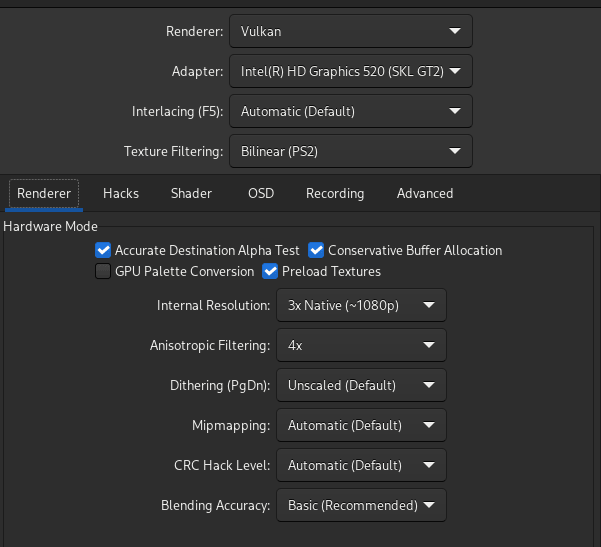
Common GSdx options included internal resolution scaling, texture filtering, and hardware or software rendering. For PCSX2 1.6.0, these settings were available through the plugin configuration interface.
Best graphics renderer for PCSX2
Current PCSX2 supports several rendering options. Their performance depends on your graphics card, operating system, drivers, and the game being emulated.
| Renderer | Recommended use |
|---|---|
| Automatic | Recommended starting option |
| Vulkan | Modern GPUs with compatible drivers |
| Direct3D 12 | Supported Windows systems |
| OpenGL | Alternative for compatibility testing |
| Software | Diagnosing rendering errors |
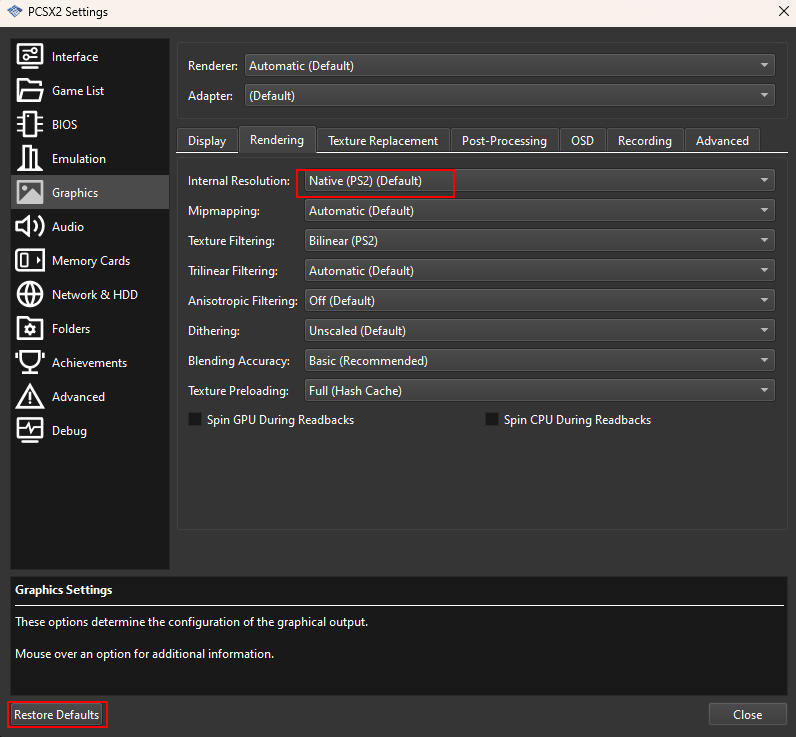
PCSX2’s official documentation recommends leaving the graphics API on Automatic when you’re unsure which renderer to select.
How to change PCSX2 graphics settings
- Open PCSX2.
- Select Settings → Graphics.
- Find the Renderer option.
- Choose Automatic or another supported renderer.
- Adjust Internal Resolution if needed.
- Launch a game and check its performance.
Internal resolution and upscaling
Internal resolution determines how sharply PCSX2 renders many 3D elements. Increasing it can make games look clearer on modern monitors, although it increases GPU workload.
A practical starting point is:
| PC hardware | Starting resolution |
|---|---|
| Older or integrated graphics | Native (1x) |
| Entry-level dedicated GPU | 2x |
| Midrange dedicated GPU | 3x |
| Powerful dedicated GPU | 4x or higher |
These are starting recommendations, not guaranteed performance levels. Some games have demanding effects or rendering problems at higher resolutions. If gameplay slows down after increasing the resolution, return to a lower setting.
Also Read> Types of PS2 BIOS
PCSX2 audio plugins and sound settings
Audio emulation reproduces PS2 music, dialogue, and sound effects.
Older PCSX2 versions used the SPU2-X plugin for sound processing. Modern versions include audio emulation directly in the application.
What was the SPU2-X plugin?
SPU2-X handled audio output and synchronization between the emulated PS2 hardware and the host computer. Its configuration included options for sound output, latency, and synchronization.
These settings could affect crackling, delayed sound, or audio that became distorted when a game ran below full speed.
How to configure audio in modern PCSX2
Open Settings → Audio to access the available sound options.
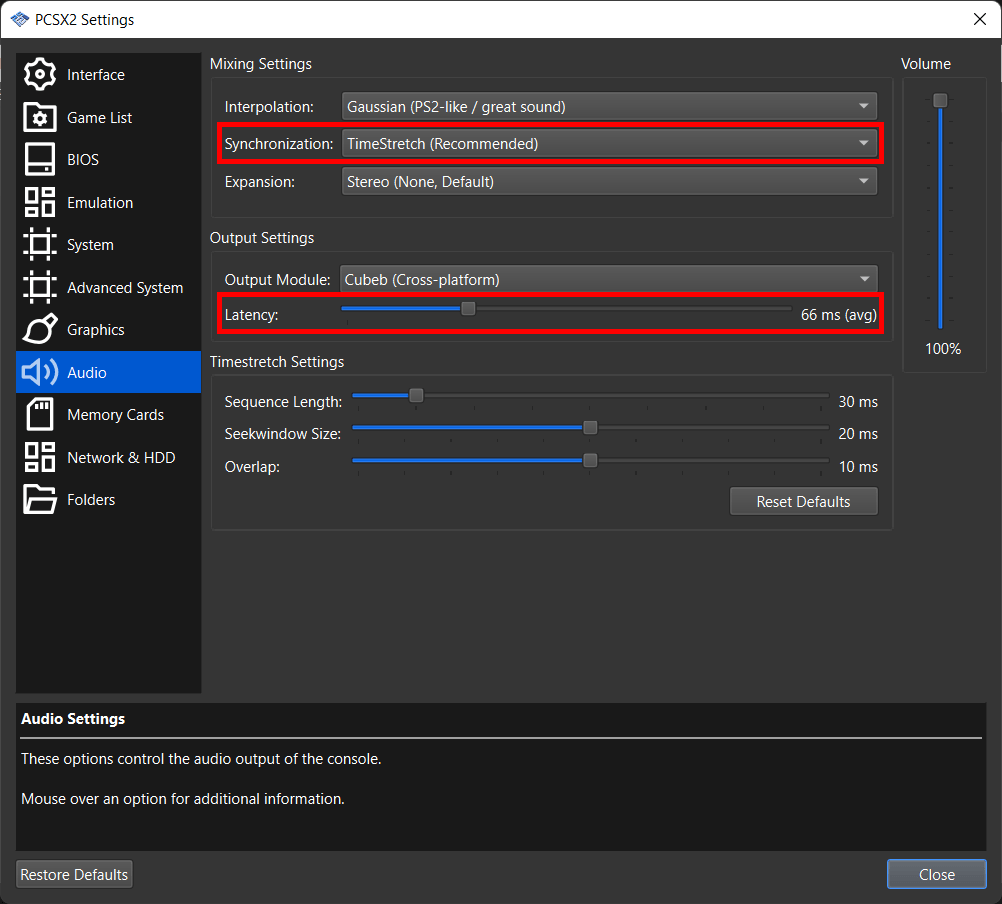
Start with the default audio settings.
If you hear crackling or distorted sound, check whether the game is maintaining its intended emulation speed. Audio problems often occur when the computer cannot emulate the game fast enough.
You can also try increasing the audio buffer or latency setting, if available in your version. Higher latency may reduce interruptions at the cost of a longer sound delay. Avoid changing several audio options simultaneously because it becomes harder to identify which setting caused the problem.
PCSX2 controller plugins and input configuration
Controller plugins previously translated keyboard and gamepad input into commands recognized by PS2 games.
LilyPad was commonly used on Windows, while OnePad was associated with Linux builds. Modern PCSX2 includes controller configuration directly in the emulator.
LilyPad controller plugin
LilyPad supported keyboard mapping, analog sticks, controller buttons, and vibration on compatible devices.
Older tutorials may direct you to Config → Controllers (PAD) → Plugin Settings.
That menu belongs to the legacy interface.
How to set up a controller in modern PCSX2
- Connect your USB or Bluetooth controller.
- Open PCSX2.
- Go to Settings → Controllers.
- Enable the appropriate input source.
- Select Controller Port 1.
- Use Automatic Mapping when your controller is supported.
- Check the button assignments and test the game.
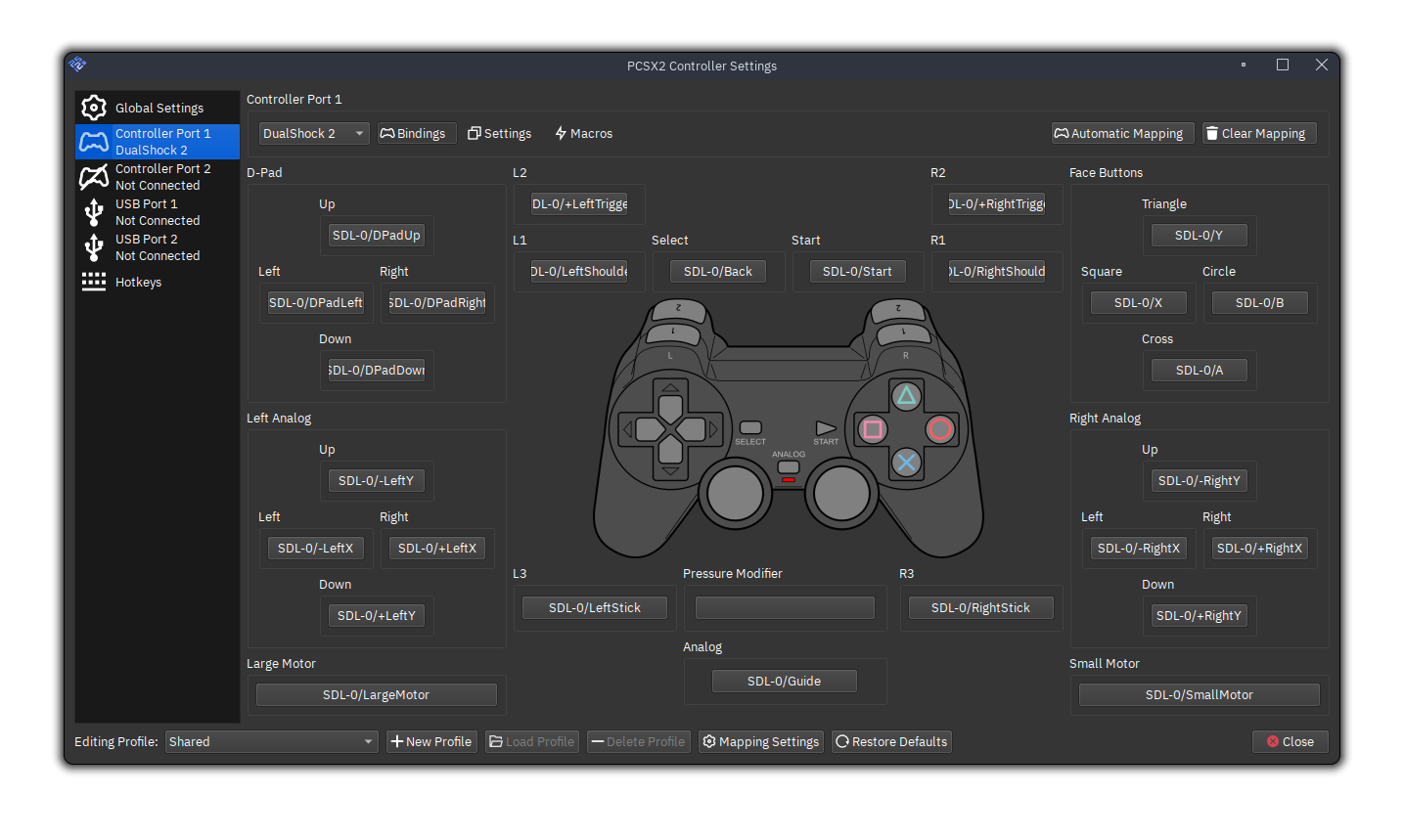
SDL is the recommended input source in PCSX2’s official controller documentation. It supports a range of controllers and can automatically map supported devices.
Controller not detected in PCSX2
Check that your operating system recognizes the controller before changing emulator settings. Try reconnecting the device, selecting the correct input source, and remapping the buttons.
If you use a PlayStation controller, SDL support may allow direct configuration without separate controller-mapping software.
CDVD plugins and PS2 game loading
Older PCSX2 versions used CDVD plugins to read PS2 game discs and disc images. These plugins controlled how the emulator accessed game data.
Some legacy configurations used plugins such as Gigaherz CDVD for physical disc access. Modern PCSX2 includes game loading directly in the emulator.
How to load a PS2 ISO in PCSX2
A PS2 ISO is a disc image containing data copied from a PlayStation 2 game disc.
To load one:
- Open PCSX2.
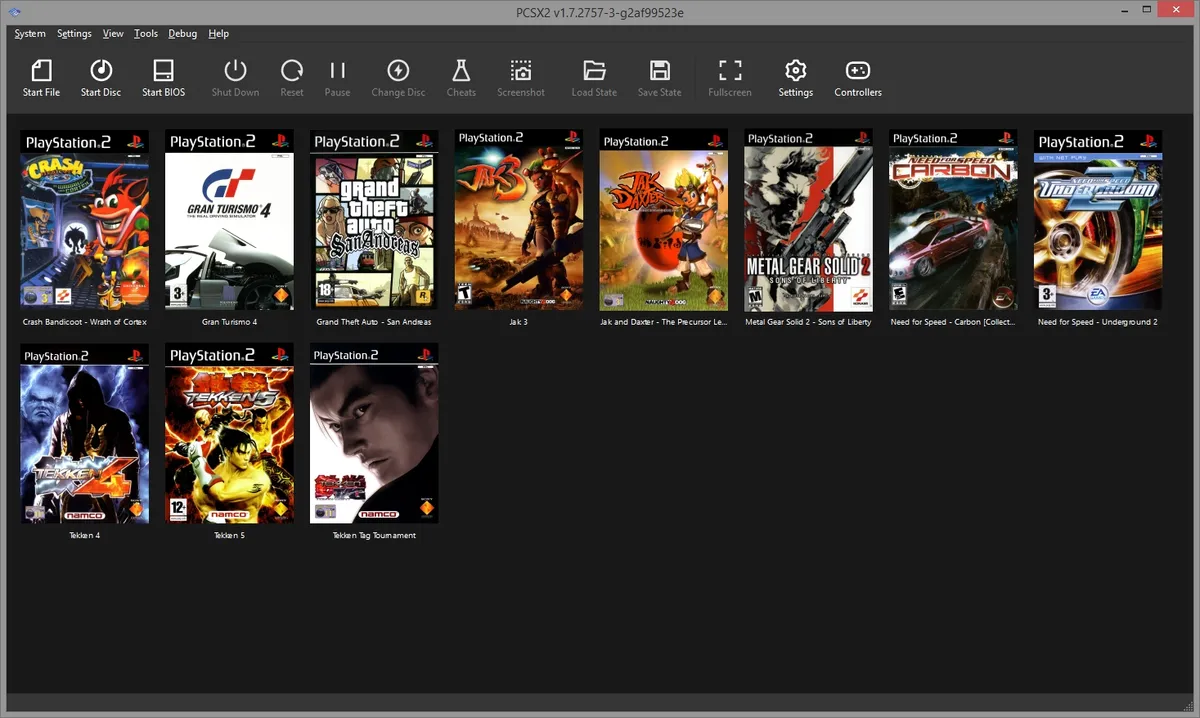
- Add the folder containing your legally obtained PS2 game backups to the game directory list.
- Allow PCSX2 to scan the folder.
- Select the game from the library.
- Launch it.
Use properly dumped game images from discs you own. Corrupted or incomplete images can cause loading errors and crashes.
DEV9 and USB plugins in PCSX2
Some PS2 games used additional hardware, including network adapters, hard drives, and USB peripherals. Legacy PCSX2 releases handled these functions through separate plugin interfaces.
DEV9 emulation
DEV9 is associated with PS2 expansion hardware, including Ethernet and hard drive functionality. It is relevant to games that support compatible networking or storage features.
Modern PCSX2 incorporates DEV9-related functionality, although the available options and supported use cases depend on the release.
USB peripheral emulation
The PlayStation 2 supported several USB accessories.
PCSX2 includes USB emulation, but support varies by device type and game. Connecting a modern USB accessory does not guarantee that PCSX2 can emulate the corresponding PS2 peripheral.
Check compatibility information for any game that requires special hardware.
Best PCSX2 settings for smooth PS2 emulation
The best settings depend on your CPU, GPU, and the particular PS2 game. Start with the emulator’s defaults and adjust the settings that affect your system.
Settings for low-end PCs
For weaker computers, prioritize stable emulation speed.
| Setting | Recommendation |
|---|---|
| Renderer | Automatic |
| Internal resolution | Native (1x) |
| Texture filtering | Default |
| Audio | Default |
| Speed controls | Default |
| Game fixes | Automatic or default |
If a game runs slowly, check whether your CPU or GPU is limiting performance.
Reducing internal resolution can help when the GPU is overloaded. It may have little effect if the main limitation is CPU emulation.
Settings for midrange and high-end PCs
Computers with stronger CPUs and GPUs can often use higher rendering resolutions. Start with Automatic rendering and increase internal resolution gradually.
Try 3x or 4x scaling if the game maintains full speed. Some advanced rendering settings can improve visual accuracy but may increase GPU workload.
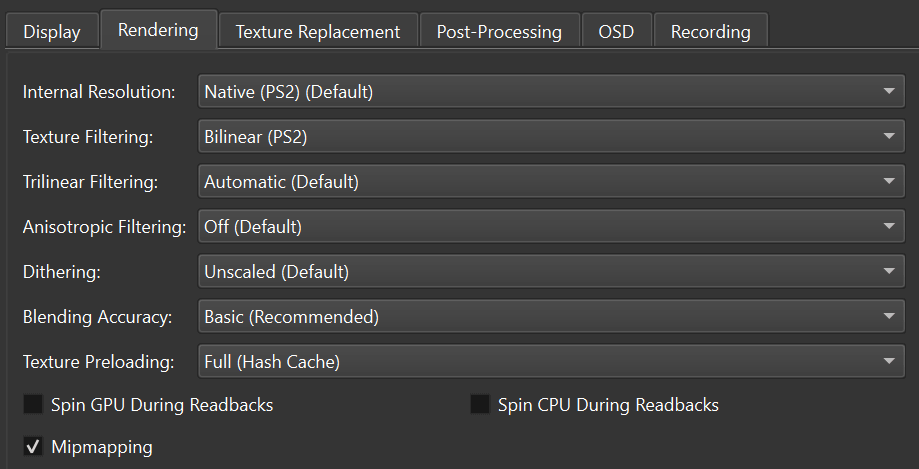
Use per-game settings when necessary
Different PS2 games can behave differently under the same emulator configuration. A graphics setting that works well in one game may introduce visual errors in another.
PCSX2 supports game-specific configuration options, allowing you to adjust individual titles without changing the settings used by your entire library.
Common PCSX2 plugin and settings problems
Most modern configuration problems can be investigated through the built-in graphics, audio, and controller settings.
PCSX2 plugins not showing
If you are following an older tutorial and cannot find the Plugins menu, check which PCSX2 version you have installed. Modern PCSX2 releases use built-in components.
Open the Settings menu and select the relevant category, such as Graphics, Audio, or Controllers.
Black screen when launching a PS2 game
A black screen can have several causes, including an invalid game image, incorrect configuration, or graphics rendering problems.
Try the following:
- Confirm that PCSX2 recognizes your BIOS dump.
- Check that the game image is valid.
- Return graphics settings to their defaults.
- Try another supported renderer.
- Check the game’s compatibility information.
PCSX2 runs slowly after changing settings
Return the internal resolution to Native (1x) and test the game again. If performance improves, the higher graphics resolution may have exceeded your GPU’s capabilities.
If performance remains poor, the CPU, game-specific emulation demands, or another setting may be responsible. Avoid changing advanced emulation options without a specific reason.
Can you download and install PCSX2 plugins?
Older PCSX2 versions supported external plugin files. Users could place compatible plugin files in the appropriate directory and select them through the emulator’s configuration menu.
Current PCSX2 versions do not support loading external plugins through that legacy system.
For modern installations, download PCSX2 from the official PCSX2 website and configure its built-in features.
Avoid downloading unknown plugin DLL files from third-party websites. Untrusted executable files can compromise your computer.
Frequently asked questions
Does PCSX2 still use plugins?
Modern PCSX2 includes the functions previously handled by external plugins. Older releases used separate components such as GSdx, SPU2-X, and LilyPad.
What is the best graphics plugin for PCSX2?
GSdx was the standard graphics plugin in older PCSX2 versions. Current releases use built-in graphics rendering, with Automatic recommended as the starting renderer.
Can I install LilyPad on PCSX2 2.x?
Modern PCSX2 versions do not support the older external LilyPad plugin system. Controller configuration is available through Settings → Controllers.
Does changing graphics settings improve FPS?
Changing the renderer or lowering internal resolution can improve performance when graphics processing is the limitation. CPU-heavy games may remain slow even at native resolution.
Do I need plugins to run PS2 games?
Current PCSX2 releases include the components required for standard emulation. You still need a properly configured BIOS dumped from your own console and compatible game files.
Conclusion
PCSX2’s original plugins handled graphics, sound, controllers, disc reading, and additional PS2 hardware. Modern versions include these functions directly in the emulator.
For most games, start with the default settings, use Automatic graphics rendering, and adjust internal resolution according to your computer’s performance. Change individual settings when a specific game needs troubleshooting.