
How to Set Up AetherSX2 BIOS on Android: Step-by-Step Guide
To set up AetherSX2 BIOS on Android, open the emulator, go to the BIOS setup screen, and tap Import BIOS. Select a valid PS2 BIOS .bin file from your phone’s storage and follow the on-screen instructions to complete the setup.
AetherSX2 requires a PlayStation 2 BIOS to run PS2 games on Android. If you’re setting up the emulator for the first time or having trouble getting it to recognize your BIOS file, this guide covers the installation process, BIOS file requirements, and common errors with step-by-step solutions.
What Is AetherSX2 BIOS and Why Do You Need It?
AetherSX2 is a PlayStation 2 (PS2) emulator that lets you play PS2 games on Android devices. To run these games, the emulator needs a PS2 BIOS (Basic Input/Output System), which contains the system software originally used by the PlayStation 2 console.

The BIOS handles essential startup functions and system initialization. AetherSX2 uses this software to reproduce the PS2’s boot process and provide the system functions that games expect. Without a valid BIOS file, AetherSX2 cannot properly boot PS2 games.
It’s also important to understand the difference between a PS2 BIOS file and a PS2 game ISO:
- PS2 BIOS file: Contains the console’s system firmware. It’s usually stored in a
.binfile and must be imported into AetherSX2. - PS2 game ISO: Contains the data from a PlayStation 2 game disc. It’s typically stored as an
.isofile and is loaded separately through the emulator.
For example, if you want to play God of War on your Android phone, you’ll need a valid PS2 BIOS and a compatible game image created from your own disc.
Once you’ve imported the BIOS into AetherSX2, you generally won’t need to repeat the process unless you reinstall the emulator, clear its app data, or change your BIOS configuration.
What You Need Before Setting Up AetherSX2 BIOS
Before setting up AetherSX2 BIOS on Android, make sure you have the required files and a compatible device. Preparing everything in advance will help you avoid installation errors and problems detecting your BIOS file.
Here’s what you’ll need:
- Compatible Android phone or tablet: Use a device running Android 8.0 or later. A 64-bit processor and at least 4 GB of RAM are recommended, although demanding PS2 games may require more powerful hardware.
- AetherSX2 emulator: You need AetherSX2 installed on your Android device. If you already have it installed, open the app and check that it works before importing your BIOS.
- Valid PS2 BIOS file: AetherSX2 requires an authentic PlayStation 2 BIOS dumped from your own console. The BIOS is typically stored as a
.binfile, such asSCPH-70012.bin. Make sure the file is complete and accessible on your phone. - File manager and storage folder: Use your phone’s built-in file manager or another trusted file management app to locate the BIOS file. You can keep it in a folder such as
Downloads/PS2 BIOSfor easy access during setup.
Set Up AetherSX2 BIOS on Android
Setting up AetherSX2 BIOS on Android involves installing the emulator, preparing a valid PS2 BIOS file, and importing it through the app’s setup wizard. Once the BIOS is recognized, you can add your PS2 games and start playing.
Follow these 7 steps to complete the setup.
Step 1: Install and Open AetherSX2 on Android
First, make sure your Android device supports AetherSX2. The emulator requires a 64-bit Android device, and Android 8.0 or newer is generally recommended. A phone with at least 4 GB of RAM and a powerful processor will provide better performance, especially with demanding PS2 games.
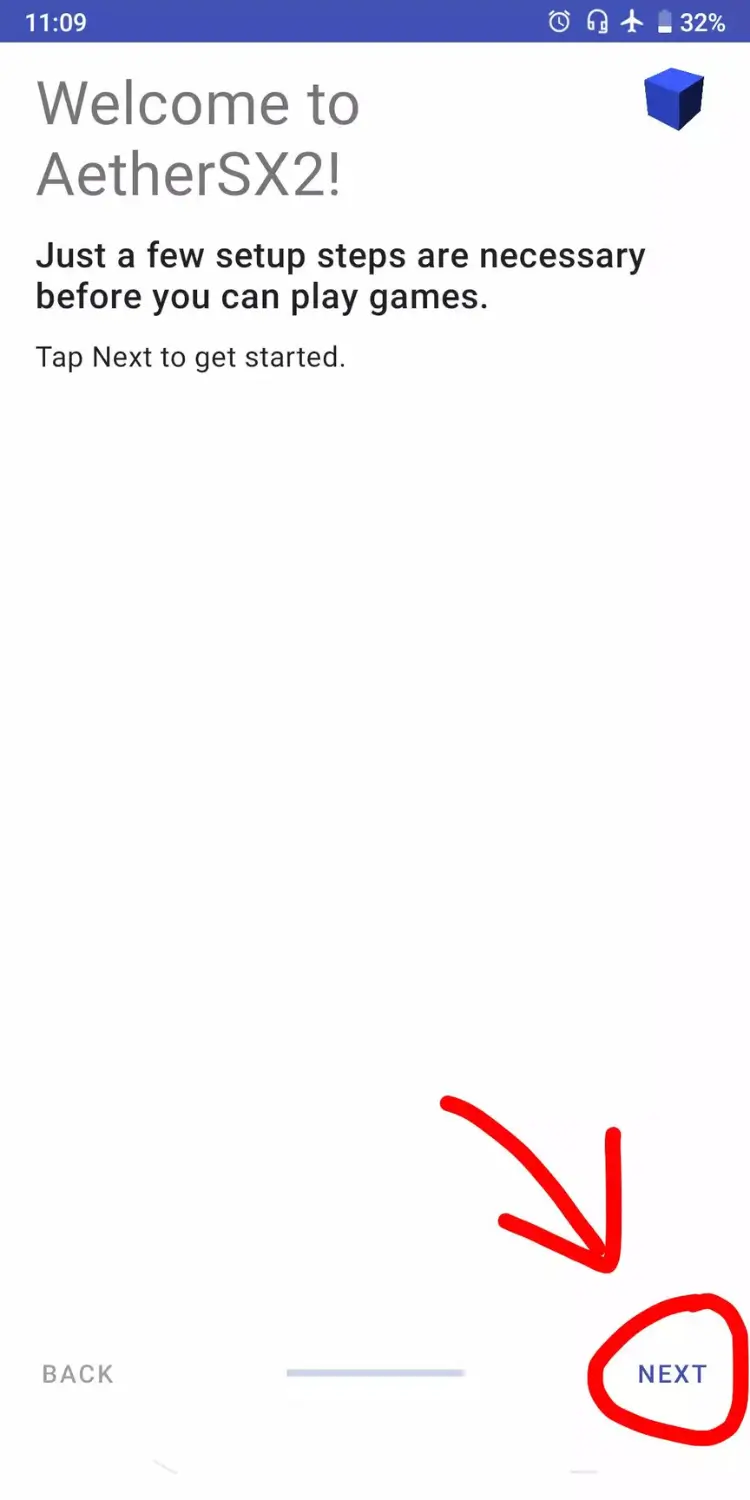
If AetherSX2 is already installed, open it and continue with the setup.
For a new installation:
- Obtain the AetherSX2 APK from a trustworthy source, preferably a verified archive of the original release.
- Open the APK file using your Android file manager.
- If prompted, allow installation from that specific source in your phone’s security settings.
- Tap Install and open AetherSX2 once installation finishes.
- On the welcome screen, tap Next to begin the setup wizard.
AetherSX2 is no longer actively maintained by its original developer. Be careful with unofficial APK websites, as modified installation files may contain unwanted software or malware.
During the initial setup, AetherSX2 may ask you to select a performance profile. Choose Optimal/Safe for the recommended default settings, then tap Next to continue.
Step 2: Prepare Your PS2 BIOS File
Before importing the BIOS, make sure you have a valid PS2 BIOS file. You can visit PCSX2BIOSFiles.com to find information about PS2 BIOS files, available versions, and supported regions.

To prepare your BIOS:
- Visit pcsx2biosfiles.com.
- Check the available PS2 BIOS versions and regions.
- Use a valid BIOS file dumped from your own PS2 console.
- Make sure the BIOS file is in
.binformat, such asSCPH-70012.bin. - Save the file in your Android phone’s Downloads folder.
Once your BIOS file is ready, you can import it into AetherSX2 during the setup process.
Step 3: Extract the BIOS File on Your Android Phone
If your PS2 BIOS backup is stored in a compressed ZIP or 7z archive, extract it before importing it into AetherSX2.
Most Android phones can extract ZIP archives using the built-in file manager. For 7z files, you may need a trusted archive extraction app.
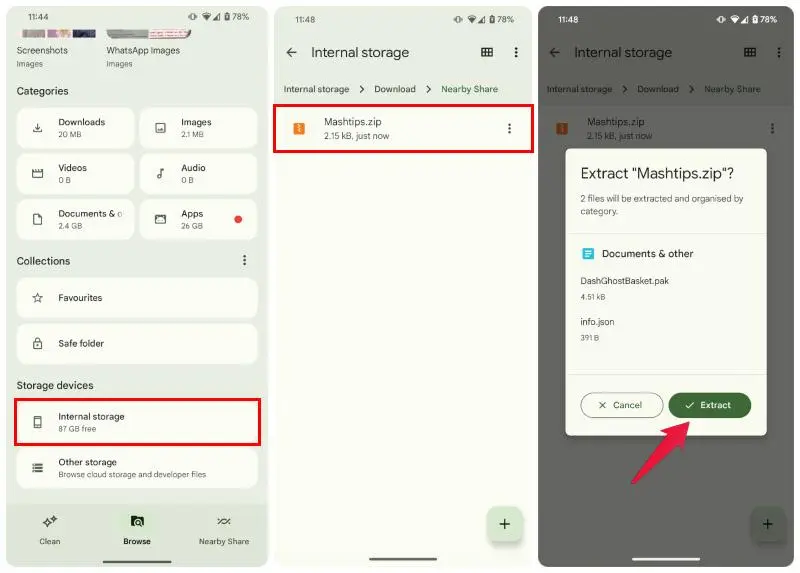
Follow these steps:
- Open the Files or File Manager app on your Android device.
- Navigate to the folder containing your BIOS archive.
- Tap the ZIP or 7z file.
- Select Extract or Extract Here, depending on your file manager.
- Open the extracted folder and locate the BIOS
.binfile. - Move the file to a folder you can easily find during setup.
For example, you can organize your files this way:
Internal Storage > Download > PS2 BIOS > SCPH-70012.bin
You can name the folder anything you prefer. AetherSX2 doesn’t require a particular folder name because you’ll manually select the BIOS file during import.
Tip: Select the extracted BIOS file when importing it. If the BIOS is still inside a compressed archive, AetherSX2 may fail to recognize it.
Step 4: Open the BIOS Setup Screen in AetherSX2
Once your BIOS file is ready, return to AetherSX2 to begin importing it.
When you open AetherSX2 for the first time, the setup wizard guides you through the initial configuration.
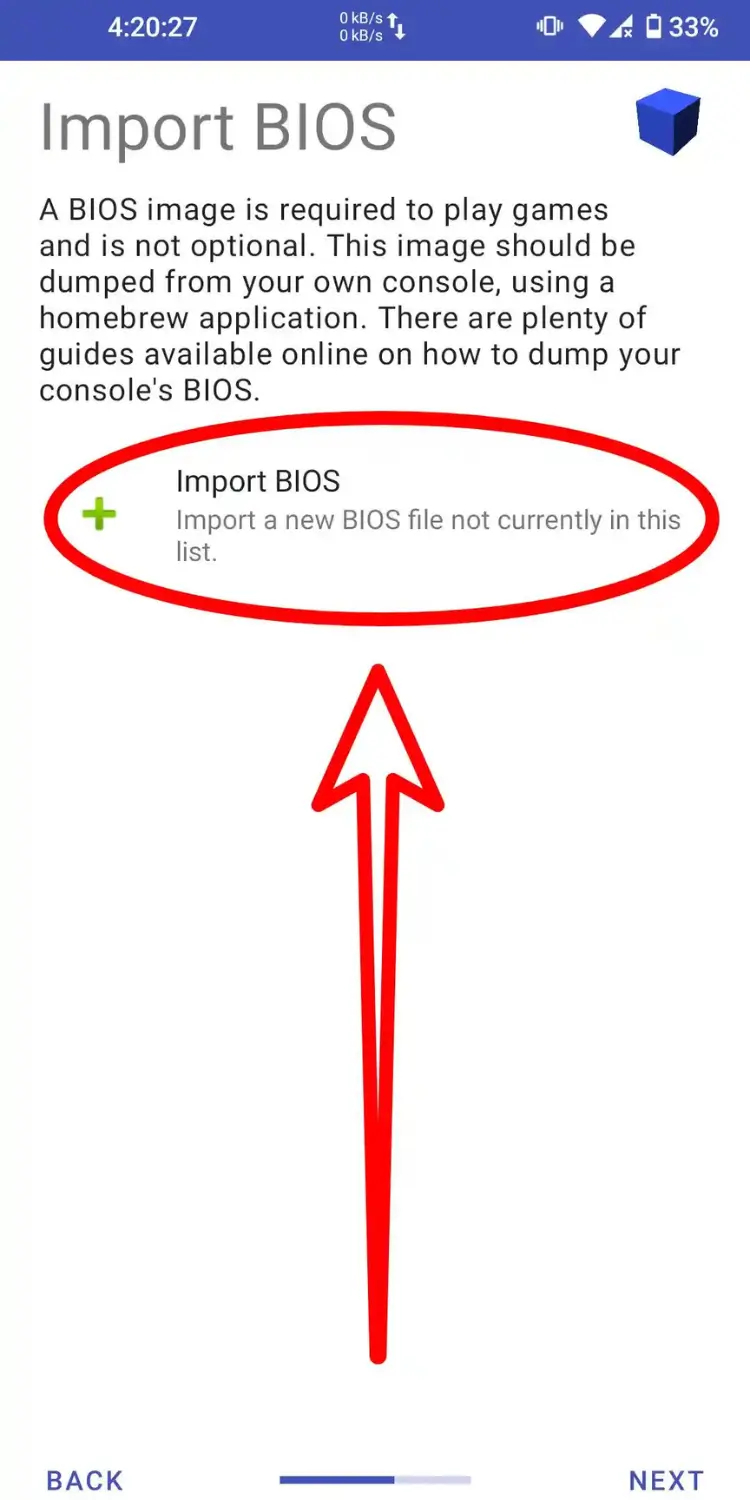
To reach the BIOS setup screen:
- Open the AetherSX2 app.
- Tap Next on the welcome screen.
- Read the information presented by the emulator and continue.
- Select the Optimal/Safe performance profile.
- Tap Next to reach the BIOS selection screen.
You should now see the option to import a PS2 BIOS file.
If you’ve already completed the initial setup, you can access the same function through:
Three-line menu (☰) > App Settings > BIOS
This menu allows you to import or change your BIOS without repeating the entire setup wizard.
Step 5: Import and Select Your PS2 BIOS File
This is the main step in setting up AetherSX2 BIOS on Android.
On the BIOS selection screen, you’ll find an Import BIOS option. This allows you to select the PS2 firmware file stored on your phone.
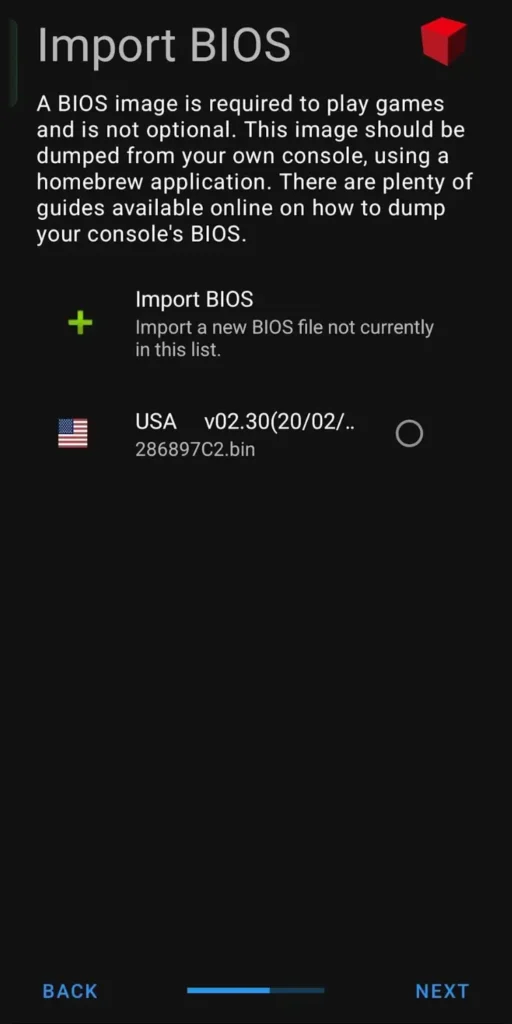
Follow these instructions:
- Tap Import BIOS.
- Your Android file picker will open.
- Navigate to the folder where you saved the extracted BIOS file.
- Select your PS2 BIOS
.binfile. - Allow AetherSX2 to import and check the file.
- Once imported, look for the BIOS in the available BIOS list.
- Tap the imported BIOS to select it, then choose Next.
AetherSX2 should display information about the recognized BIOS, such as its region or version, depending on the emulator build.
Make sure your imported BIOS is selected before continuing. Importing a file and selecting it as the active BIOS may be separate actions.
If the file doesn’t appear in the BIOS list, check that you’ve selected the extracted .bin file and that it contains a valid PS2 BIOS dump.
Once AetherSX2 recognizes and selects your BIOS, the firmware setup is complete.
Step 6: Add Your PS2 Games Folder
After setting up the BIOS, you’ll need to tell AetherSX2 where your PS2 game files are stored.
AetherSX2 can scan a selected folder and display recognized games in its library. For this step, use game images created from PlayStation 2 discs you legally own.
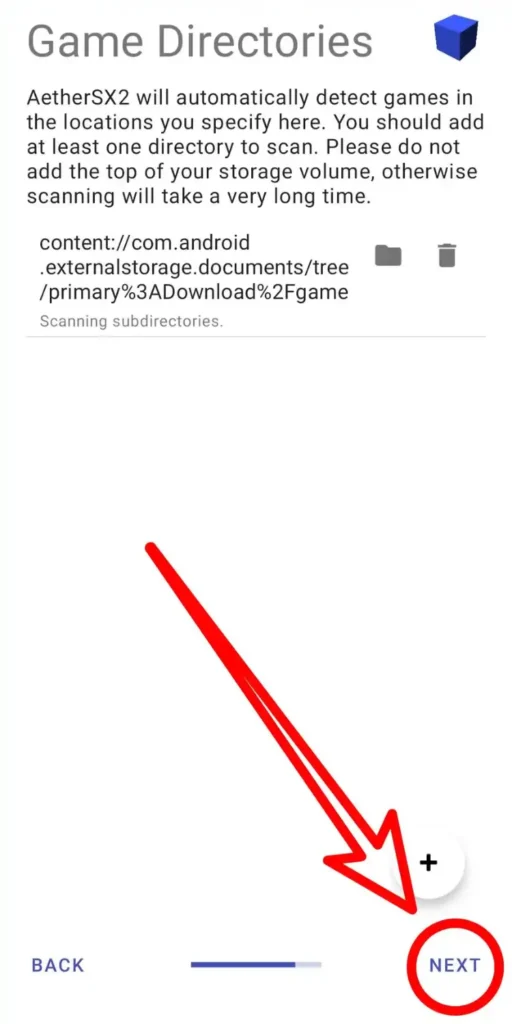
To add your games:
- On the game directory setup screen, tap Add Games or the option to select a game directory.
- Your Android file picker will open.
- Navigate to the folder containing your PS2 game images.
- Select the folder and grant access if Android asks for permission.
- Return to AetherSX2 and tap Next.
- Finish the setup wizard.
For example, your game folder might be located at:
Internal Storage > PS2 Games
Your game ISO files can be stored inside this folder.
If you’ve already completed the setup wizard, you can add a game folder later by opening:
Three-line menu (☰) > App Settings > Game List > +
Select your games folder and allow AetherSX2 to scan it.
Once the scan finishes, recognized games should appear on the emulator’s main screen.
Step 7: Launch a PS2 Game to Test the BIOS
After importing the BIOS and adding your games folder, launch a game to check whether everything is working.
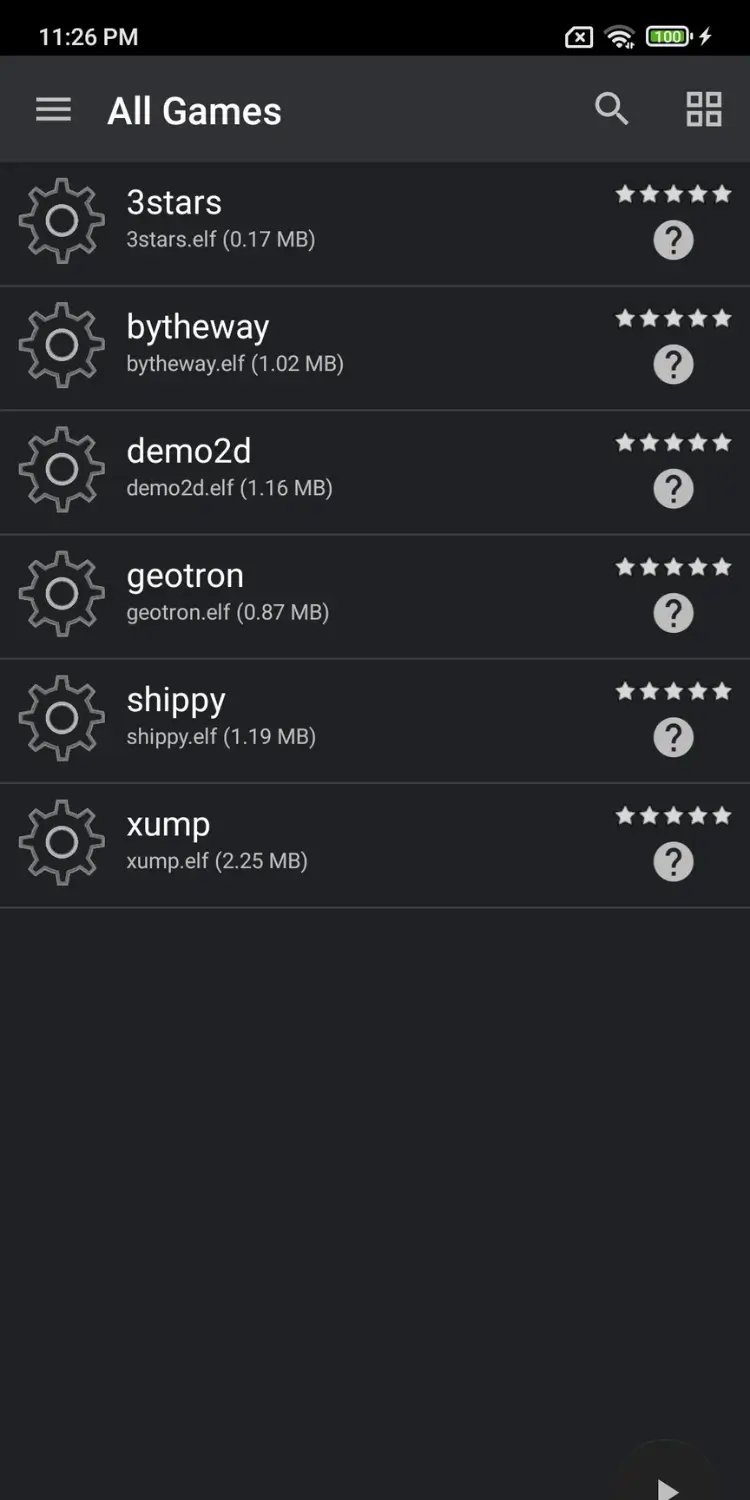
Follow these steps:
- Open AetherSX2 on your Android device.
- Go to the main game library.
- Find a PS2 game you’ve added.
- Tap the game’s title to launch it.
- Allow the emulator to load the game.
If the game starts successfully and reaches its opening screen or main menu, your BIOS is working with that game.
You can now use AetherSX2’s on-screen controls or connect a compatible Bluetooth or USB controller to play.
If the game doesn’t start, pay attention to the error message.
- BIOS not found: AetherSX2 may not have an active BIOS selected. Return to App Settings > BIOS and check your selection.
- Invalid BIOS: The imported file may be damaged, incomplete, or incompatible. Check your original BIOS dump.
- Black screen: The problem could involve the BIOS, game image, graphics settings, or game compatibility.
- Slow gameplay: Your device may struggle to emulate the game. This is usually a performance issue rather than a BIOS installation problem.
A successful BIOS import confirms that AetherSX2 recognizes your PS2 firmware. However, individual game performance also depends on your Android hardware, emulator settings, and game compatibility.
Once you’ve confirmed that a game launches correctly, your AetherSX2 BIOS setup is complete.
How to Change or Reimport BIOS in AetherSX2
If you skipped the BIOS setup during installation or want to use a different PS2 BIOS version, you can change it directly from AetherSX2 settings without reinstalling the emulator.
Follow these steps:
- Open AetherSX2 on your Android device.
- Tap the three-line menu (☰) and select App Settings.
- Open the BIOS tab to view your imported BIOS files.
- Tap Import BIOS to add a new BIOS
.binfile from your phone’s storage. - Select the newly imported BIOS or choose another version already available in the list.
- Confirm that your preferred BIOS is selected, then return to the game library.
You can import multiple PS2 BIOS versions, including USA, Europe, and Japan region files, and switch between them when needed.
Tip: If AetherSX2 doesn’t recognize your replacement BIOS, check that the file is extracted, valid, and in a supported format. Restart the emulator if the new BIOS doesn’t appear after importing it.
How to Fix AetherSX2 BIOS Not Found or Not Detected
If AetherSX2 cannot detect your PS2 BIOS, the problem may be caused by an incorrect file format, a corrupted BIOS, or missing storage permissions. Here are the most common errors and how to fix them.
1. AetherSX2 Says No BIOS Image Found
This error usually appears when AetherSX2 doesn’t have a valid BIOS selected.
Fix: Open App Settings > BIOS and check whether your BIOS appears in the list. Select a valid BIOS file. If the list is empty, use Import BIOS to add it again.
2. BIOS File Does Not Appear During Import
Your BIOS may not appear in the file picker if it’s still inside a compressed archive or stored in an inaccessible folder.
Fix: Extract the ZIP or 7z archive and move the BIOS .bin file to your Downloads folder. Open the file picker again and select the extracted file.
3. AetherSX2 Shows an Invalid BIOS File Error
An invalid BIOS error generally means the emulator cannot recognize the selected firmware. The file may be incomplete, corrupted, or incorrectly formatted.
Fix: Check that you’re using a complete PS2 BIOS dump from your own console. Don’t simply rename another file to .bin, as changing the extension won’t make it a valid BIOS.
4. Android Storage Permissions Prevent BIOS Access
Android may prevent AetherSX2 from accessing certain folders, especially on newer Android versions.
Fix: Move the BIOS file to an accessible folder, such as Downloads. Open the Android file picker through AetherSX2 and grant access when prompted. If necessary, check the app’s available permissions under Settings > Apps > AetherSX2.
5. Game Shows a Black Screen After BIOS Setup
A black screen may occur because of a damaged game image, incompatible graphics settings, or game compatibility issues.
Fix: First, confirm that the correct BIOS is selected. Then try launching another PS2 game. If the second game works, check the original game’s ISO. You can also switch between Vulkan and OpenGL graphics renderers in AetherSX2 settings.
Tip: If AetherSX2 recognizes your BIOS but a particular game still won’t start, investigate the game file and emulator settings before replacing the BIOS.
Which PS2 BIOS Region Should You Use for AetherSX2?
AetherSX2 supports PS2 BIOS files from different regions, including USA, Europe, and Japan. Choosing the appropriate BIOS region can help with regional system settings and compatibility. Understanding the different types of PS2 BIOS can help you choose a suitable version for your emulator.
Here are the three main PS2 BIOS regions:
- USA (NTSC-U): Used for North American PlayStation 2 consoles. A suitable choice for users with US-region PS2 games.
- Europe (PAL): Used for European PlayStation 2 consoles. PAL games commonly use a 50 Hz video standard.
- Japan (NTSC-J): Used for Japanese PlayStation 2 consoles. Useful for Japanese system settings and region-specific features.
When Should You Switch BIOS Regions?
You may need to switch BIOS versions if a game requires specific regional system behavior or if you’re troubleshooting compatibility issues.
However, most PS2 games don’t require a matching BIOS region to run in AetherSX2. Switching regions also won’t automatically fix corrupted game files or performance problems.
Frequently Asked Questions
Can AetherSX2 Run Without a PS2 BIOS?
No, AetherSX2 requires a valid PlayStation 2 BIOS to run PS2 games on Android. Without a BIOS, the emulator cannot properly initialize the PS2 system. You need to import a BIOS file dumped from your own PS2 console before launching games.
What BIOS File Format Does AetherSX2 Support?
AetherSX2 supports valid PS2 BIOS dumps, commonly stored in .bin format. For example, SCPH-70012.bin is a typical BIOS filename. If your BIOS is compressed in a ZIP or 7z archive, extract it before importing the file.
Where Should I Store the PS2 BIOS on Android?
You can store your PS2 BIOS in any accessible folder on your Android device. The Downloads folder is a convenient option. AetherSX2 imports the selected BIOS into its app data, so you don’t need to keep it in a specific system directory.
Can I Use the Same BIOS for AetherSX2 and PCSX2?
Yes, AetherSX2 and PCSX2 can use the same valid PS2 BIOS dump. Both emulators rely on PlayStation 2 firmware to run games. If you already have a working BIOS dumped from your own console for PCSX2, you can import that file into AetherSX2 on Android.
Conclusion
Setting up AetherSX2 BIOS on Android is simple once you have a valid PS2 BIOS file. Import the .bin file through the emulator’s BIOS settings, select it, and launch a PS2 game to confirm everything works.
If AetherSX2 cannot detect your BIOS, check the file format, storage permissions, and active BIOS selection. You can also switch BIOS versions without reinstalling the emulator.
For more information about PS2 BIOS versions and regional compatibility, visit PCSX2BIOSFiles.com.