
Best PS2 Emulators for PC to Run PlayStation 2 Games on Windows
PCSX2 is the best PS2 emulator for PC for most Windows users. It supports a large collection of PlayStation 2 games, offers graphics improvements, and works with modern controllers. RetroArch and Play! are also worth considering, depending on how you want to play.
A good PS2 emulator lets you run PlayStation 2 games on Windows 10 or Windows 11 without needing to connect the original console every time. Some emulators can increase the rendering resolution, save your progress at any point, and display older games more clearly on modern monitors.
This guide compares the available PS2 emulators for PC, their features, limitations, BIOS requirements, and setup methods. You’ll also find the hardware requirements and common fixes for games that won’t start or run smoothly.
Best PS2 emulators for PC: Quick comparison
The table below compares four PS2 emulation options for Windows. Each has a different setup process and level of support.
| PS2 Emulator | Best for | BIOS Required | Windows Support |
|---|---|---|---|
| PCSX2 | Overall PS2 gaming and compatibility | Yes | Windows 10 and 11 |
| RetroArch (LRPS2) | Playing multiple console systems through one interface | Yes | 64-bit Windows |
| RetroArch (PCEE2) | Trying a newer experimental PCSX2-based core | Yes | 64-bit Windows |
| Play! | Running supported PS2 games without an external BIOS | No | Windows |
Quick recommendation: Start with PCSX2 if you mainly want to play PS2 games on your computer. Choose RetroArch if you already use it for other consoles. Play! is worth trying if you prefer an emulator that does not require an external BIOS file.
1. PCSX2: Best overall PS2 emulator for Windows
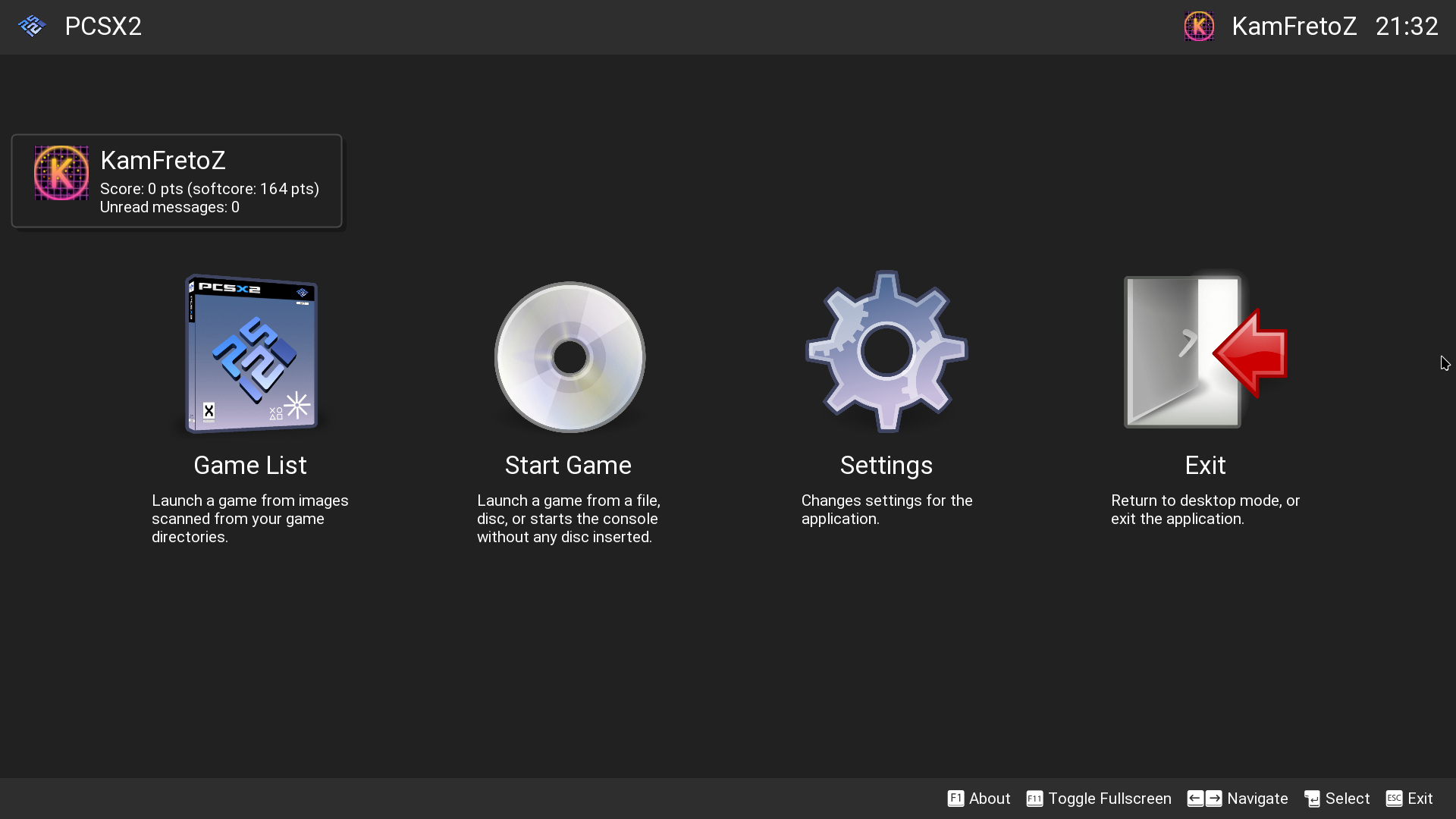
PCSX2 is a free, open-source PlayStation 2 emulator for Windows, Linux, and macOS. It has been developed for many years and remains the most practical choice for people who want to play PS2 games on a PC.
PCSX2 can run many popular games, including God of War II, Grand Theft Auto: San Andreas, Tekken 5, and Final Fantasy X. For more titles, check out our guide to the best PS2 games. Actual performance depends on the game, PC hardware, and emulator settings.
One of its most useful features is internal resolution scaling. Many PS2 games originally rendered at low resolutions, but PCSX2 can render their 3D graphics at higher resolutions on suitable hardware.
Main features of PCSX2
- Higher rendering resolution: Run supported games at 2x, 3x, 4x, or higher internal resolution, depending on your graphics hardware.
- Save states: Save your progress during gameplay and return to that point later.
- Controller support: Use compatible USB and Bluetooth controllers.
- Graphics renderers: Choose Vulkan, Direct3D, OpenGL, or software rendering where supported.
- Widescreen patches: Use available patches to display supported games in widescreen.
- Game library: Organize PS2 game files and launch them from one interface.
- Game fixes: PCSX2 includes compatibility settings that address known issues in individual games.
PCSX2 Stable vs Nightly
PCSX2 has two main release channels.
| Version | Best for | Main difference |
|---|---|---|
| Stable | Most users | Receives less frequent updates |
| Nightly | Users who want recent changes | Receives ongoing development updates |
The Stable release is a sensible starting point. Nightly releases may contain newer fixes, though recent changes can occasionally introduce problems. Both versions use the same PCSX2 emulator technology.
Advantages
Limitations
Best for: Anyone who wants a reliable PS2 gaming experience on Windows, particularly people planning to play several different PlayStation 2 titles.
2. RetroArch with LRPS2: Best for multi-console gaming
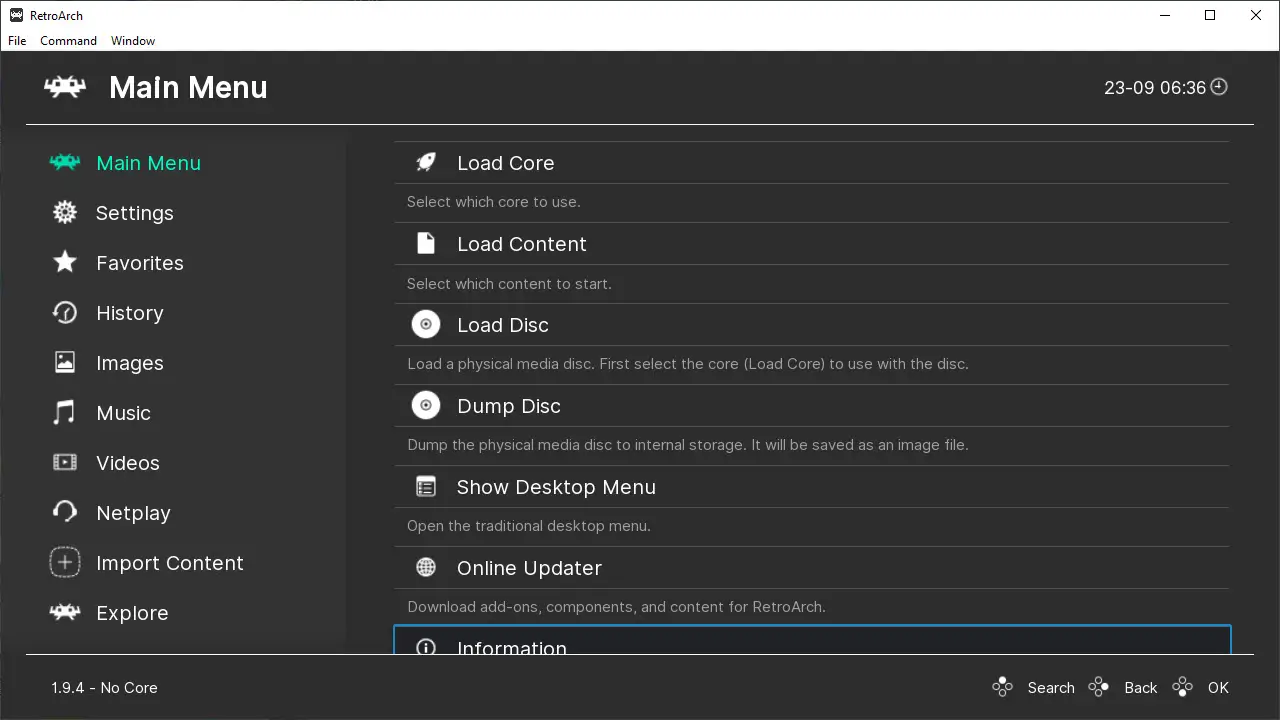
RetroArch is a free frontend that runs different emulation programs called cores. Instead of installing a separate interface for every console, you can manage several gaming systems through RetroArch.
For PlayStation 2 games, one available option is LRPS2, a core derived from PCSX2.
This setup is useful for players who already use RetroArch for older systems such as the NES, SNES, and PlayStation 1.
Main features of RetroArch LRPS2
- Launch supported PlayStation 2 games through the RetroArch interface.
- Use gamepads and controller remapping.
- Create save states.
- Select supported graphics renderers.
- Manage multiple retro console libraries.
- Use RetroArch’s display and interface settings.
LRPS2 supports several graphics backends, including Vulkan and Direct3D on Windows. Its documentation also describes the ParaLLEl-GS renderer, which focuses on accurate PS2 graphics emulation using modern GPUs.
Advantages
Limitations
Best for: People who already have a RetroArch gaming library and want to add PS2 games to the same interface.
3. RetroArch with PCEE2: Best for experimental PCSX2-based emulation
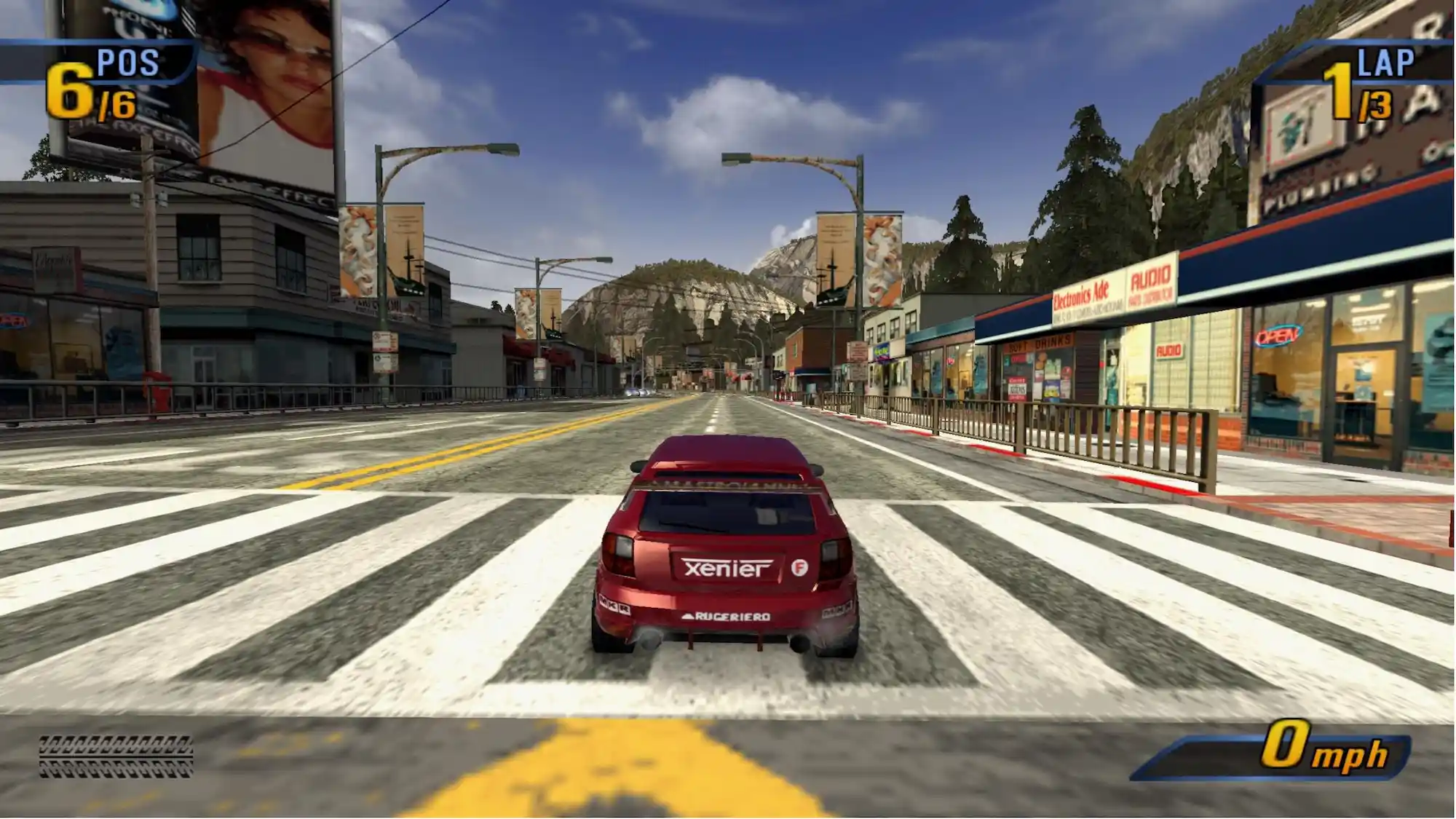
PCEE2 is another PlayStation 2 core available through the Libretro project. It follows the current standalone PCSX2 code more closely than LRPS2.
PCEE2 is experimental, so it suits users who are comfortable trying new emulator builds and adjusting settings when something doesn’t work.
Its documentation lists Vulkan as the default graphics renderer, along with OpenGL and software rendering options. The core can also use memory cards, save states, and a BIOS dumped from an original PlayStation 2 console.
Main features of PCEE2
- Uses modern PCSX2 emulation code.
- Supports Vulkan rendering.
- Works inside the RetroArch interface.
- Supports PS2 BIOS files and memory cards.
- Includes game-related settings through core options.
Advantages
Limitations
Best for: RetroArch users who want to test newer PCSX2-based emulation through a core.
4. Play!: Best PS2 emulator for PC without an external BIOS
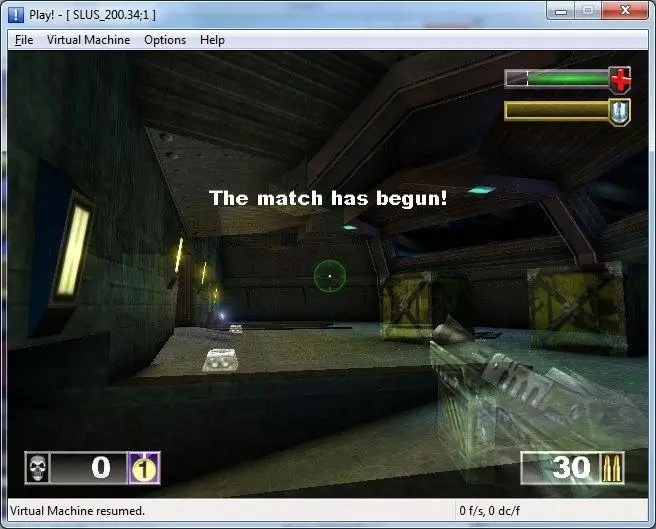
Play! is an open-source PlayStation 2 emulator developed by Jean-Philip Desjardins. It runs on Windows and several other platforms. Its main advantage is that it uses an internal high-level BIOS implementation. You can start using the emulator without supplying a BIOS file from a PS2 console.
This makes the initial setup simpler, especially for people who want to experiment with PS2 emulation. Play! has its own compatibility tracker showing which games can run and what problems users have reported.
Main features of Play!
- Built-in BIOS implementation.
- Support for selected PlayStation 2 games.
- Runs on Windows and other operating systems.
- Open-source development.
- Supports game disc images.
- Includes basic emulator controls and save-state functionality.
Advantages
Limitations
Before choosing Play!, check its official game compatibility tracker. A game marked as playable is a better candidate than one marked as only reaching the menu or showing in-game graphics.
Best for: Users who want to try PS2 emulation without manually adding a BIOS and are willing to accept more limited game support.
Which PS2 emulator should you choose for your PC?
Your choice depends on the games you want to play, your computer’s hardware, and how much time you want to spend configuring the emulator.
| Your Requirement | Recommended Option | Reason |
|---|---|---|
| Playing popular PS2 games | PCSX2 | Broad game compatibility |
| Windows 11 gaming | PCSX2 | Modern Windows support |
| Playing on an older PC | PCSX2 at native resolution | Adjustable graphics settings |
| Managing multiple console emulators | RetroArch LRPS2 | One interface for several systems |
| Testing experimental PS2 emulation | RetroArch PCEE2 | Follows newer PCSX2 code |
| Using an emulator without an external BIOS | Play! | Built-in BIOS implementation |
| Improving PS2 graphics | PCSX2 | Resolution scaling and graphics controls |
For most people, PCSX2 is the easiest recommendation. It has extensive documentation, game-specific settings, and the flexibility to run games at their original resolution or render them at higher resolutions.
PC requirements for running PS2 emulators on Windows
PS2 emulation relies heavily on CPU performance. A computer that runs modern PC games reasonably well will often handle PS2 emulation, although results vary by title.
PCSX2’s official hardware requirements provide a useful reference.
| Component | Minimum Requirements | Recommended for Moderate Workloads |
|---|---|---|
| Operating System | Windows 10 (supported recent releases) | Windows 11 |
| Processor | 64-bit CPU with SSE4.1 | 64-bit CPU with AVX2 |
| CPU Performance | PassMark single-thread score of 1,500 or higher | 2,000 or higher |
| Graphics | Vulkan 1.1, Direct3D 11, or supported OpenGL | Vulkan 1.3 or Direct3D 12-capable GPU |
| RAM | 8 GB | 16 GB |
| Graphics Performance | PassMark G3D score of 600 or higher | Around 6,000 or higher |
| Video Memory | Depends on workload | 4 GB for moderate workloads |
These specifications are based on the official PCSX2 system requirements. More demanding games and higher rendering resolutions may need stronger hardware.
Can you run PS2 games on a low-end PC?
Yes, some PS2 games can run on older or low-end computers, provided the hardware meets the emulator’s requirements. For better performance, use the original PS2 rendering resolution and avoid demanding graphics settings. Lightweight 2D games may run better than games with large environments, complex effects, or heavy CPU requirements.
PCSX2 also supports automatic graphics configuration, which is a reasonable starting point for older systems. If your computer has 4 GB of RAM or an outdated processor without the required instruction sets, the current PCSX2 release may not be suitable.
Do PS2 emulators need a BIOS file?
Most PCSX2-based emulators require a PS2 BIOS because it contains system software used by the original PlayStation 2 hardware. PCSX2, RetroArch LRPS2, and RetroArch PCEE2 require a BIOS dumped from a real PS2 console. Play! is an exception. It uses its own high-level BIOS implementation, so users don’t need to supply an external BIOS file.
Best Settings for Smoother PS2 Gameplay on PC
The best PCSX2 settings depend on your processor, graphics card, and the PS2 game you are playing. If a game runs slowly, stutters, or has graphical problems, start with the default settings and make small changes one at a time.
Use Automatic Graphics Renderer
If you are not sure which graphics renderer to select, keep it set to Automatic. PCSX2 can choose a suitable graphics API for your system.
If you experience graphical problems such as missing textures, incorrect shadows, or a black screen, you can try another renderer such as Vulkan, Direct3D, or OpenGL.
Lower the Internal Resolution
If your game becomes slow after increasing the resolution, reduce the internal resolution to Native (1x) or 2x and test the game again.
Higher resolutions require more graphics processing power. Lowering the resolution can improve performance, especially on PCs with weaker graphics cards.
Keep the Original 4:3 Aspect Ratio
For the original PS2 look, use the 4:3 aspect ratio. This keeps the game’s display closer to how it was designed for the PlayStation 2.
You can use widescreen patches for games that properly support them. However, widescreen settings should only be enabled when they work correctly with the specific game.
Keep VSync at Its Default Setting
For most users, it is best to leave VSync at its default setting. Changing it is usually not necessary unless you are experiencing screen tearing or another display issue.
Leave Game Fixes on Default
PCSX2 includes game-specific fixes for some compatibility problems. Start with the default or automatic settings instead of enabling random fixes.
If a particular game has a known issue, you can check its compatibility information and apply the recommended fix.
Try Software Rendering for Graphics Problems
Hardware rendering is normally the better choice for performance, but Software Rendering can sometimes fix graphical problems in specific games.
Keep in mind that software rendering relies more heavily on your CPU and can be slower. Use it mainly when a game has a graphical issue that cannot be resolved with hardware rendering.
Update Your Graphics Drivers
Make sure your graphics drivers are up to date. Outdated NVIDIA, AMD, or Intel drivers can cause rendering problems, crashes, and compatibility issues with PCSX2.
Download drivers from your graphics card manufacturer’s official website and restart your PC after installing an update.
Use Game-Specific Settings
Some PS2 games have compatibility problems that require different settings from other games. PCSX2 allows you to create individual configurations for specific games.
This means you can change settings for one game without affecting the rest of your PS2 game library. Before making major changes, check the game’s compatibility information and recommended workarounds.
Common PS2 emulator problems and fixes
Even with a supported Windows PC, some games may fail to start or run properly.
Why does PCSX2 run slowly on a powerful computer?
A powerful graphics card alone does not guarantee full-speed PS2 emulation. Some games rely heavily on processor performance or use effects that are difficult to reproduce.
Check whether the CPU or GPU is causing the slowdown. If the problem occurs only at higher resolutions, reduce the rendering scale.
If the game runs slowly even at native resolution, review its compatibility information and compare your CPU with PCSX2’s requirements.
Why is my PS2 game showing a black screen?
A black screen can occur because of a damaged game image, an incompatible graphics renderer, or a game-specific emulation issue.
Try launching another known-working game. If the second game runs normally, verify the original game’s disc image and check its compatibility information.
If every game displays a black screen, review your graphics settings, BIOS configuration, and emulator version.
Is it legal to use PS2 emulators on PC?
PS2 emulator software such as PCSX2 is generally legal to download and use. The copyright rules surrounding BIOS files and game copies are separate from the emulator itself and can differ by country.
PCSX2 is an open-source application, but Sony’s PlayStation 2 BIOS remains copyrighted software.
The PCSX2 project instructs users to dump the BIOS from their own consoles. For game files, use copies you are legally permitted to create and use.
Avoid untrusted emulator downloads and modified installers from unknown websites. They can contain unwanted software or malicious files.
Frequently asked questions
What is the best free PS2 emulator for Windows 11?
PCSX2 is the best general choice for Windows 11. It is free, actively maintained, and supports graphics improvements, controller configuration, memory cards, and many PlayStation 2 games.
Can I play PS2 games on PC without a PS2 console?
You can play supported PS2 games on a PC using an emulator. PCSX2 requires a BIOS dumped from an original PlayStation 2, while Play! uses a built-in BIOS implementation. You also need game files you are legally permitted to use.
Does PCSX2 support Windows 10?
Yes. Current PCSX2 releases support specified recent versions of Windows 10, as well as Windows 11. Check the official system requirements because older Windows 10 releases are no longer supported.
Can I play PS2 games with a keyboard?
Yes. PCSX2 allows keyboard input mapping, although many games are easier to control with a compatible gamepad, particularly games that use analog movement.
Can PS2 emulators run games in 4K?
PCSX2 can render supported games at high internal resolutions, including levels suitable for 4K output. Performance depends on your graphics hardware, and some games may display visual problems at increased resolutions.
Can a PS2 emulator play PS1 games?
The emulators discussed here are primarily intended for PlayStation 2 games. For PlayStation 1 emulation, use a dedicated PS1 emulator such as DuckStation.
Conclusion
PCSX2 is the recommended PS2 emulator for most Windows users because it has broad game compatibility, useful graphics settings, and continued development.
RetroArch with LRPS2 or PCEE2 is worth considering if you prefer managing several console systems through one application. Play! is an option for people who want to try PS2 emulation without supplying an external BIOS.
Before installing an emulator, check your PC specifications and the compatibility of the games you want to play. Starting with PCSX2’s default settings is usually the simplest way to get your PlayStation 2 library running on Windows.

One Comment