
How to Get PS2 BIOS for PCSX2 | Both Methods Explained

To use PCSX2, you need a compatible PS2 BIOS because the emulator does not include Sony’s proprietary BIOS software. There are two common ways users obtain one: dumping the BIOS from their own PlayStation 2 or obtaining a BIOS file from an online source such as pcsx2biosfiles.com.
If you own a PS2, the official PCSX2 method is to use a supported homebrew setup, uLaunchELF, and the biosdrain utility to create your own BIOS dump. If you already have a BIOS file, you can skip the console-dumping process and go straight to the PCSX2 installation steps.
Below, you’ll learn both approaches, how to choose the right BIOS region, how to add the files to PCSX2, and what to check if PCSX2 does not detect your BIOS.
What You Need to Get a PS2 BIOS
The requirements depend on which method you use.
| Method | What you need |
|---|---|
| Dump from PS2 | PS2 console, homebrew method, USB drive, uLaunchELF, biosdrain, computer |
| Use an online BIOS file | Computer, BIOS archive/file, file extraction tool, PCSX2 |
| Install in PCSX2 | Extracted BIOS files and the PCSX2 BIOS directory |
For a console dump, PCSX2 recommends homebrew approaches such as FreeMcBoot or FreeDVDBoot. Fortuna is another option for supported consoles. You also need a USB flash drive formatted with FAT32 and using an MBR partition scheme. If you already have a compatible BIOS file, you can skip the PS2 dumping steps and continue with the online BIOS file method or the PCSX2 installation steps.
How to Get PS2 BIOS for PCSX2
Method 1: Dump the BIOS From Your PS2
Dumping your own BIOS gives you a copy of the firmware from your physical console. PCSX2’s official documentation recommends this approach because the BIOS is proprietary software and the emulator cannot provide it for you.
Step 1: Prepare Your PS2 for Homebrew
Your PS2 first needs a way to launch homebrew software.
The current PCSX2 documentation recommends FreeMcBoot and FreeDVDBoot as the main options. Fortuna can also be useful for certain slim models that are not compatible with FreeMcBoot. These methods allow the console to launch programs such as uLaunchELF without permanently modifying the console’s hardware.
The exact preparation depends on your PS2 model and the homebrew method you choose, so do not assume that one method works with every console.
Step 2: Prepare the USB Drive
Use a USB flash drive that the PS2 can access. For the USB dumping method, PCSX2 specifies:
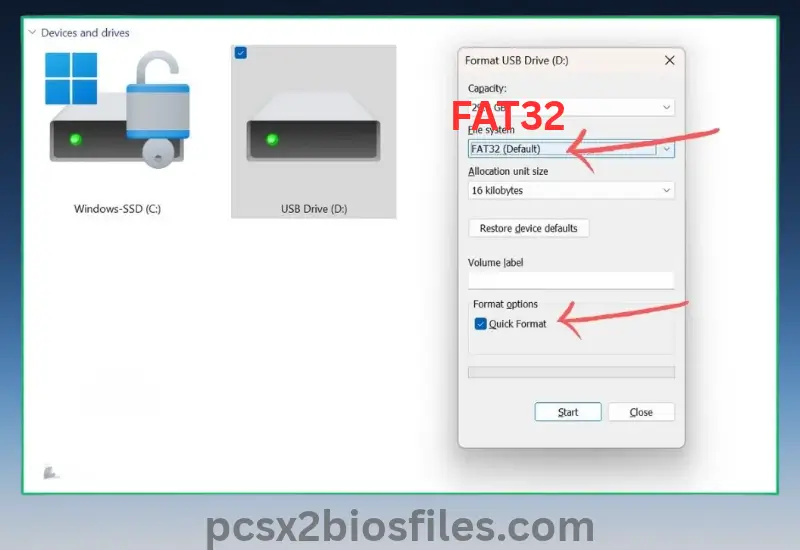
- FAT32 filesystem
- MBR partition scheme
- A USB drive compatible with the PS2’s USB drivers
You can prepare the drive on a computer. PCSX2 recommends tools such as Rufus on Windows and Disk Utility on macOS. Formatting the drive erases its existing data, so back up anything important first.
USB compatibility can also be an issue. If uLaunchELF does not show the USB device under mass:, PCSX2 recommends trying another flash drive, preferably a USB 2.0 model.
Step 3: Launch uLaunchELF
Start the PS2 using your chosen homebrew method and launch uLaunchELF.
uLaunchELF is a homebrew file manager that can browse memory cards, USB devices, and other PS2 storage locations. Modern versions of FreeMcBoot may use wLaunchELF, which PCSX2 treats as an equivalent continuation for this purpose.
With the USB drive connected, uLaunchELF should allow you to access the USB storage through its file browser.
Step 4: Run biosdrain
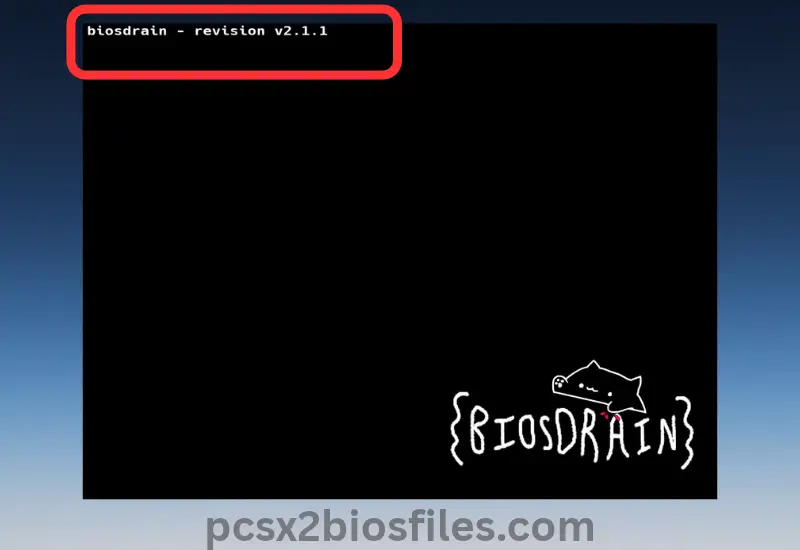
The current PCSX2 BIOS guide recommends biosdrain for dumping the console BIOS. The utility reads the BIOS contents from the PS2 and writes the dump to an external device.
Copy the appropriate biosdrain executable to the USB drive, launch it through uLaunchELF, and allow the process to finish.
USB transfers on the PS2 can be slow, so do not remove the drive while the dump is running. PCSX2’s documentation notes that biosdrain reports “Finished Everything” when the process has completed.
If your console has an active modchip, PCSX2 warns that it can cause an incomplete or corrupted dump. Follow the official instructions for disabling it before dumping if applicable.
Step 5: Transfer the BIOS Dump to Your PC
Once biosdrain finishes, safely move the USB drive back to your computer.
The dump can contain several BIOS-related files rather than one generic file. Keep the complete dump together and avoid renaming, deleting, or changing file extensions before putting it into PCSX2.
At this point, you can proceed to the shared PCSX2 installation process below.
Method 2: Download a PS2 BIOS From a Reliable Source

Not every PCSX2 user has access to a working PS2. Some users are therefore looking for a BIOS file online rather than dumping one themselves. The practical workflow is different, but the final PCSX2 setup is the same.
The current pcsx2biosfiles.com site has a PS2 BIOS Download (All Regions) section with BIOS resources organized around regions including USA (NTSC-U), Europe (PAL), Japan (NTSC-J), China/Other, and a Full Pack.
Because BIOS software is copyrighted, you should consider your rights to use any third-party BIOS file in your jurisdiction rather than assuming that every online download is authorized. PCSX2 itself recommends dumping the BIOS from your own console.
If you are using an online BIOS resource, follow this workflow:
Step 1: Find the BIOS on pcsx2biosfiles.com
Visit pcsx2biosfiles.com and locate the site’s PS2 BIOS Download (All Regions) section. The current page presents the available regional options rather than requiring you to guess which BIOS category you need.
Step 2: Choose the Appropriate BIOS
Choose the region that corresponds to the ps2 games or BIOS you intend to use. The site currently identifies these broad options:
- USA / NTSC-U
- Europe / PAL
- Japan / NTSC-J
- China / Other
- Full Pack for multiple regions
Do not assume that your physical location alone determines the correct BIOS. The region of your games and the BIOS you want to emulate are more useful factors.
Step 3: Download and Extract the BIOS
Download the available BIOS archive from the resource page.
If the download is provided as an archive such as ZIP or another compressed format, extract it first. PCSX2 detects BIOS files in its BIOS directory; it does not treat an unopened archive as an installed BIOS.
After extraction, keep the BIOS files intact. Do not rename files simply to make them look like a different BIOS version.
Step 4: Prepare the BIOS Files for PCSX2
At this stage, you should have the actual extracted BIOS files available in a normal folder on your computer.
Do not place the ZIP or other archive itself into the PCSX2 BIOS folder. Copy the extracted BIOS files instead. You can now follow the same PCSX2 installation process used for a BIOS dump from your own console.
What Does a PS2 BIOS Dump/File Look Like?
A PS2 BIOS dump may contain several files. PCSX2’s official dumping documentation shows files with names based on the console model and extensions such as:
.rom0.rom1.nvm
The exact files can vary by console and dump.
This is why you should not assume that every PS2 BIOS must be one single .bin file. Older guides may show different formats, while a dump produced with biosdrain can contain multiple components.
Keep the BIOS files together unless the documentation for the specific emulator tells you otherwise.
How to Install PS2 BIOS in PCSX2
Once you have a BIOS from either method, you do not need separate installation instructions. The same PCSX2 workflow applies.
Step 1: Open the BIOS Folder
Start PCSX2 and continue through the first-time setup wizard until you reach the BIOS section.
Current PCSX2 provides an Open BIOS Folder option. You can use it to open the exact BIOS directory configured for your installation instead of guessing its location.
The BIOS directory can also be changed from the current BIOS settings if you want to store your files somewhere else. PCSX2’s current source identifies this as the BIOS Directory.
Step 2: Copy the BIOS Files
Copy the extracted BIOS files into the folder opened by PCSX2.
Do not leave them inside ZIP, RAR, or other archives.
Step 3: Refresh the BIOS List
Return to PCSX2 and click Refresh List.
Current PCSX2 explicitly provides a refresh control that rescans the configured BIOS directory for valid BIOS files.
Step 4: Select the BIOS
When PCSX2 detects the BIOS, select it from the list and continue the setup wizard.
If you are changing the BIOS later, the current PCSX2 interface also has a dedicated BIOS section under Settings where you can review the BIOS directory and detected BIOS files.
Which PS2 BIOS Should You Choose?
There is no single BIOS that is correct for every game.
Common region designations include:
- NTSC-U: United States and other North American releases
- PAL: Europe, Australia, and other PAL markets
- NTSC-J: Japan
For a mixed game library, you may keep multiple compatible BIOS files available and select the appropriate one when necessary.
The important point is that your physical location does not automatically decide which BIOS you need. Match the BIOS to your games and the compatibility requirements of the software you are using.
How to Check if Your PS2 BIOS Is Working
The easiest check is whether PCSX2 detects the BIOS in its BIOS list.
If the BIOS appears in the list after you click Refresh List, PCSX2 has recognized it as a valid BIOS image. The current PCSX2 source shows that the emulator scans the configured directory and filters files through its BIOS detection logic.
For a BIOS dump from your own PS2, you can also verify its integrity using SHA-1 hashes. PCSX2’s official documentation points users toward the Redump project’s PS2 BIOS hash information for this purpose.
On Windows, for example, PowerShell can calculate a SHA-1 hash with:
Get-FileHash "path-to-your-bios-file" -Algorithm SHA1
PS2 BIOS Not Showing in PCSX2? Try These Fixes
If PCSX2 does not detect the BIOS, work through these checks in order.
1. Make sure the archive is extracted
A BIOS inside a ZIP or another archive will not be detected as an installed BIOS. Extract the files first.
2. Check the BIOS directory
Use Open BIOS Folder or check the BIOS Directory setting. You may have copied the files into a different folder from the one PCSX2 is actually scanning.
3. Refresh the list
After copying the files, use Refresh List. PCSX2 does not need you to guess the BIOS filename when its detection system can scan the directory.
4. Check for incorrect folder nesting
A common mistake is extracting an archive into a folder and then copying that entire folder into the BIOS directory.
Open the BIOS folder and make sure the actual BIOS files are where PCSX2 expects them.
5. Do not rename the BIOS files
Keep the original filenames and extensions. Renaming or modifying files can make troubleshooting harder and may invalidate a dump.
6. Check the original dump
If you dumped the BIOS yourself and PCSX2 still rejects it, verify the dump’s integrity. A corrupted or incomplete dump may need to be created again. PCSX2 recommends hash verification for checking dump integrity.
7. If the USB is not detected during dumping
If uLaunchELF shows an empty mass: device, the USB drive may not be compatible with the PS2’s USB drivers. PCSX2 recommends trying another flash drive, preferably USB 2.0, while keeping the FAT32 and MBR requirements.
Can You Get a PS2 BIOS Without a PS2?
If you do not have access to a PS2, you cannot perform the official console-dumping process yourself. Some users instead look for an existing BIOS file online.
That creates an important distinction: PCSX2 is open-source software, but the PS2 BIOS is proprietary Sony software. PCSX2’s official documentation recommends dumping the BIOS from your own console and states that there is no open-source replacement BIOS for PCSX2.
Third-party websites may host BIOS files, but you should not assume that every such distribution is authorized in your jurisdiction. If you use an online source, consider the applicable rights and laws and obtain files only from a source you trust.
Frequently Asked Questions
Do I need a PS2 BIOS for PCSX2?
Yes. PCSX2 requires a PS2 BIOS to run PS2 games. The emulator does not provide Sony’s proprietary BIOS.
How do I get the BIOS from my PS2?
Use a supported homebrew method to launch uLaunchELF, prepare a FAT32/MBR USB drive, run biosdrain, and transfer the resulting BIOS dump to your computer.
How do I install PS2 BIOS into PCSX2?
Open PCSX2’s BIOS folder, copy the extracted BIOS files into it, click Refresh List, and select the detected BIOS.
Which BIOS should I choose for PCSX2?
Choose a BIOS appropriate for your game region. Common choices include NTSC-U, PAL, and NTSC-J. You can keep multiple BIOS files available if you use games from different regions.
Can I use a different region BIOS?
Yes, PCSX2 can detect BIOS files from different regions. However, matching the BIOS region to the game can be useful for compatibility in some cases.
Where does PCSX2 store BIOS files?
The safest option is to use PCSX2’s Open BIOS Folder button rather than guessing the path. The current application also lets you configure the BIOS directory.
Can I use PCSX2 without a BIOS?
No. PCSX2 requires a BIOS image to run PS2 games.
Conclusion
Getting a PS2 BIOS for PCSX2 comes down to two paths. If you own a PS2, you can create your own BIOS dump using a supported homebrew method, uLaunchELF, and biosdrain. If you do not have access to a console, you may encounter third-party online BIOS resources such as pcsx2biosfiles.com, but you should consider the applicable rights before using a downloaded BIOS file.
Once you have the BIOS, the rest is the same: extract the files if necessary, open PCSX2’s BIOS folder, copy the files into it, refresh the BIOS list, and select a detected BIOS. If PCSX2 does not see it, check the folder, archive status, filenames, dump integrity, and USB compatibility if you are creating the dump yourself.




2 Comments