
Download PS2 BIOS (All Regions) for PCSX2 & AetherSX2
Get PS2 BIOS files for PCSX2 and other PS2 emulators. 100% working, region-unlocked BIOS options with beginner-friendly setup information, compatibility tips, and common fixes, without risky downloads.
Want to play your favorite PS2 games on your PC or Android phone? If you’re using an emulator like PCSX2 or AetherSX2, you’ll usually need a PS2 BIOS file to get started.
A PS2 BIOS is the system software that helps an emulator recreate the original PlayStation 2 environment. BIOS files come in different regional versions, including USA (NTSC-U), Japan (NTSC-J), and Europe (PAL). The right version depends on your emulator and setup.
Here, you can explore PS2 BIOS files for different regions and download the version you need. Not sure which one to choose? We’ll explain the differences between BIOS versions, their file formats and sizes, and how to set up a PS2 BIOS in PCSX2 or a compatible Android emulator. You’ll also find simple fixes for common issues, such as the “BIOS not found” error, to help you get your emulator up and running.

File Name
PS2 BIOS
File Size
12 MB
Supporting OS
Windows, iOS and Android
Downloads
500K+
Supporting Emulator
PCSX2, PS2emu, AetherSX2
Last Update
7 days ago
What Is a PS2 BIOS?
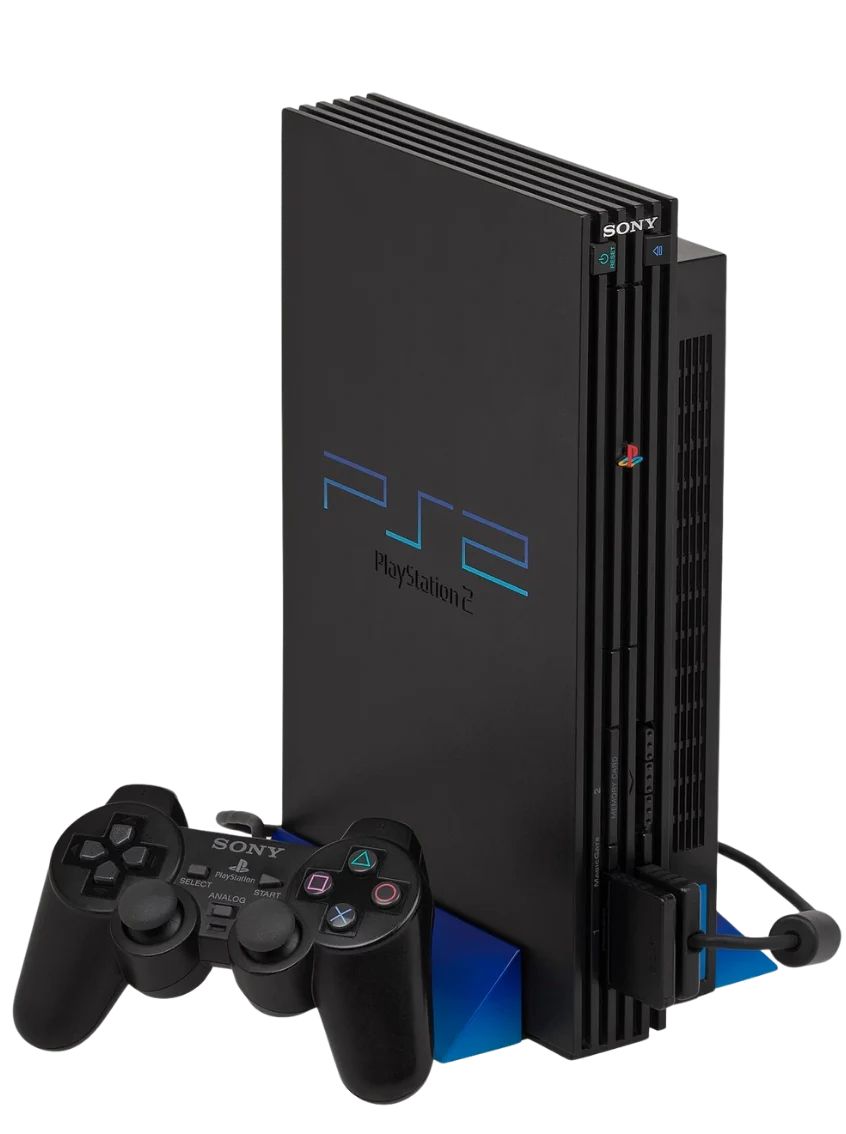
A PS2 BIOS is the firmware built into the original PlayStation 2 console. When you turn on the console, it runs the code needed to start the system and provides routines that help the console perform basic tasks. The BIOS is involved in the startup process, system menu, console settings, and launching games. It works alongside the PS2’s hardware and other system software to make the console function as expected.
PS2 BIOS vs. PS2 Game Files
A BIOS file and a PS2 game file serve different purposes. The BIOS contains system firmware, while a game file, often stored as an ISO, contains the data for a particular game. One cannot replace the other.
For example, having a game image doesn’t automatically provide the system firmware an emulator may require. Likewise, a BIOS file doesn’t contain games such as God of War or Grand Theft Auto: San Andreas. You need the appropriate components for your setup to work.
PS2 BIOS Download by Region (All Regions)
PS2 BIOS files are available in different regional versions. If you’re looking for a particular version, start by checking its region and console model rather than choosing a file based on its name alone.
USA PS2 BIOS (NTSC-U)
The USA version is associated with North American PlayStation 2 consoles. You may see model identifiers such as SCPH-39001 and SCPH-70012 in BIOS file listings. Check the details of each file to confirm its region and version before selecting it.
Japan PS2 BIOS (NTSC-J)
The Japanese version comes from PlayStation 2 consoles released in Japan. It’s useful when you need Japanese-region firmware for an emulator or want to compare different Japanese BIOS revisions. Check the file information carefully, especially when a collection contains several versions.
Europe PS2 BIOS (PAL)
European PS2 BIOS versions are associated with PAL-region consoles. If your game collection includes European releases, review the available PAL versions and your emulator’s BIOS options before making a selection.
China and Other Regional BIOS Versions
Some collections include BIOS files from other Asian markets and regional releases. Their availability and identifiers can vary, so don’t assume that every file from Asia belongs to the same region. Check the specific model and firmware details.
Full PS2 BIOS Pack or Individual Files?
An individual BIOS dump may be easier to manage when you know which version you need. A collection can be useful when you need to compare several versions, but a larger pack isn’t automatically better. Choose a file that suits your emulator’s requirements, and obtain copyrighted firmware through a lawful method, such as dumping it from your own console.
NTSC vs. PAL: What’s the Difference?
NTSC-U is associated with North America, NTSC-J with Japan, and PAL with Europe and other regions. These standards differ in video timing and refresh rates, which can affect how certain games run. PCSX2 supports games from different regions, so you don’t always need a BIOS that matches your game’s region.
PS2 BIOS File Details at a Glance
Before choosing a PS2 BIOS file, check its format, size, and file contents. These details can help you avoid downloading the wrong file or running into problems during setup.
| File Detail | Information |
|---|---|
| File format | Commonly .bin, depending on the BIOS dump |
| Typical file size | Around 4 MB for many main BIOS images |
| Full BIOS pack size | Varies depending on the number of versions and included files |
| Compression | May be provided in ZIP or 7z archives |
| Compatible emulators | PCSX2 and other emulators that support external PS2 BIOS files |
| Supported devices | Windows, macOS, Linux, and Android, depending on the emulator |
| Regional versions | USA, Japan, Europe, and other releases |
A BIOS file is not the same as a ZIP archive containing it. If your file is compressed, extract it before selecting it in your emulator. Also, don’t assume every file ending in .bin is a valid PS2 BIOS. Check that the file is a genuine BIOS dump and that your emulator can detect it. File sizes and supporting files can vary between dumps, so use the emulator’s requirements as your guide.
Where Can You Download PS2 BIOS Files?
You can find PS2 BIOS files for different regions from pcsx2biosfiles.com, including USA (NTSC-U), Japan (NTSC-J), and Europe (PAL). Before choosing a file, check its region, model information, and version to make sure it suits your setup.
You may also come across individual BIOS files and collections containing multiple versions. If you’re unsure which one to choose, start by identifying your emulator and checking its BIOS requirements. Once you’ve obtained a compatible file, you’ll need to extract it if it’s compressed and select it in your emulator’s settings.
Why Do PS2 Emulators Need a BIOS?
A PS2 emulator recreates the console’s hardware in software, allowing your computer or mobile device to run PlayStation 2 games. Some emulators also need the original console’s firmware to start and perform certain system functions.
PCSX2 requires a PS2 BIOS dump to run games. During setup, the emulator checks the selected BIOS files and uses a compatible version to start the emulated system. If the files are missing, incomplete, or stored in the wrong folder, you may see a BIOS detection error before you can play.
However, not every PS2 emulator works the same way. For example, Play! uses high-level emulation for BIOS-related functions, so it doesn’t require a separate PS2 BIOS file. Other emulators may have different requirements depending on their design and version.
Understanding PS2 BIOS Versions and SCPH Model Numbers
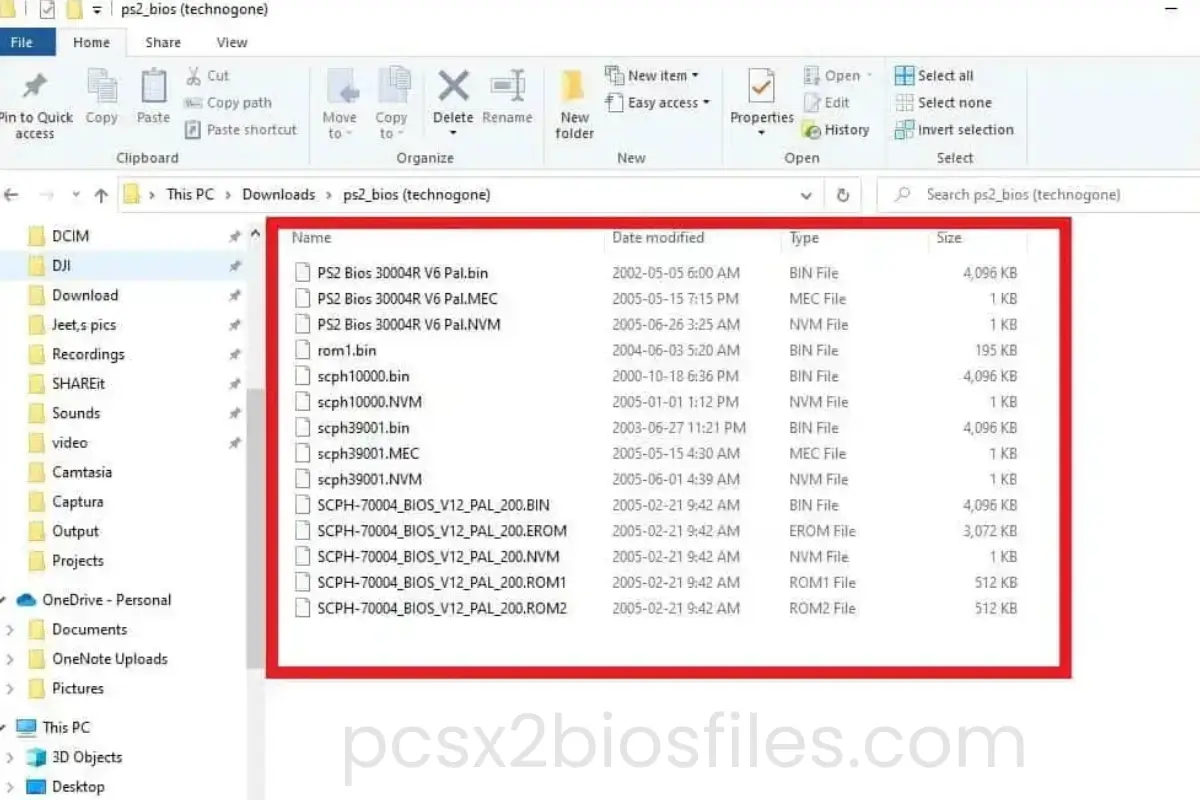
When looking through PS2 BIOS files, you’ll often see model numbers such as SCPH-39001 or SCPH-70012 in the filename. These numbers help identify the PlayStation 2 console associated with the BIOS dump, but they don’t automatically tell you which file is best for your emulator.
| Region | Video Format | Common SCPH Models | Best For |
|---|---|---|---|
| USA (NTSC-U) | 60Hz | SCPH-39001, SCPH-70012 | North America, most English games |
| Europe (PAL) | 50Hz | SCPH-50003, SCPH-75004 | UK, EU, Australia |
| Japan (NTSC-J) | 60Hz | SCPH-10000, SCPH-18000 | Japan and Asia titles |
| China / Other | NTSC-C / PAL | Region-specific | Rare, region-locked games |
| Full Pack | All | All of the above | Mixed collections |
What Does an SCPH Number Mean?
SCPH is part of Sony’s PlayStation 2 product model numbering system. The complete model number helps distinguish console models and regional variants. For example, SCPH-39001 is associated with a North American PS2 model, while SCPH-39004 is associated with a European model.
The model number is useful when checking a BIOS file’s origin, but you should also verify its region and firmware information. Different console revisions can have different BIOS versions, so don’t assume that every file from the same model family is identical.
Does Fat vs. Slim PS2 Matter?
The original, larger PS2 consoles are commonly called the Fat models, while the smaller redesigned consoles are known as Slim models. Examples of Fat model families include the SCPH-30000 and SCPH-50000 series, while Slim models include the SCPH-70000 and later series.
You generally don’t need to find a BIOS specifically labelled “Fat” or “Slim” just to use PCSX2. Instead, choose a valid BIOS dump that the emulator supports. The console model can help you identify the file, but a higher model number doesn’t automatically mean better performance or compatibility.
Which PS2 BIOS Should You Use?
The best PS2 BIOS for your setup depends on your emulator and the games you want to play. If you’re using PCSX2, choose a valid BIOS dump that the emulator detects correctly.
If you mainly play games from one region, a BIOS from that region can provide a more authentic startup experience. For a mixed game library, you can keep multiple BIOS versions and select the one you need in the emulator settings. PCSX2 doesn’t enforce the original console’s region locking, so matching the BIOS region to every game isn’t always necessary.
Not sure which version to choose? Read our detailed guide on which PS2 BIOS to use for PCSX2 to compare your options and find the right fit for your setup.
PS2 BIOS Compatibility With Popular Emulators
Different PS2 emulators handle BIOS files differently. Most PCSX2-based emulators require an external BIOS dump, while Play! uses its own built-in BIOS emulation. Before choosing a BIOS file, check which emulator you’re using and what it requires.
| Emulator | Platforms | BIOS | Status |
|---|---|---|---|
| PCSX2 | Windows, macOS, Linux | Required | Open source, actively developed |
| AetherSX2 | Android | Required | Discontinued since early 2023 |
| NetherSX2 | Android | Required | Community continuation of AetherSX2 |
| ARMSX2 | Android, iOS, Linux ARM64, Windows on ARM | Required | Open source, built on PCSX2 code, still young |
| DamonPS2 | Android | Required | Commercial and closed source, free version has ads |
| Play! | Windows, macOS, Linux, Android, iOS | Optional for many games | Open source, emulates the BIOS in software |
| RetroArch | Many platforms | Depends on core | PCSX2 core needs a BIOS, while the Play! core does not |

PCSX2 for Windows, macOS, and Linux
PCSX2 requires a BIOS dump from an original PlayStation 2 console. During setup, you select the folder containing your extracted BIOS files and choose a detected version. PCSX2 supports multiple BIOS regions, so you don’t necessarily need a separate BIOS for every game’s region.
AetherSX2 for Android
AetherSX2 is an Android PS2 emulator that requires an external BIOS image. Its development was suspended in January 2023, but existing versions can still run on compatible devices. If you already use AetherSX2, make sure your BIOS file is valid and avoid installing APKs from untrusted sources.


NetherSX2 for Android
NetherSX2 is a community project based on AetherSX2 that provides another option for Android PS2 emulation. It requires your own PS2 BIOS file; the emulator does not include copyrighted console firmware. The setup process can vary by build, so check the requirements of the version you install.
ARMSX2 for Android and Other ARM64 Devices
ARMSX2 is a PCSX2-derived emulator project targeting ARM64 devices, including Android and iOS, as well as supported desktop platforms. It requires a BIOS dump from a PS2 console you own. Its BIOS manager can import and validate files, making it easier to select a working BIOS and manage different versions.


RetroArch
RetroArch uses emulator cores to run games, so BIOS requirements depend on the core you choose. The LRPS2 core, which is based on PCSX2, requires PS2 BIOS files. These files must be extracted and placed in the appropriate core directory; a ZIP archive cannot be used directly as the BIOS.
DamonPS2 for Android
DamonPS2 is another Android emulator that requires users to provide their own PS2 BIOS. It does not include the original console firmware. Check the requirements of your installed version and make sure the selected BIOS file is accessible from the app.


Play! Emulator
Play! differs from the emulators above because it uses a built-in high-level emulation BIOS. You don’t need to download or import a separate PS2 BIOS file. Game compatibility can vary, so a title that works in PCSX2 may not behave the same way in Play!.
XBSX2 for Xbox
XBSX2 is a PCSX2-derived emulator adapted for Xbox consoles. It requires a BIOS dump from a PlayStation 2 you own. The Xbox Series S and Series X are the recommended platforms, while compatibility on Xbox One models is more limited.
How to Get a PS2 BIOS Legally and Safely
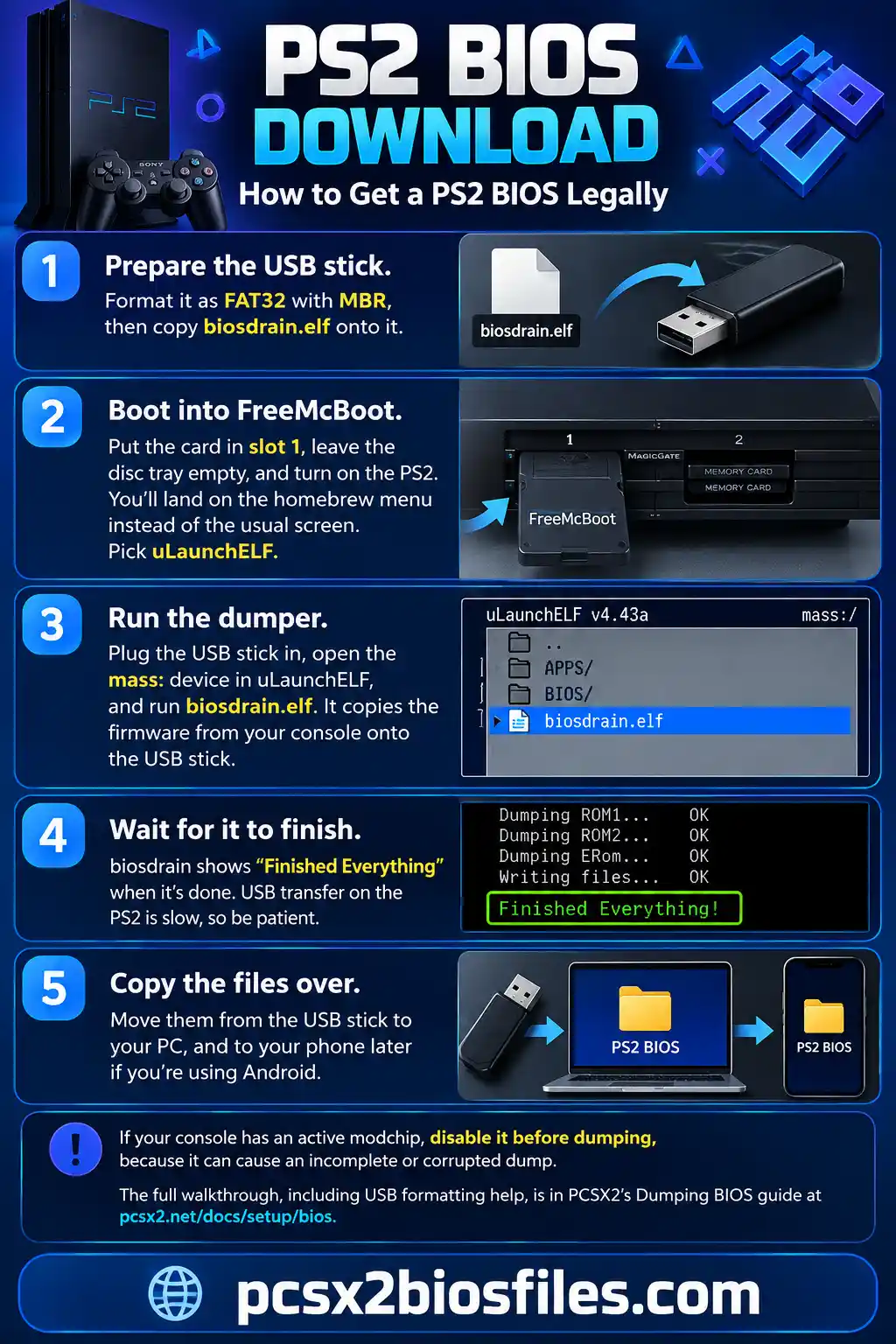
The recommended way to get a PS2 BIOS is to dump it from your own PlayStation 2 console. Since the BIOS is copyrighted Sony software, PCSX2 provides a guide that explains how to extract the firmware using your console and a compatible BIOS-dumping tool.
You may also find different PS2 BIOS versions listed on third-party websites, including pcsx2biosfiles.com. Before using a file, check its region, model information, and file details. Keep in mind that a BIOS being available for download does not automatically mean its distribution is authorized by Sony. Copyright laws can also vary depending on where you live.
Once you have a BIOS file obtained through an appropriate method, keep it in a dedicated folder and select it in your emulator’s settings. If you’re using PCSX2, make sure the emulator detects the BIOS before moving on to game setup.
PCSX2 System Requirements for Smooth PS2 Emulation
You don’t need a high-end gaming PC to run PCSX2. Many PS2 games work on modest hardware, but more demanding titles and higher resolutions need a faster processor and a capable graphics card.
| Minimum | Moderate | Heavy | |
|---|---|---|---|
| OS | Windows 10 (21H2 LTSC or 22H2), macOS 11, Ubuntu 22.04 or another Linux distro | Windows 11, macOS 14 to 15, Ubuntu 26.04 or another distro | Same as Moderate |
| CPU | x86-64 with SSE4.1, PassMark single-thread rating of 1500 or higher, two physical cores with SMT | x86-64 with AVX2, rating of 2000 or higher, four physical cores | AVX2, rating of 2600 or higher, six physical cores, or an Apple M-series chip |
| GPU | Vulkan 1.1, Direct3D 11, or OpenGL 3.3, PassMark G3D 600 or higher | Vulkan 1.3, Direct3D 12, OpenGL 4.6, or Metal, G3D 6000 or higher, 4 GB VRAM | Same APIs, G3D 12000 or higher, 8 GB VRAM |
| RAM | 8 GB | 16 GB | 16 GB |
Your processor plays an important role in emulation, while the graphics card becomes more important when increasing internal resolution. If you want to play at 1080p or higher, your PC may need more graphics power than it would at the original PS2 resolution.
How to Set Up the BIOS in PCSX2 (PC and Mac)
Once you have your PS2 BIOS files ready, setting them up in PCSX2 is straightforward. The process is almost the same on Windows and Mac, so you don’t need a separate BIOS version for each operating system.
Set Up PS2 BIOS on Windows PC
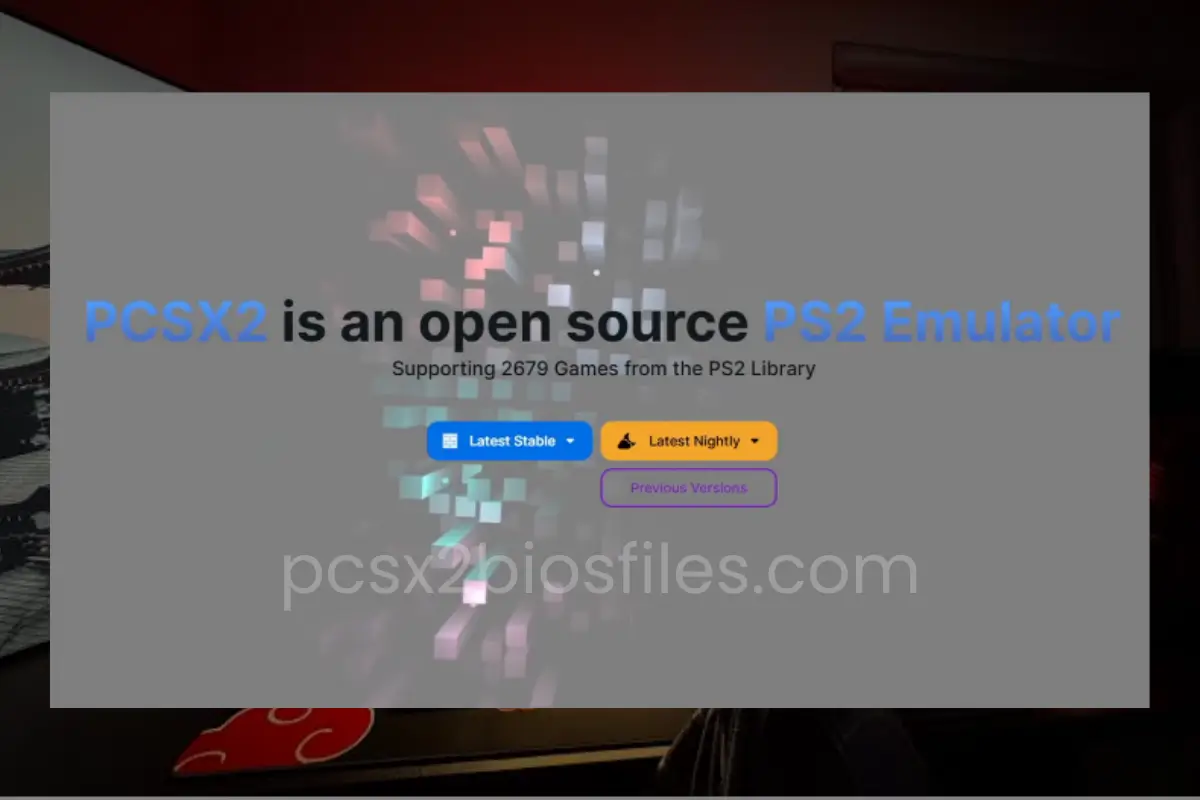
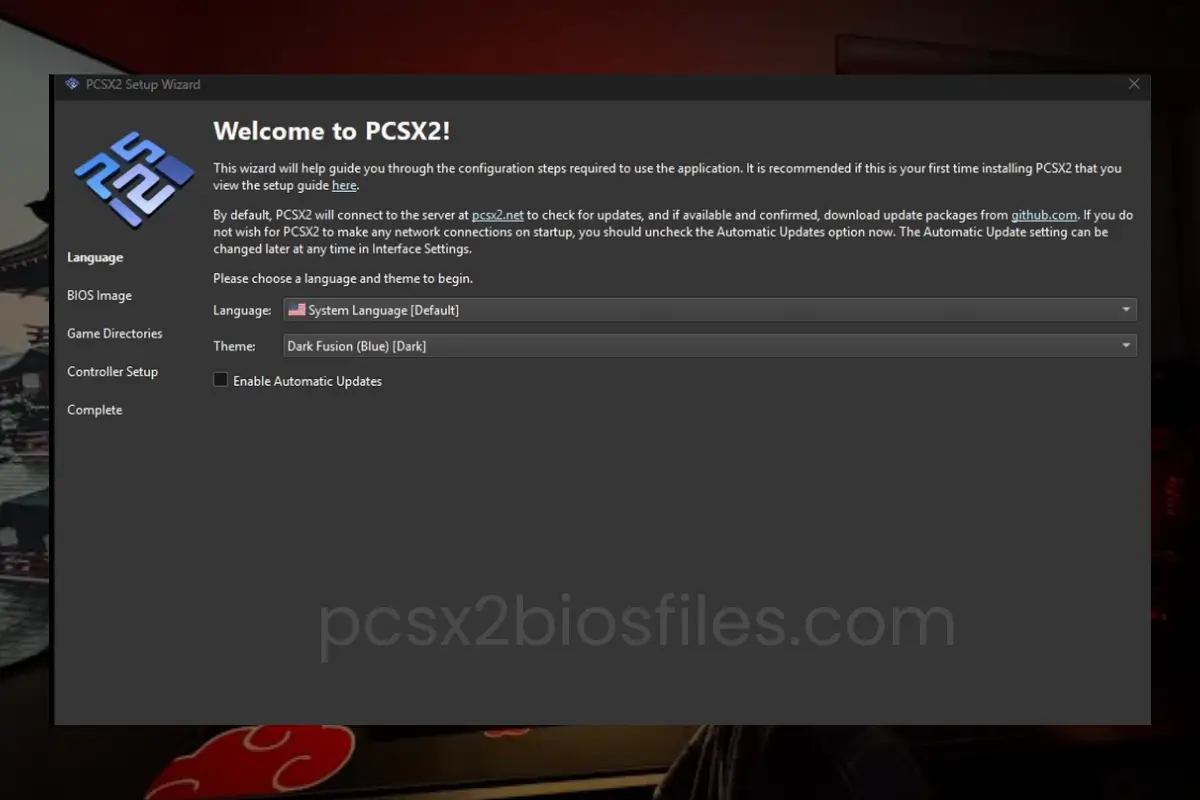
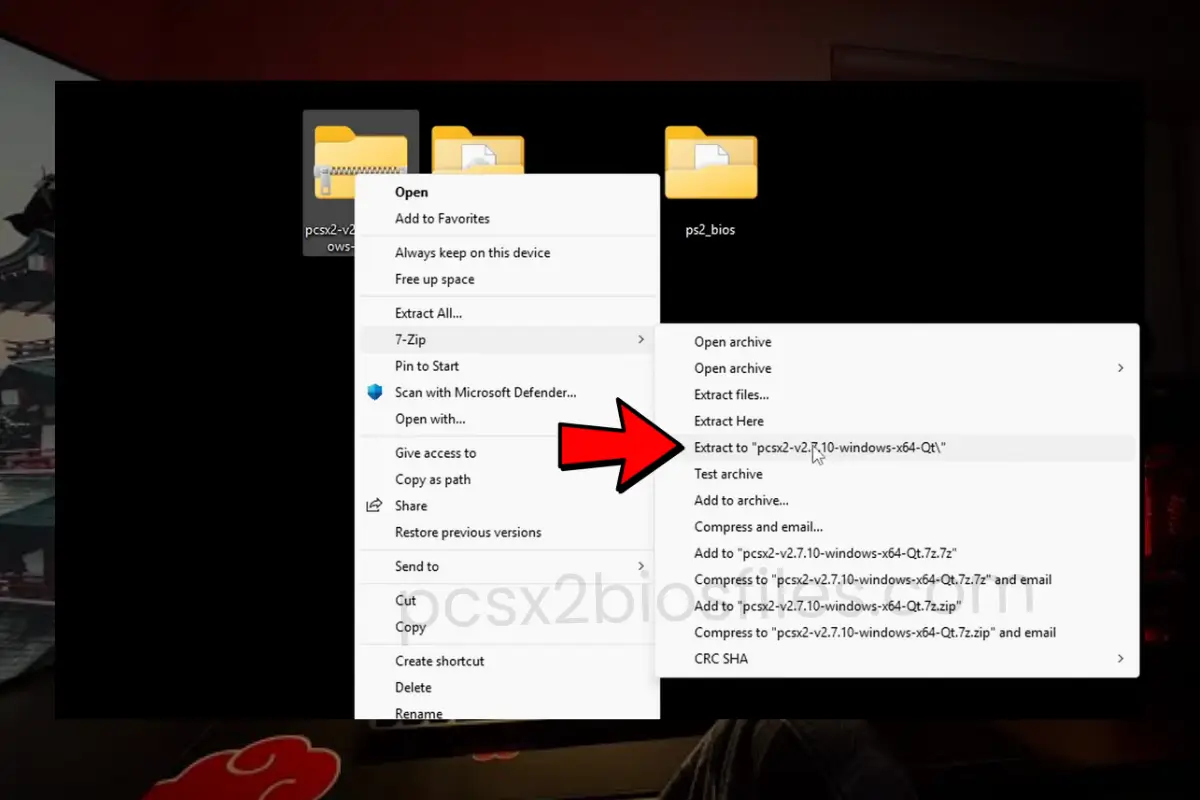
- Download PCSX2 from pcsx2.net/downloads. On Windows, install the latest x64 Microsoft Visual C++ Runtime if PCSX2 asks for it.
- Extract the BIOS files from ZIP, RAR, or any other archive. Keep the actual BIOS files in a normal folder.
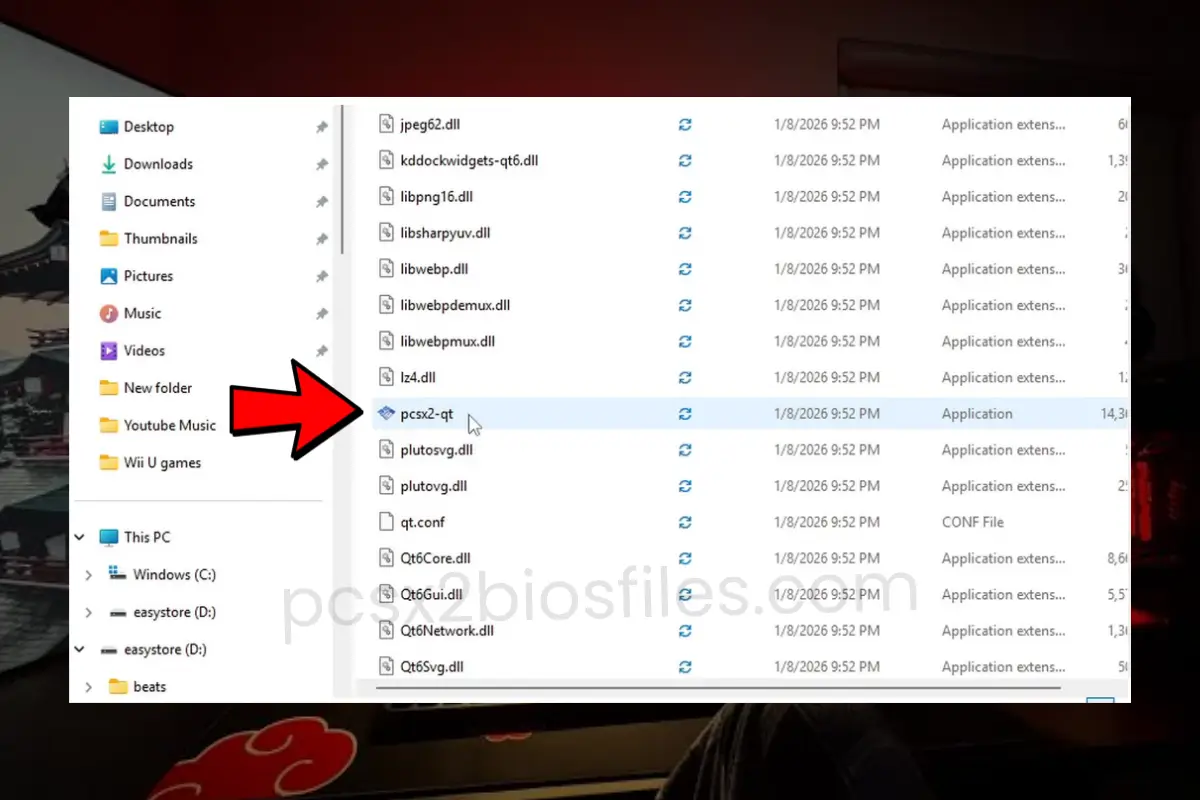
- Open PCSX2: Launch the emulator. If this is your first time using it, follow the setup wizard until you reach the BIOS selection screen.
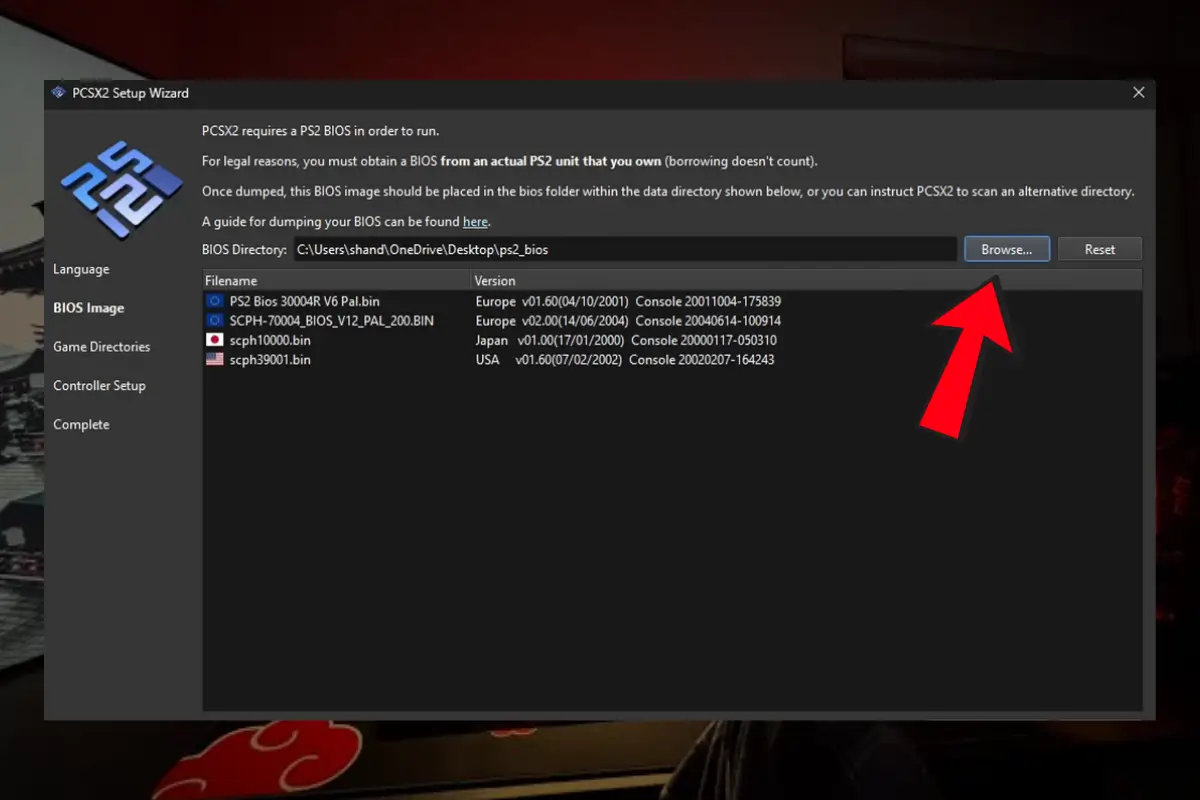
- Open the BIOS folder: Click Open BIOS Folder to access the location where PCSX2 looks for BIOS files. On Windows, the folder is usually Documents\PCSX2\bios. Portable versions may use a BIOS folder next to the PCSX2 app.
- Add your BIOS files: Copy your extracted BIOS files into that folder. You can also choose another folder using the Browse option.
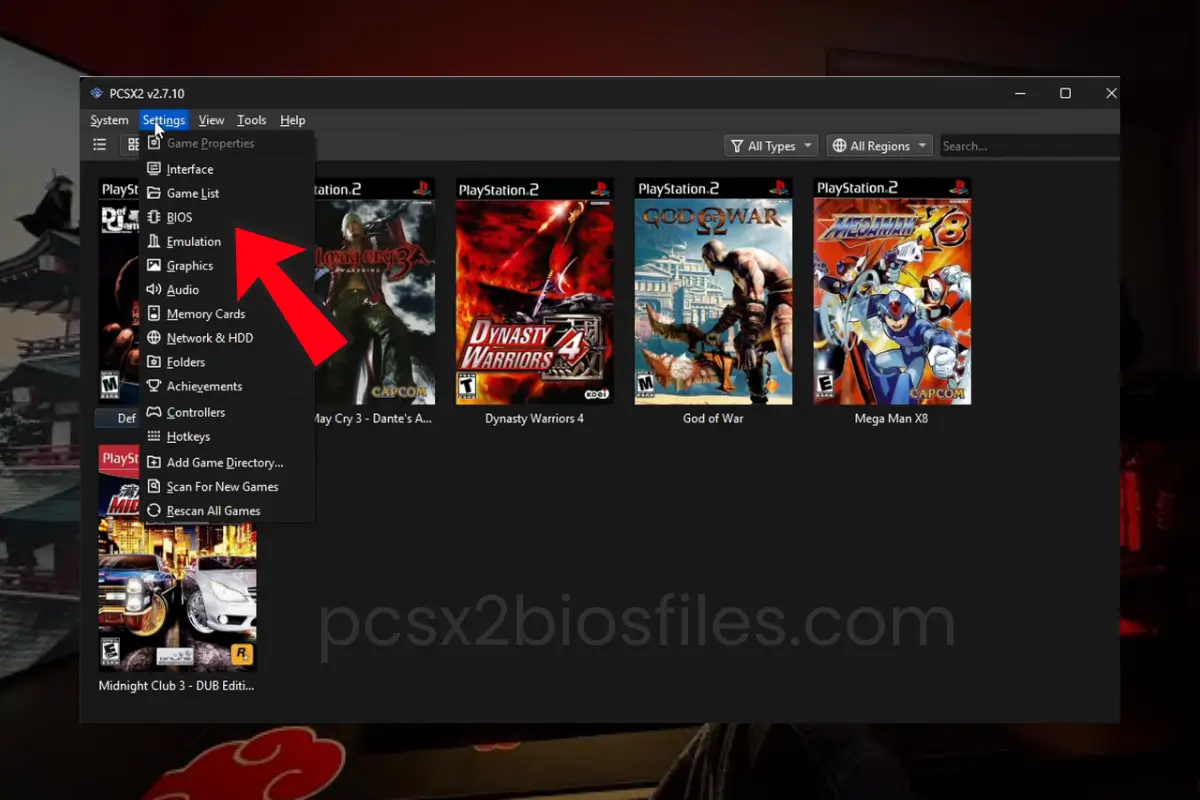
- Refresh the BIOS list: Return to PCSX2 and click Refresh List. The emulator will scan the selected folder for compatible BIOS files.
- Select your BIOS: Choose a detected BIOS version and click Finish to complete the setup.
Set Up PS2 BIOS on Mac
- Launch PCSX2: Open the PCSX2 app from your Applications folder and follow the first-time setup wizard.
- Open the BIOS selection screen: Continue through the wizard until PCSX2 asks you to select a BIOS.
- Choose the BIOS folder: Click Open BIOS Folder and copy your extracted BIOS files into the folder that opens.
- Refresh and select: Return to the setup window, click Refresh List, and select a detected BIOS.
- Finish the setup: Click Finish to complete the configuration.
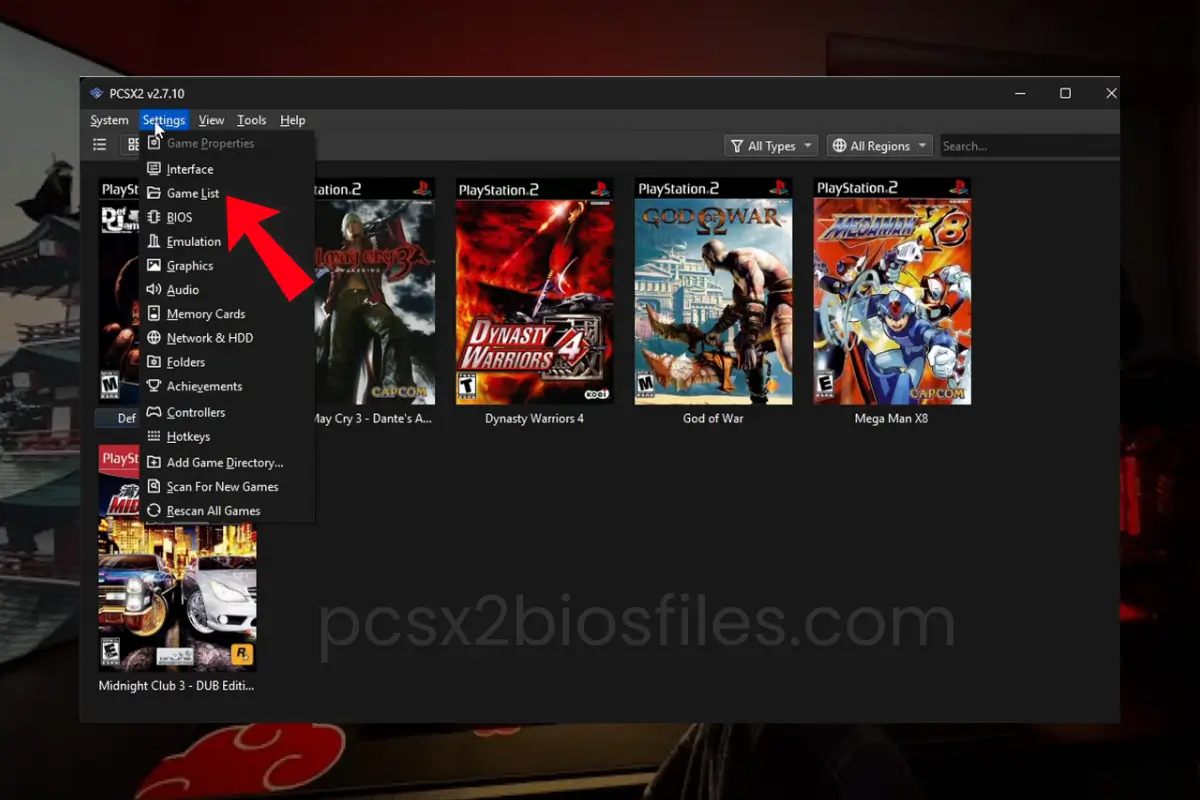
If you’ve already completed the initial setup on either system, open PCSX2’s Settings > BIOS section to review your BIOS configuration. Mac is the same, with a couple of hiccups. macOS may block the app the first time you open it. If it does, go to System Settings > Privacy & Security and click “Open Anyway”. It may also ask you to install Rosetta, which is fine.
What If PCSX2 Doesn’t Detect the BIOS?
Check that you copied the extracted files into the correct folder and that PCSX2 is scanning that location. Click Refresh List again. If the BIOS still doesn’t appear, the dump may be incomplete or invalid, so verify the files before trying again.
How to Set Up the PS2 BIOS on Android
Setting up a PS2 BIOS on Android is straightforward once you have a compatible PS2 emulator for android and a valid BIOS file. The steps are similar in AetherSX2 and NetherSX2, although menu names may vary between versions.
Step 1: Prepare Your BIOS File
If your BIOS file is inside a ZIP or 7z archive, extract it first. Keep the extracted file in an accessible folder, such as Downloads/PS2 BIOS, so you can find it easily during setup.
Step 2: Open Your Emulator
Launch AetherSX2, NetherSX2, or another compatible PS2 emulator. If you’re opening it for the first time, follow the setup wizard until you reach the BIOS selection screen. If you’ve already completed setup, look for the BIOS option in the app’s settings.
Step 3: Select the BIOS File
Tap the option to add or select a BIOS, then use the file picker to locate your extracted file. Select it and wait for the emulator to detect the BIOS information. If several versions are available, choose a valid file that your emulator recognizes.
Step 4: Check BIOS Detection
Confirm that the BIOS appears in the emulator’s settings and that no error is displayed. You can then select your game folder separately and load a compatible game image.
What If the BIOS Doesn’t Appear?
Check that you’ve selected the extracted BIOS file rather than the compressed archive. If the file is missing from the file picker, make sure the emulator has permission to access the folder. If it still isn’t detected, verify that the BIOS dump is complete and valid.
Common PS2 BIOS Problems and Fixes
Having trouble getting your PS2 emulator to work? A missing BIOS file, an incomplete dump, or an emulator setting can prevent you from launching a game. Here are some common problems and what you can do to fix them.
01
BIOS Not Found Error
If PCSX2 or another emulator can’t find your BIOS, check that you’ve selected the correct folder and extracted the files from any ZIP or 7z archive. In PCSX2, open the BIOS settings and refresh the list. If the file still doesn’t appear, make sure it’s a valid PS2 BIOS dump and that the emulator can access it.
02
Corrupted or Invalid BIOS File
An invalid BIOS file may be incomplete, damaged, or not a genuine PS2 BIOS dump. Check the file details and obtain a fresh dump from your own console if necessary. Changing the filename or file extension won’t repair a corrupted file.
03
Black Screen When Starting a Game
A black screen doesn’t always mean there’s a problem with your BIOS. The game image may be incomplete or corrupted, or the title may need a particular emulator setting. Try another known-working game, verify the game image if your emulator supports that option, and check the game’s compatibility information before replacing your BIOS.
04
Region or Game Compatibility Problems
PS2 BIOS files have different regional versions, but a region mismatch isn’t always the cause of a game failing to start. PCSX2 supports games from different regions without enforcing the original console’s region locking in the same way. Check the game’s compatibility, BIOS detection, and emulator settings before changing versions.
05
Controller Not Working
If your game loads but the controller doesn’t respond, check the emulator’s input settings rather than assuming the BIOS is faulty. Make sure the correct controller is selected, connect or pair it properly, and map the buttons if needed. On Android, also check whether the app has recognized your connected controller.
06
Lag or Stuttering During Gameplay
Slow gameplay is usually related to hardware limitations, graphics settings, or emulator configuration rather than the BIOS itself. Try lowering the internal resolution, switching to a suitable graphics renderer, and closing resource-heavy applications. On a laptop, check that the system isn’t limiting performance through battery-saving settings.
07
Slow Audio or Crackling Sound
Audio problems often appear when the emulator cannot maintain full speed. Lower the resolution, close background programs, and check the emulator’s audio settings.
08
Controller Not Working
First check that your PC, Mac, or Android device detects the controller. Then open the emulator’s controller settings and remap the buttons.
09
BIOS Region Mismatch
Some games may behave better when the BIOS region matches the game region. If you have legally dumped BIOS files from more than one console, test the correct regional BIOS.
If these checks don’t solve the problem, test one change at a time. This makes it easier to identify the actual cause without introducing more configuration issues.
Best PCSX2 Settings for Better Performance and Compatibility
The best PCSX2 settings depend on your PC and the game you’re playing. Start with the default settings, then make small changes if you experience slow gameplay or graphics issues.
Choose the Right Graphics Renderer
If you’re unsure which renderer to use, leave Graphics API set to Automatic. PCSX2 selects an option based on your hardware and operating system. If you notice graphical glitches or poor performance, try another supported renderer and compare the results.
Adjust the Internal Resolution
For a low-end PC, start at native resolution (1x) and increase it to 2x if performance remains stable. More powerful systems can handle higher resolutions for sharper graphics, but increasing resolution puts more load on your graphics card.
Keep Advanced Settings at Their Defaults
Avoid enabling random speed hacks or changing emulation settings just to gain a few frames per second. These changes can cause glitches or affect compatibility. If one game has a specific problem, use its individual game settings rather than changing settings for every title.
Check Performance and Update Drivers
Keep your graphics drivers updated and use your computer’s high-performance power mode when needed, especially on laptops. If a game still runs slowly, check PCSX2’s performance counters while it is running and lower demanding graphics settings one at a time.
Frequently Asked Questions
Can I Use the Same PS2 BIOS on Windows, Mac, and Android?
Yes, a compatible BIOS dump can generally be used across supported emulators on different platforms. You may need to select the file again or change its location when switching devices.
Do I Need More Than One PS2 BIOS File?
Usually, one valid BIOS version is enough to get started with PCSX2. Keeping multiple versions can be useful when testing compatibility or working with different console revisions, but most users don’t need a full collection.
Is Every 4 MB BIN File a PS2 BIOS?
No. A .bin extension only identifies a binary file, and a file of around 4 MB isn’t automatically a valid PS2 BIOS. Check its contents and make sure your emulator recognizes it.
Does a PS2 BIOS Improve FPS?
No, changing the BIOS usually won’t directly increase frame rates. Performance depends more on your computer or phone, the game, emulator settings, and compatibility. If a game runs slowly, check those factors before replacing your BIOS.
Can I Use a PS2 BIOS From Any Region?
PCSX2 supports games from different regions, so the BIOS region doesn’t always need to match the game. Other emulators may behave differently, so check the requirements of the emulator you’re using.
Why Does My BIOS Work on One Emulator but Not Another?
Emulators can differ in their BIOS requirements, file detection, and configuration. Check that the second emulator supports external PS2 BIOS files and that you’ve selected the correct files and folder.
Do I Need to Update My PS2 BIOS When PCSX2 Updates?
No. Updating PCSX2 doesn’t normally require you to replace your BIOS. Keep a working dump and update the emulator when needed; only investigate another BIOS version if you have a specific compatibility issue.
Can I Play PS2 Games With a BIOS but Without a Game File?
No. A BIOS provides system firmware, not the game itself. To play a title, you’ll also need a compatible game disc or game image that your emulator supports.
How Can I Check Whether My PS2 BIOS Dump Is Valid?
Start by checking whether the emulator detects the file without errors. For a more thorough check, compare its cryptographic hash with a trusted reference for the same BIOS version. A matching hash can confirm that the file matches that reference, but it doesn’t establish whether its source was authorized.
Does Play! Require a PS2 BIOS File?
No. Play! uses built-in high-level BIOS emulation, so it doesn’t require a separate PS2 BIOS dump. Other emulators, including PCSX2, do require an external BIOS file.
Final Thoughts
Getting your favorite PS2 games running on a PC or Android device starts with choosing the right emulator and setting it up correctly. If your emulator requires a BIOS, make sure the file is valid, select it in the settings, and check that the emulator detects it before loading a game.
Whether you’re using PCSX2 on a computer or a compatible emulator on Android, the right setup can save you time and help you avoid common errors. If something doesn’t work as expected, check the BIOS file, emulator settings, and game compatibility before changing everything at once.
Take it one step at a time, and you’ll be closer to enjoying the classic PlayStation 2 games you remember.