DamonPS2 BIOS Setup: How to Import Files and Fix Errors
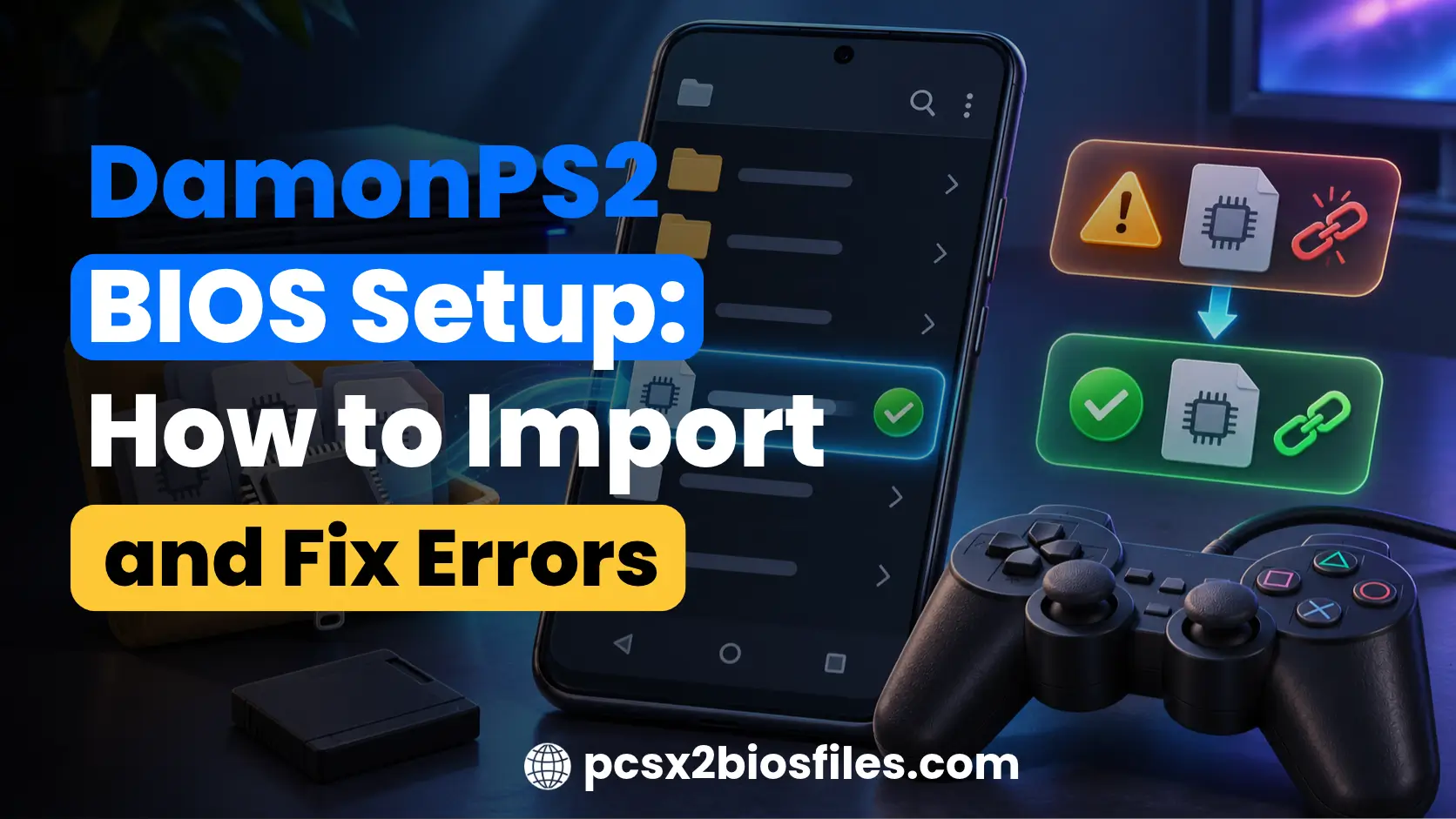
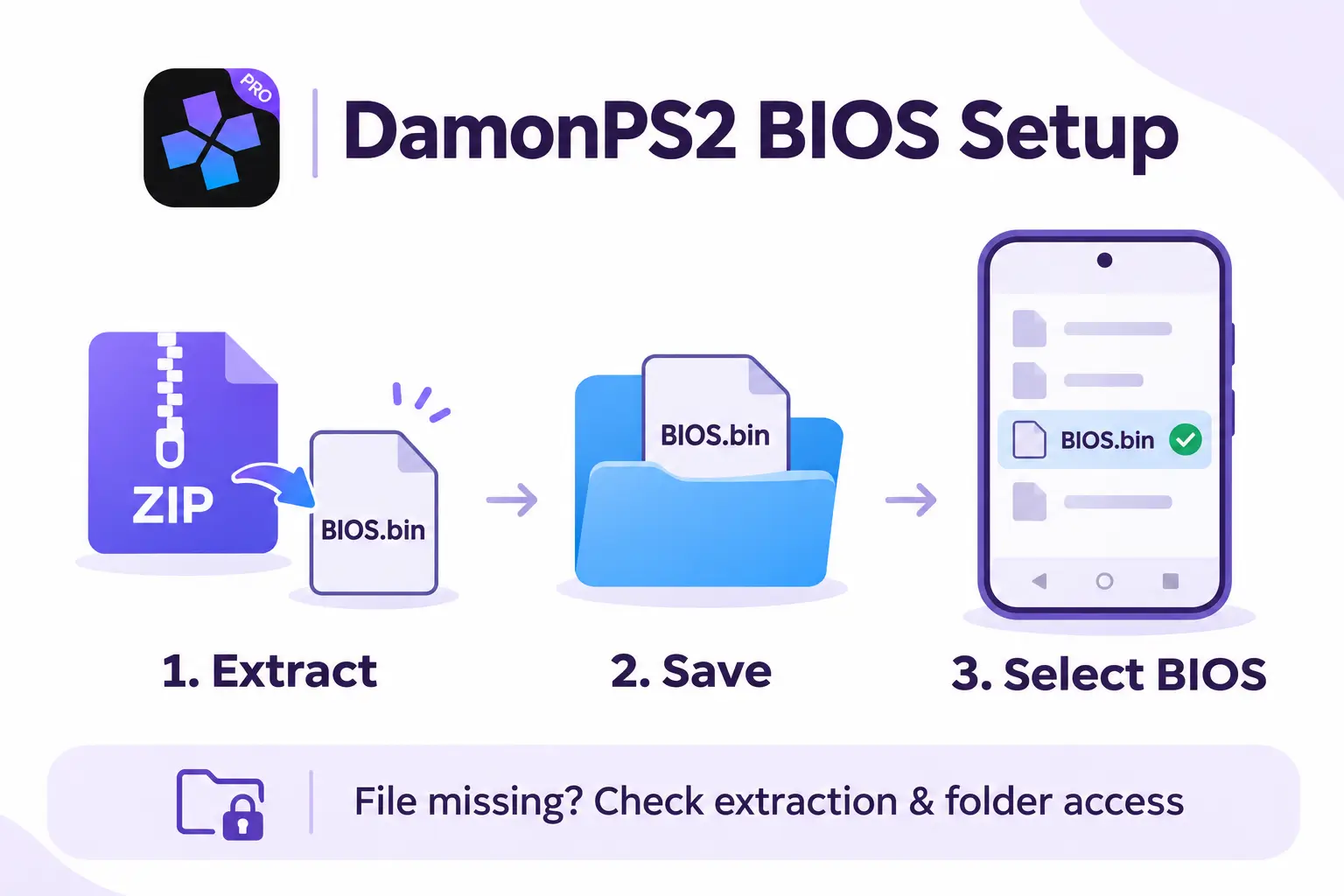
DamonPS2 needs a compatible PS2 BIOS file to start games on your Android phone. To set it up, extract the BIOS file if it comes in a ZIP or RAR archive, save it in an accessible folder, and select it through the app’s BIOS option.
The location of the BIOS option and its menu labels may differ between DamonPS2 versions. If the file doesn’t appear or the app rejects it, check that it’s fully extracted and that DamonPS2 can access the folder where you saved it.
What is a DamonPS2 BIOS file?
A DamonPS2 BIOS file is a copy of the system firmware from a PlayStation 2 console. During startup, the BIOS initializes the console’s system environment and runs the code used for the system menu and game boot process. DamonPS2 uses this firmware as part of emulating the PS2 on Android.
The emulator, BIOS, and game image each have a separate purpose:
- DamonPS2: The Android app that emulates PS2 hardware.
- PS2 BIOS: The console firmware used during startup and certain system operations.
- PS2 game image: A file containing a particular game’s disc data, often stored in ISO format.
Installing DamonPS2 does not include the BIOS. The firmware belongs to Sony and is distributed separately from the emulator, so you need to provide and select a compatible BIOS file before starting games.
What you need before importing the BIOS
Have these files and tools ready before opening the BIOS selection menu in DamonPS2:
- DamonPS2 installed: Open the app on your Android device to check that it launches.
- A compatible PS2 BIOS file: Keep the BIOS saved locally on your phone.
- A file manager with extraction support: If the BIOS comes in a ZIP or RAR archive, use a file manager that can extract that format.
- An accessible folder: Store the extracted BIOS somewhere you can find easily, such as
Internal storage/PS2/BIOS/. DamonPS2 must have access to this location. - A separate PS2 game image: Have a supported game image ready to test whether the game starts after you select the BIOS.
Where to get PS2 BIOS files for DamonPS2
You can get PS2 BIOS files from pcsx2biosfiles.com, where you’ll find regional options, file details, and setup information. Check the BIOS region, firmware version, and included files before choosing one for DamonPS2.
After saving the file on your Android phone, extract it if it comes in a ZIP or RAR archive. Keep the extracted BIOS in an accessible folder so you can find and select it in the app.
How to prepare your BIOS file
Before selecting the BIOS in DamonPS2, extract it if needed and save it somewhere the app can access. Keep the original filename so you can identify the file later.
Extract the ZIP or RAR archive
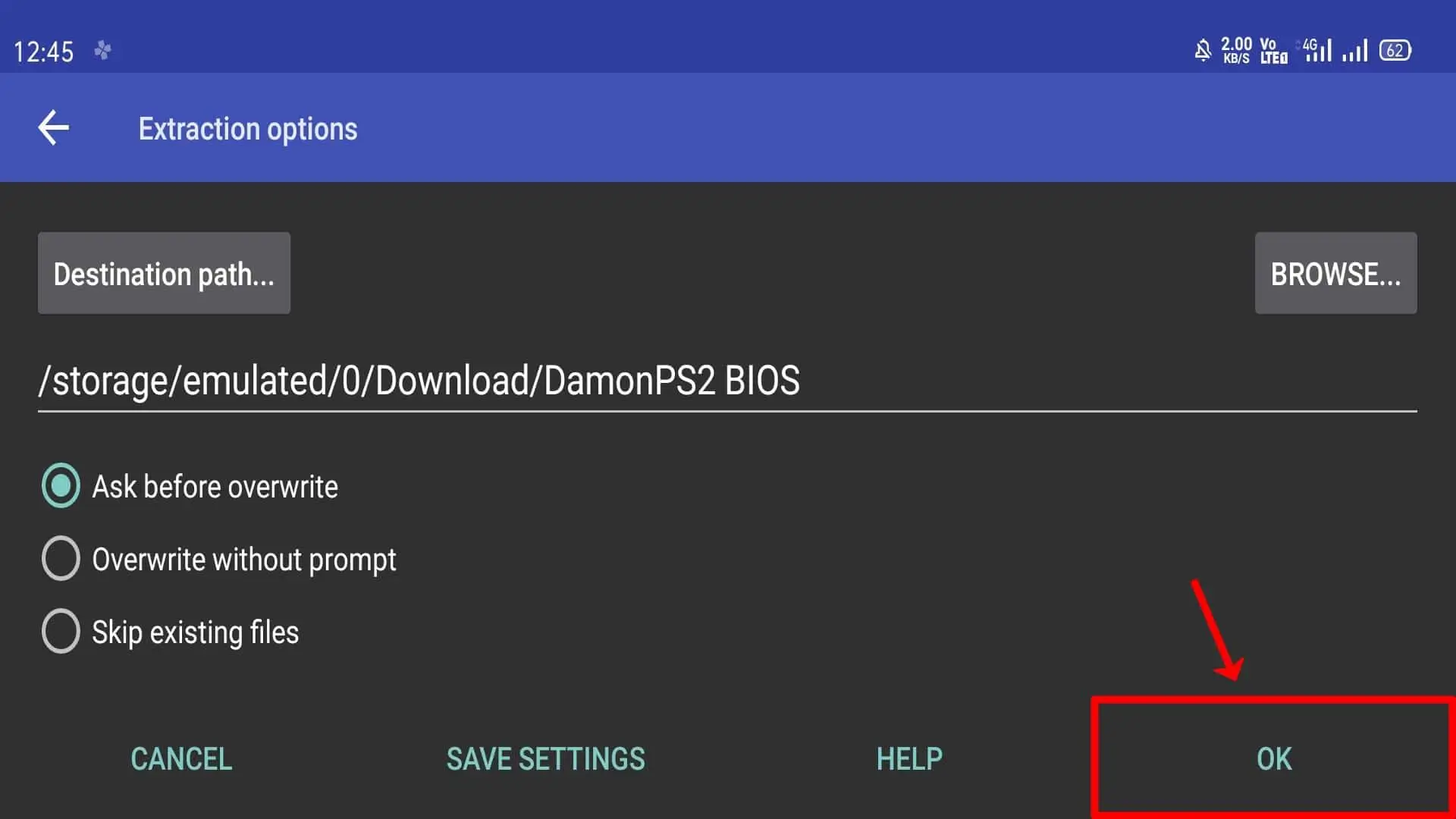
Open your Android file manager and locate the downloaded archive, usually in the Downloads folder. Select the ZIP or RAR file, choose Extract, and select a destination. The wording may vary between file managers.
Open the extracted folder and look for the main PS2 BIOS image, commonly a .bin file. If your file manager cannot open the archive, use one that supports its compression format. If the BIOS is already extracted, continue to the next step.
Identify the PS2 BIOS file
PS2 BIOS images commonly use the .bin extension. Check the file details and any documentation included with the archive to identify the firmware image, especially if the folder contains several files.
The .bin extension alone does not prove that a file contains a PS2 BIOS. Game data and other files can use the same extension. Renaming a ZIP, ISO, or another file to .bin does not convert its contents into BIOS firmware.
Save the BIOS in an accessible folder
Create a folder such as Internal storage/PS2/BIOS/ and place the extracted BIOS there. This example keeps your files organized; DamonPS2 does not require that exact folder name.
Make sure DamonPS2 can browse to the location and access the file. Keep the BIOS in that folder after selecting it, since moving or deleting it may require you to select it again.
How to import BIOS files into DamonPS2
Once your BIOS file is extracted and saved on your phone, open DamonPS2 to select it. The BIOS option’s location and surrounding menu labels may differ between versions.
Step 1: Open the BIOS selection option
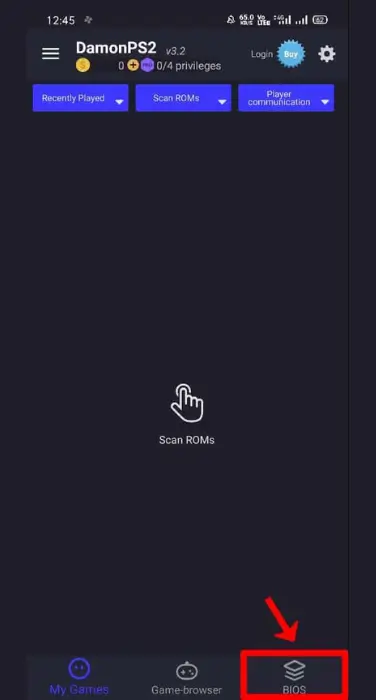
Open DamonPS2 and look for the BIOS option. Select it to access the BIOS browser. If your interface looks different, check the app’s menu or settings for its BIOS selection control.
Step 2: Browse to your BIOS folder
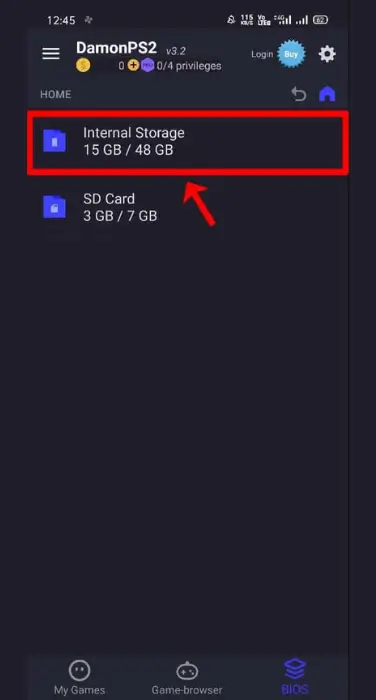
Navigate to the folder containing your extracted BIOS. For example, if you used the location suggested earlier, open Internal storage/PS2/BIOS/.
If Android prompts you to allow file or folder access, approve access to the location containing the BIOS. Open the extracted folder until you can see the BIOS image itself.
Step 3: Select and confirm the BIOS
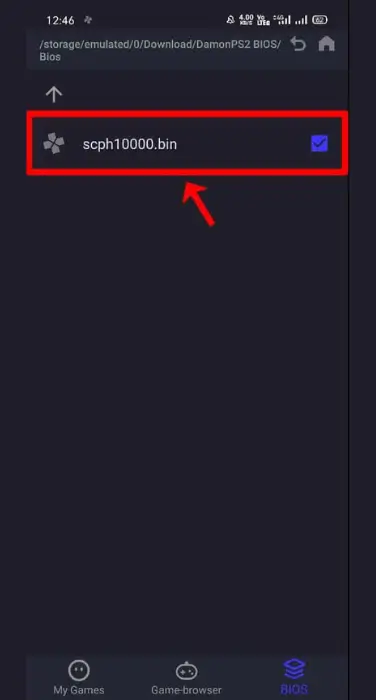
Tap the PS2 BIOS image you identified earlier, commonly a .bin file. If DamonPS2 displays a confirmation prompt, confirm your selection.
Check whether the file appears as the selected BIOS or whether the app reports that it has been recognized. If DamonPS2 rejects the file or continues asking for a BIOS, check the file’s contents, extraction, and folder access before proceeding.
Step 4: Launch a PS2 game
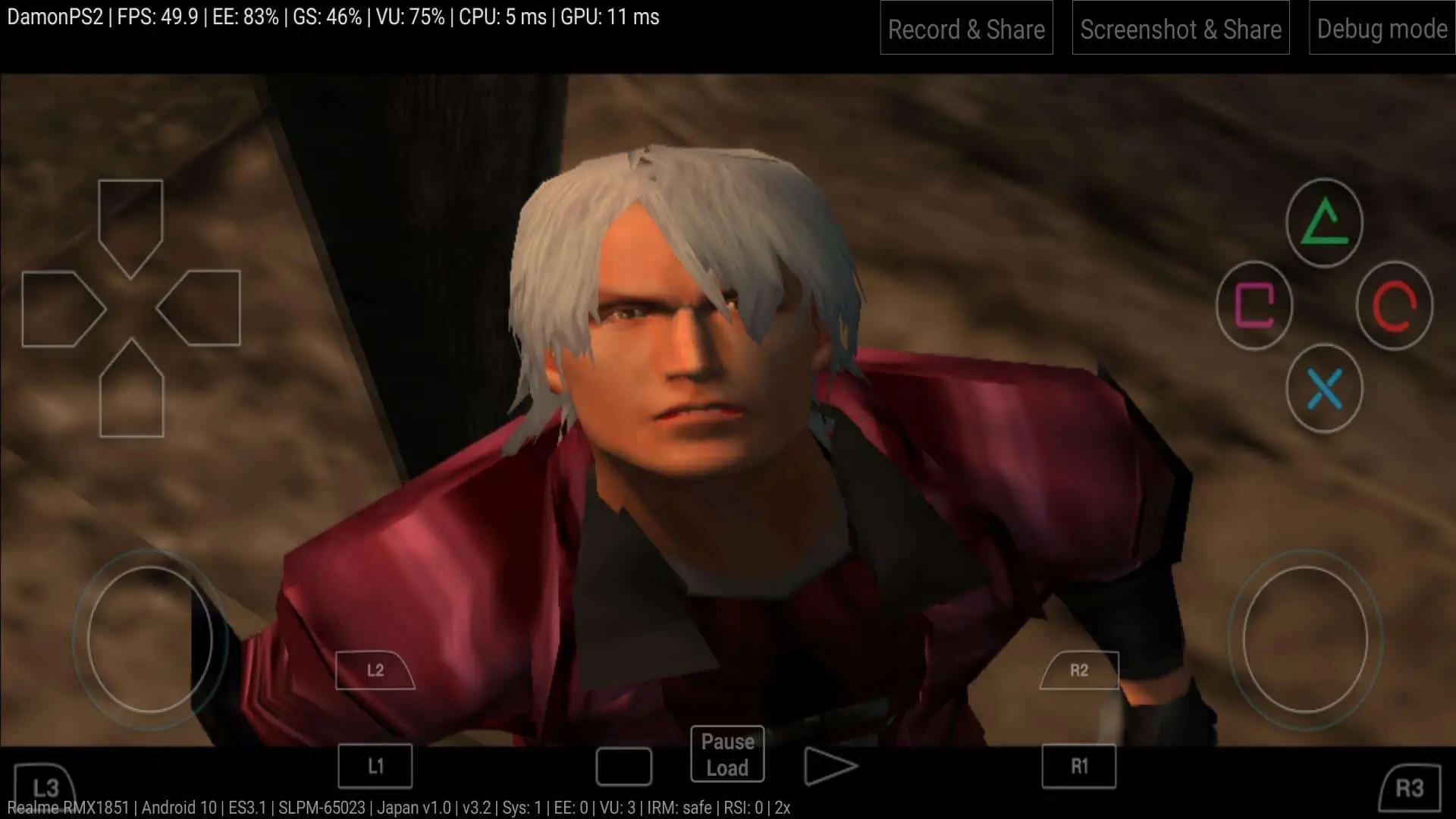
Return to the game browser and open a supported PS2 game image saved on your phone. Select the game file here, keeping the BIOS assigned through the BIOS option.
If setup succeeds and the game is compatible, it should progress into its startup sequence. A black screen or crash can also involve the game image, emulator settings, or device compatibility, so a failed launch alone does not confirm a BIOS problem.
How to fix DamonPS2 BIOS errors
Use the symptom below to choose your first check. Change one thing at a time, then reopen DamonPS2 and test again.
| Symptom | What to check | Next action |
|---|---|---|
| BIOS file does not appear | Extraction, local availability, and folder location | Extract the archive and browse to the folder containing the BIOS image |
| BIOS folder cannot be opened | Folder access and storage restrictions | Copy the BIOS to an accessible folder and select it again |
| Selected BIOS is rejected | File contents and whether extraction or transfer completed | Verify the source file and repeat the extraction or transfer |
| DamonPS2 keeps requesting a BIOS | Selected file’s location and availability | Restore access to the file and reselect it |
| Game shows a black screen | BIOS selection, game image, settings, and compatibility | Confirm the BIOS selection, then test another game |
| File is reported as “not a PS2 game” | Which file was opened and which selector was used | Select firmware through the BIOS option and game images through the game browser |
Does BIOS region matter in DamonPS2?
BIOS region identifies the market the original PS2 firmware was made for. Common Types of PS2 BIOS include USA (NTSC-U) for North America, Europe (PAL) for European releases, and Japan (NTSC-J) for Japan. Regional differences can affect the startup language, system defaults, and behavior of some games.
Region and firmware revision describe different things. The region identifies the intended market, while the revision identifies a particular version of the firmware. Two BIOS files from the same region can have different revisions. A console’s SCPH model number can help identify its origin, but it is not the firmware revision itself.
Start with a valid BIOS that your installed DamonPS2 version recognizes. A USA, European, or Japanese BIOS does not guarantee higher frame rates or resolve every startup error.
Checking another supported BIOS version may help when investigating a repeatable startup problem after you have checked the game image and emulator settings, particularly if compatibility information identifies a BIOS-related issue. Change one file at a time and test the same game so you can tell whether the change affects its behavior.
Can DamonPS2 run games without a BIOS?
DamonPS2 requires a compatible PS2 BIOS file for the setup described here. The developer’s Google Play listing identifies skipping the BIOS boot sequence as a supported feature, while BIOS-free game startup is listed as a future feature.
Skipping the BIOS boot screen bypasses the console’s usual startup sequence and takes you toward the game more directly. The BIOS file remains part of the setup. Enabling this option will not resolve a missing BIOS error; you still need to select a compatible file through DamonPS2’s BIOS option.
Conclusion
To complete DamonPS2 BIOS setup, extract a compatible BIOS file, keep it in an accessible folder, and select it through the app’s BIOS option. Then launch a supported PS2 game image to check that it starts.
If setup fails, check file access, extraction, and the selected BIOS before changing other settings. If the BIOS is recognized but a game still won’t start, investigate the game image and compatibility with DamonPS2.