AetherSX2 BIOS Not Found: How to Fix BIOS Detection Errors on Android
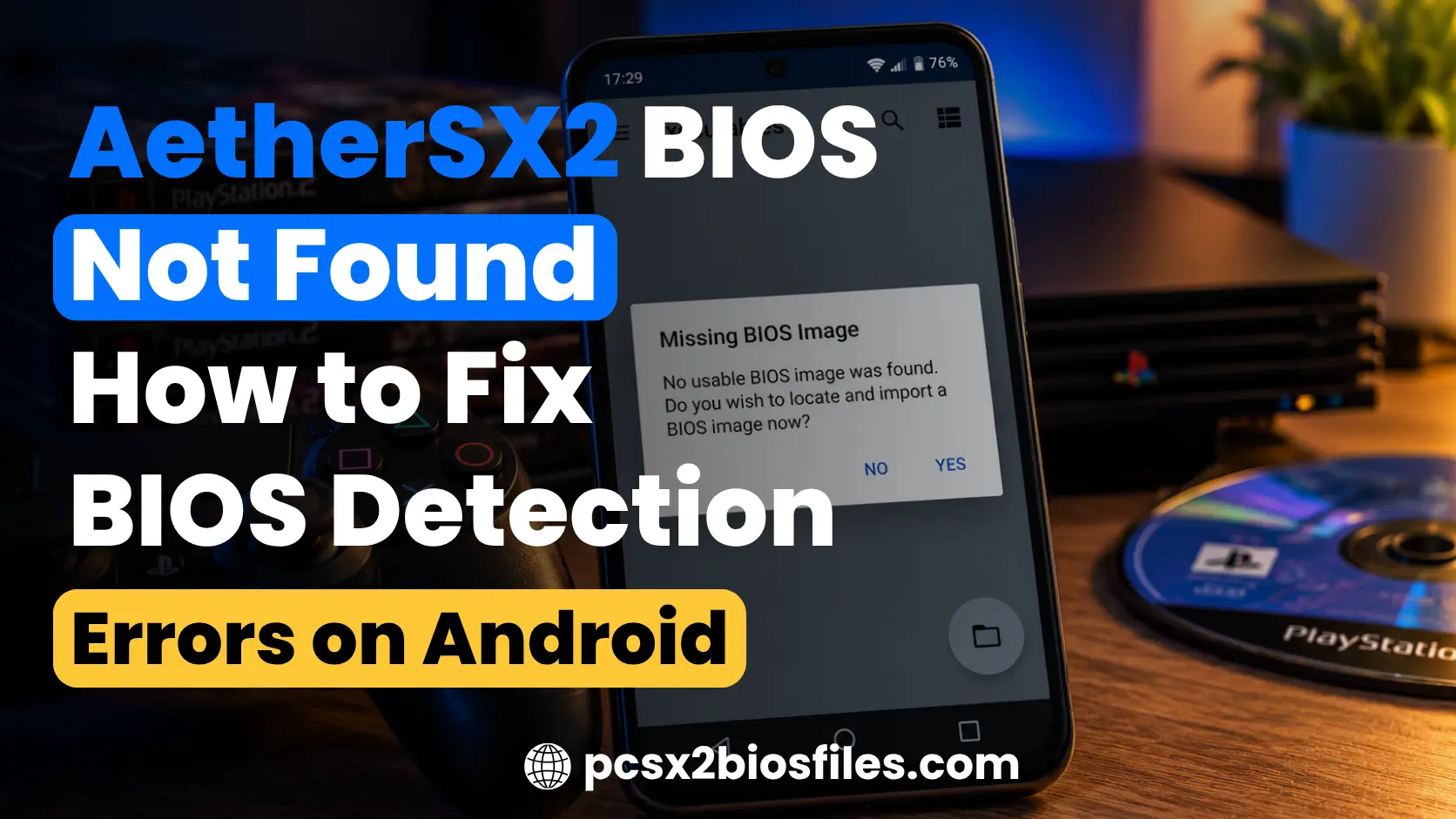
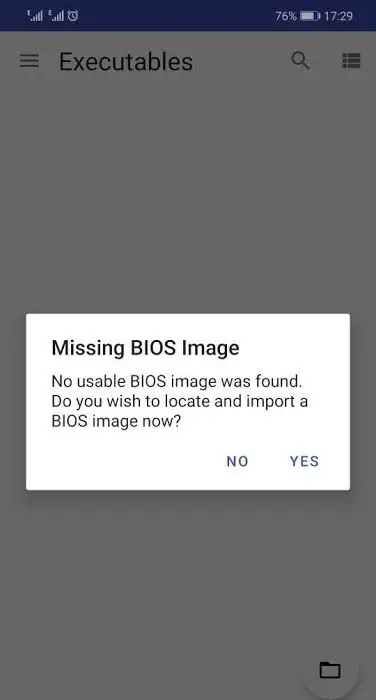
If AetherSX2 shows a “BIOS not found” or “Missing BIOS Image” error, the emulator cannot find or use the PS2 BIOS file needed to start games. This usually happens when the BIOS hasn’t been imported, the file is corrupted, or AetherSX2 cannot access it on your Android device. If you haven’t configured the BIOS yet, follow this guide on AetherSX2 BIOS setup to learn how to set it up correctly on Android.
Start by checking your BIOS file, extracting it if it’s compressed, and importing it through AetherSX2 settings. Once the correct BIOS is selected, you can try launching your PS2 games again.
Why is AetherSX2 not detecting the PS2 BIOS?
AetherSX2 may fail to detect your PS2 BIOS if the file is missing, damaged, or hasn’t been imported correctly. Android storage restrictions can also prevent the emulator from accessing the file.
Here are the most common reasons:
- BIOS file not imported or selected: Copying a BIOS file to your phone doesn’t automatically add it to AetherSX2. You need to import the file through the emulator’s BIOS settings and select it.
- Compressed BIOS file: If your BIOS is inside a ZIP, RAR, or 7z archive, AetherSX2 may not recognize it. Extract the archive and locate the actual BIOS file, typically in
.binformat. - Invalid or corrupted BIOS: An incomplete, damaged, or incorrect file may trigger an “Invalid BIOS Image” error. Use a valid BIOS dumped from your own PlayStation 2 console.
- Android storage restrictions: Android may prevent AetherSX2 from accessing certain folders. File picker restrictions or unavailable storage locations can interfere with BIOS selection.
- Incorrect file location: The BIOS may be saved in a different folder than expected, or you may have selected the archive instead of the extracted BIOS file.
Most BIOS detection errors can be resolved by checking the file and importing it again through AetherSX2’s BIOS settings.
How to fix AetherSX2 BIOS not found on Android
If AetherSX2 shows a “BIOS Not Found” or “Missing BIOS Image” error, you can usually fix it by checking your BIOS file and importing it correctly. Follow these steps to get AetherSX2 to recognize your PS2 BIOS on Android.
Step 1: Check your PS2 BIOS file
Open your phone’s File Manager and locate the PS2 BIOS file. A valid BIOS dump is commonly saved as a .bin file, although the extension alone doesn’t confirm that the file is valid.
Check that the file isn’t empty, damaged, or mistakenly renamed. AetherSX2 needs a genuine PS2 BIOS dumped from your own PlayStation 2 console. If the file is missing or corrupted, you’ll need to transfer a valid BIOS dump to your Android device.
Step 2: Extract the BIOS file if it’s compressed
Your BIOS may be stored inside a ZIP, RAR, or 7z archive. Extract it before importing it into AetherSX2.
- Open your Android File Manager.
- Find the ZIP, RAR, or 7z file containing your BIOS.
- Tap Extract or use an archive manager that supports the format.
- Open the extracted folder and locate the actual BIOS file.
- Keep the extracted BIOS file ready for import.
Avoid renaming a compressed archive to .bin. Changing the extension doesn’t extract its contents.
Step 3: Move the BIOS file to an accessible folder
Android may restrict access to certain storage locations, especially system-managed folders.
Move your extracted BIOS file to a folder that Android’s file picker can access.
- Open File Manager and go to Internal Storage.
- Create a folder named
PS2 BIOS. - Move your extracted BIOS file into that folder.
- Confirm that the file appears in the new location.
For example, you can use Internal Storage/PS2 BIOS/.
Keep the BIOS file outside restricted directories such as Android/data, which can be difficult to access on newer Android versions.
Step 4: Import the BIOS through AetherSX2 settings
Once the BIOS file is ready, open AetherSX2 and import it through the emulator’s settings.
- Launch AetherSX2 on your Android phone.
- Open the side menu and select App Settings.
- Go to the BIOS tab.
- Tap Import BIOS.
- Navigate to the folder containing your extracted BIOS file.
- Select the BIOS file and complete the import.
AetherSX2 should add the recognized BIOS to its available BIOS list. If an invalid BIOS message appears, check the file before trying again.
Step 5: Select the imported BIOS
After importing the file, make sure AetherSX2 has selected it for use.
- Return to App Settings > BIOS.
- Check the list of imported BIOS files.
- Tap the BIOS you want to use if it isn’t already selected.
- Confirm that the selected BIOS appears in the settings.
If the list is empty, the import may have failed. Repeat Step 4 using a valid, extracted BIOS file.
Step 6: Restart AetherSX2 and test a PS2 game
Close AetherSX2 and open it again after selecting your BIOS.
Launch a compatible PS2 game from your game library and check whether it starts normally. If the game launches without the missing BIOS warning, AetherSX2 has recognized the selected BIOS.
If the error remains, return to the BIOS settings and confirm that the imported file is listed and selected. If AetherSX2 accepts the BIOS but the game still fails to start, the problem may involve the game image or emulator settings.
How to fix Android storage permission issues
Android storage restrictions can prevent AetherSX2 from accessing your PS2 BIOS file, even when the file is saved correctly. This is more common on newer Android versions, where apps have limited access to certain folders.
Try these fixes if your BIOS file doesn’t appear in AetherSX2:
- Use Android’s file picker: Open AetherSX2, go to App Settings > BIOS > Import BIOS, and select your BIOS through the file picker. This allows Android to grant access to the selected file.
- Move the BIOS to internal storage: Save the extracted BIOS in a folder such as
Internal Storage/PS2 BIOS/. Avoid restricted locations such asAndroid/dataandAndroid/obb. - Check available app permissions: Open Settings > Apps > AetherSX2 > Permissions. Review any available file or storage permissions. The options vary by Android version, and some devices won’t show a separate storage permission.
- Check the selected file: Make sure you’re choosing the extracted BIOS file rather than a ZIP, RAR, or 7z archive.
- Import the BIOS again: Return to AetherSX2’s BIOS settings and repeat the import using the new file location.
If the file still doesn’t appear, try selecting it through your phone’s default Files app. Some third-party file managers may handle Android’s file picker differently.
How to check if your AetherSX2 BIOS is working
After importing your PS2 BIOS, check whether AetherSX2 recognizes it before changing any other emulator settings.
Follow these steps:
- Open BIOS settings: Launch AetherSX2 and go to App Settings > BIOS.
- Check the BIOS list: Confirm that your imported BIOS appears in the list and is selected.
- Launch a PS2 game: Return to your game library and open a compatible PS2 game from a valid game image.
- Watch for BIOS errors: If the game starts without a “Missing BIOS Image” or “Invalid BIOS” warning, the emulator has likely accepted your BIOS.
- Check game performance: If the game opens but displays a black screen, graphical glitches, or crashes, investigate the game image, graphics settings, and device compatibility.
A black screen doesn’t always indicate a BIOS problem. Some PS2 games may fail to load because of damaged ISO files, unsupported game behavior, or incorrect emulator settings.
You can also try launching another known-working PS2 game. If one game runs normally while another fails, the BIOS is likely working, and the issue may be specific to that game.
Final thoughts
Most AetherSX2 BIOS detection errors come from missing, compressed, corrupted, or incorrectly imported BIOS files. Checking the file, moving it to accessible internal storage, and selecting it through AetherSX2’s BIOS settings will resolve many of these problems.
Once AetherSX2 recognizes your BIOS, test a compatible PS2 game to confirm everything works. If the BIOS is selected but the game still won’t load, check the game image and emulator settings for other possible problems.
Frequently Asked Questions
What BIOS file format does AetherSX2 support?
AetherSX2 supports valid PlayStation 2 BIOS images, commonly stored as .bin files. If your BIOS is inside a ZIP, RAR, or 7z archive, extract it before importing. Renaming an unsupported or compressed file to .bin won’t make it compatible.
Can AetherSX2 run PS2 games without a BIOS?
No. AetherSX2 requires a valid PS2 BIOS to boot PlayStation 2 games. You need to dump the BIOS from your own PS2 console and import it through the emulator’s BIOS settings before playing.
Why does AetherSX2 say BIOS not found after importing it?
This can happen if the BIOS wasn’t imported successfully, the file is invalid, or no BIOS is selected. Open App Settings > BIOS and check whether your imported BIOS appears in the list. If it’s missing, try importing the extracted file again.
Do I need a separate BIOS for every PS2 game?
No. One valid PS2 BIOS can run many compatible games in AetherSX2. You don’t need to import a new BIOS for each game. However, some games may have region-specific requirements or compatibility issues.