
How to Add PS2 BIOS to RetroArch on Android & iOS
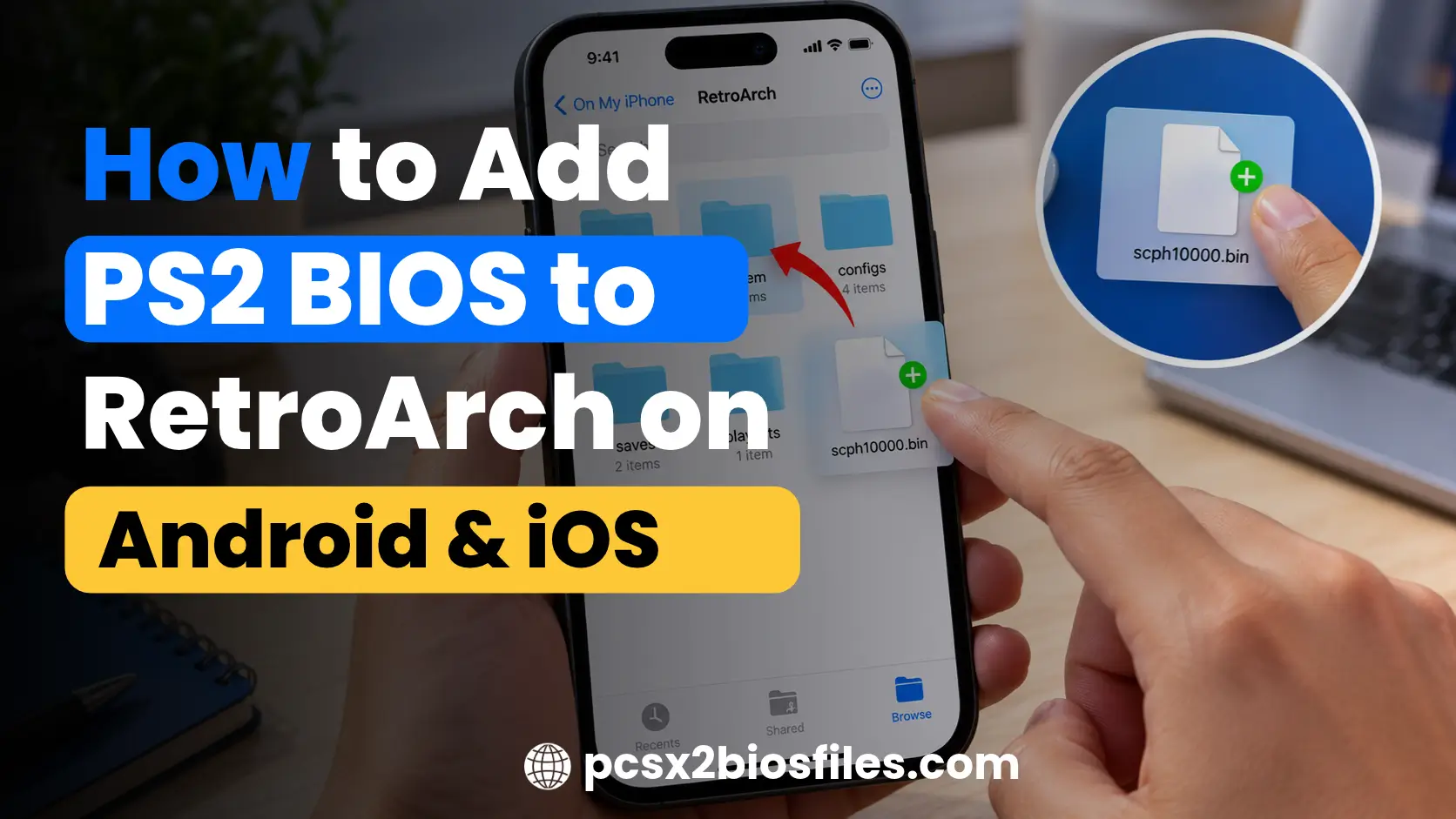
You can add a PS2 BIOS to RetroArch on Android or iOS, but the correct setup depends on the PlayStation 2 emulator core available in your installation. Some cores require a BIOS file, while Play! does not require an external PS2 BIOS.
For the ARMSX2 core, the BIOS belongs in pcsx2/bios/ inside RetroArch’s configured System/BIOS directory. The core also requires supporting resources in pcsx2/resources/. However, you must first confirm that your RetroArch build includes a compatible core. Installing RetroArch alone does not guarantee PS2 emulation.
This guide explains how to check your core, find the correct folder, transfer the required files, load a PS2 game, and fix common problems on Android and iPhone or iPad.
Can You Add a PS2 BIOS to RetroArch on Android and iOS?
Yes, you can copy PS2 BIOS files into RetroArch’s configured system directory when your selected core requires them. However, copying a BIOS file does not install an emulator core or guarantee that a game will run.
Before changing any folders, check which PS2 core your RetroArch installation supports.
Does RetroArch Support PS2 Emulation on Android?
RetroArch can support PS2 emulation through compatible cores, but availability depends on the installed build and device.
Here are the main cores you may encounter:
| PS2 core | Android support | External BIOS required? |
|---|---|---|
| ARMSX2 | Its Libretro documentation describes an ARM64-focused core with Android graphics support. Confirm that your build actually includes it. | Yes, plus its required resources |
| Play! | Android is listed in the core documentation, but availability in your RetroArch build must be checked. | No external BIOS required |
| LRPS2 | Do not assume it is available as a native Android core. The documented core has platform limitations, so verify the exact build before following any instructions for it. | Yes, when using a supported BIOS-based setup |
ARMSX2’s documentation describes Vulkan rendering by default and OpenGL ES 3.2 support on Android. These graphics requirements and the device’s hardware can affect whether emulation works properly.
To check for a core, open RetroArch and select Main Menu > Load Core. If your installation provides Download a Core, open it and check the available list.
If neither ARMSX2 nor Play! appears, do not continue with BIOS installation yet. You need a compatible core before RetroArch can run PS2 games.
For the latest core-specific requirements, see the ARMSX2 documentation and Play! documentation.
Can You Run PS2 Games on RetroArch for iPhone or iPad?
Possibly, depending on your installation and the core it includes.
Libretro documents Play! for iOS, but that does not mean every RetroArch installation contains it. Open Main Menu > Load Core and check whether a PlayStation 2 core is available.
The iOS installation method also matters. According to the official RetroArch iOS installation guide, bundled cores in an installed iOS build cannot simply be added or updated in the same way as downloadable desktop cores.
If Play! is available, you do not need to copy an external PS2 BIOS for that core. If you have another BIOS-based core, follow its own documentation before copying files.
Do not assume that an Android BIOS folder path or a standalone emulator’s instructions will work unchanged in RetroArch for iOS.
What You Need Before Adding a PS2 BIOS
Prepare the following items before starting:
Not every core requires every item. For example, Play! does not require an external PS2 BIOS.
What Is a PS2 BIOS File?
A PS2 BIOS is the basic system software used by the original PlayStation 2. A BIOS-dependent emulator uses this software to reproduce important parts of the console’s startup and system behavior.
Some PS2 emulators require a BIOS dump, while others implement the necessary system behavior without asking users to provide one.
If your selected core requires a BIOS, use a dump obtained from your own console and follow the relevant core documentation. Do not assume that any file labeled as a PS2 BIOS is valid or compatible.
Why Does the BIOS Folder Depend on Your Emulator Core?
RetroArch has a configured System/BIOS directory that cores can use to find system files. The exact location and folder structure depend on the selected core.
For ARMSX2, the documented paths are:
pcsx2/bios/for the PS2 BIOS files.pcsx2/resources/for the emulator’s required supporting resources.
Both paths are relative to RetroArch’s configured System/BIOS directory.
For example, if the configured directory is /storage/example/system/, the ARMSX2 folders belong inside that directory.
Play! does not require an external PS2 BIOS, so you should not create a BIOS folder just for that core.
Other cores may use different locations. Always follow the documentation for the core you actually have installed.
How to Add a PS2 BIOS to RetroArch on Android
The following BIOS instructions apply to ARMSX2 or another compatible core that requires an external BIOS. If you are using Play!, skip the BIOS-copying steps.
Step 1: Check Which PS2 Core Is Available
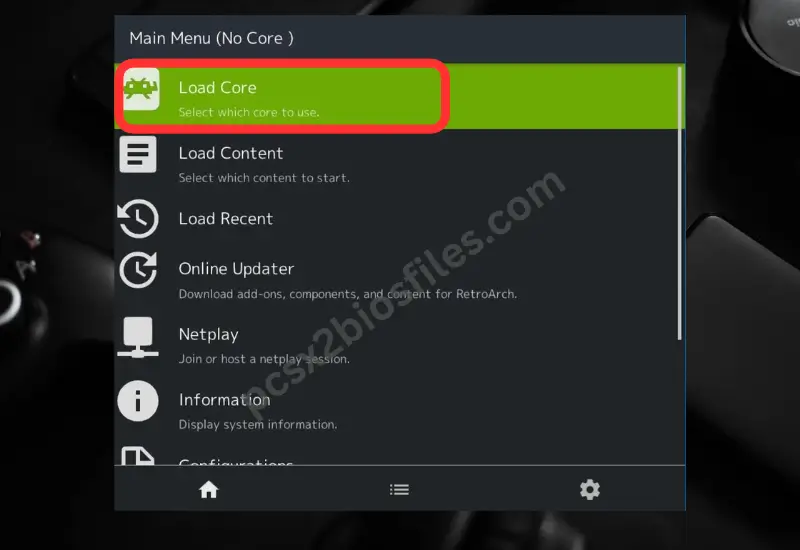
- Open RetroArch on your Android device.
- Select Main Menu > Load Core.
- If available, open Download a Core.
- Look for a supported PS2 core, such as ARMSX2 or Play!.
- Confirm the selected core’s identity and review its requirements.
The core list can vary by build. Do not assume that every documented core appears in the downloader.
If no compatible PS2 core is available, copying BIOS files will not solve the problem. You will need a compatible build or a separate emulator.
Step 2: Find RetroArch’s System/BIOS Directory
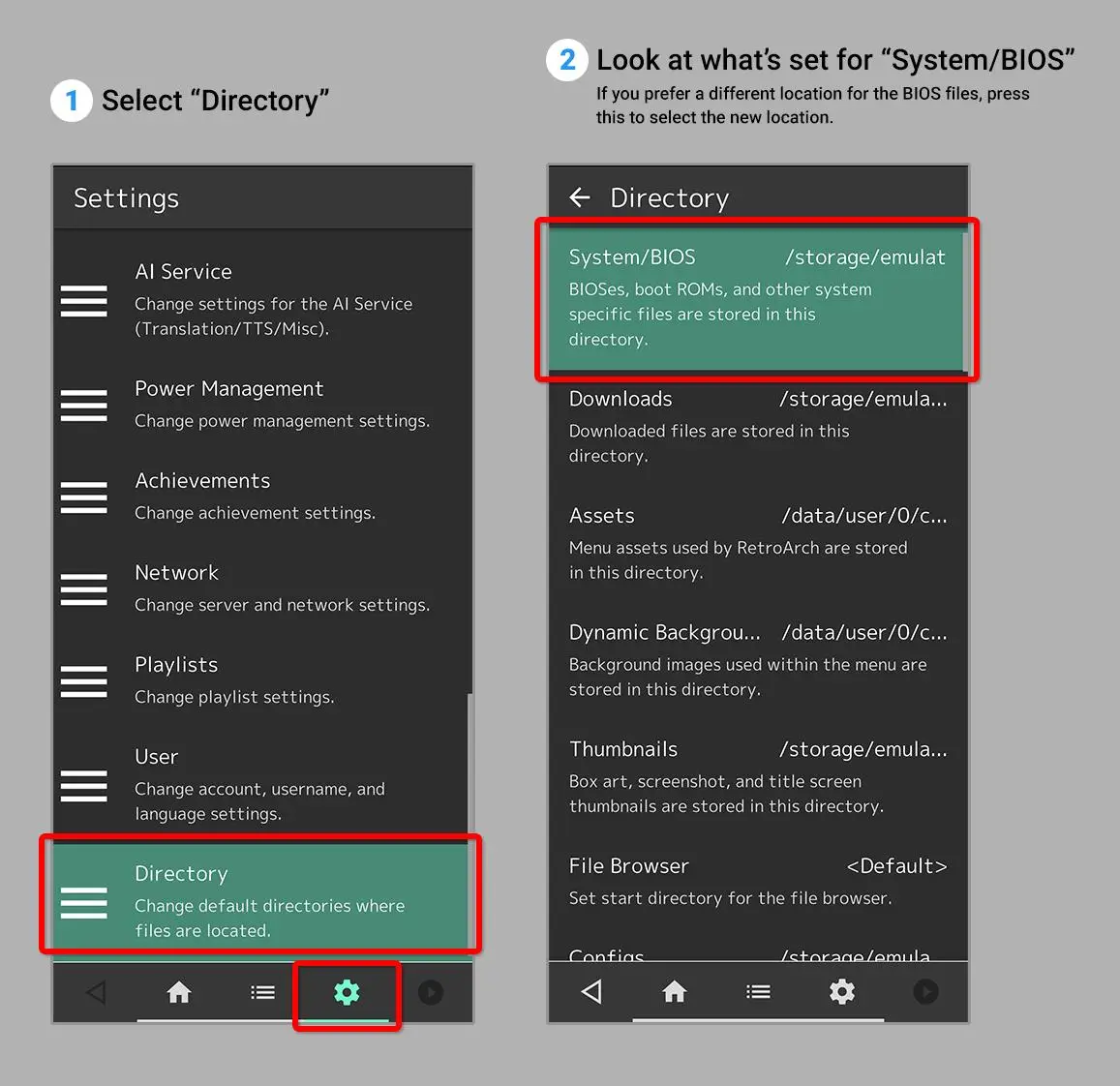
- Open RetroArch.
- Go to Settings > Directory > System/BIOS.
- Check the directory path displayed by your installation.
- Note that location before transferring any files.
RetroArch may use a different directory depending on the device, installation method, storage permissions, and configuration.
The configured System/BIOS directory is the starting point for the ARMSX2 folder paths. You do not need to create another system folder inside it.
If Android restricts access to the directory, use an accessible file manager or a supported file-transfer method. The exact steps can vary by Android version.
Step 3: Create the Required ARMSX2 Folders
For ARMSX2, create the following structure inside the configured System/BIOS directory:
System/BIOS/             ← Configured directory
└── pcsx2/
    ├── bios/
    └── resources/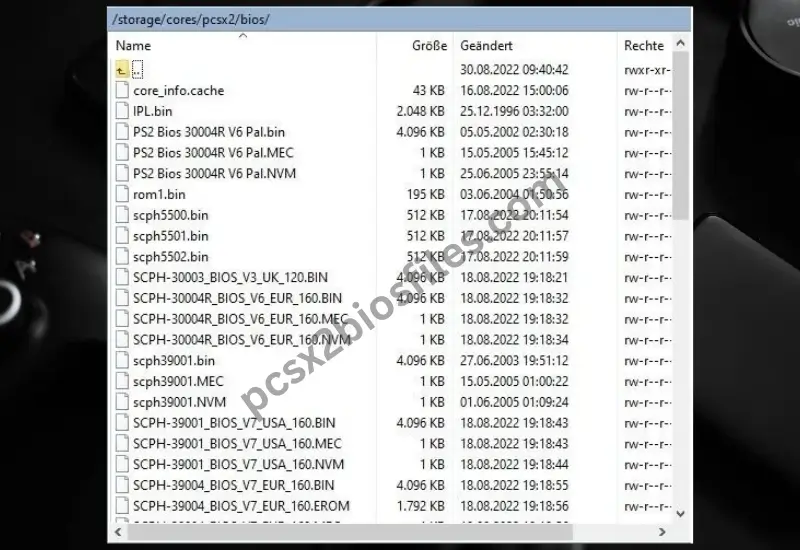
The first line is a label for the configured directory, not an extra folder you must create.
Follow these steps:
- Open the configured System/BIOS directory.
- Create a folder named
pcsx2. - Inside
pcsx2, create a folder namedbios. - Create or copy the required
resourcesfolder alongsidebios.
Use the exact lowercase folder names shown above.
Important: Do not create system/system/pcsx2/bios/. The extra nested directory can prevent the core from finding the files.
Step 4: Copy the BIOS Files to the Correct Folder
Transfer your BIOS dump to your Android device using a USB cable, cloud storage, or a file manager.
Then:
- Find the BIOS files you obtained from your own console.
- Extract them if they are stored in a compressed archive.
- Open
pcsx2/bios/. - Copy the extracted BIOS files into that directory.
- Keep the files in the format required by your installed core.
Do not rename files randomly or assume that changing a file extension makes an invalid BIOS usable.
The ARMSX2 documentation describes its BIOS option as automatically selecting the first valid image from /pcsx2/bios/. Check the documentation for your installed version if the core does not recognize your files.
Step 5: Add the Required Supporting Resources
ARMSX2 requires more than a BIOS file.
Obtain the resources directory from a compatible ARMSX2 release or follow the instructions supplied with that release. Use resources that match the version you run.
Place the directory at:
System/BIOS/pcsx2/resources/Do not mix resource files from unrelated or incompatible builds. The resources directory is separate from the BIOS directory and serves a different purpose.
You do not need to copy these ARMSX2 resources when using Play! unless the documentation for another selected core specifically requires its own supporting files.
Step 6: Check the Setup
After copying the files:
- Confirm that the correct PS2 core is installed.
- Check the configured System/BIOS directory again.
- Verify that the BIOS files are in
pcsx2/bios/. - Confirm that the required resources are in
pcsx2/resources/. - Review the documentation for any core-specific BIOS checks or diagnostic information.
- Try loading a compatible game if the core provides no separate BIOS status indicator.
Do not rely on a particular “Present” or “Missing” message unless your installed core actually provides that information.
If the core fails to start, check the folder structure, file integrity, resources, and core compatibility before moving files repeatedly.
Step 7: Fix the System/BIOS Directory if Needed
If the core cannot find the BIOS, return to Settings > Directory > System/BIOS.
Check that:
- The configured directory points to the folder you edited.
- The
pcsx2/bios/folder is inside that directory. - The BIOS archive has been extracted.
- The required resources are in the correct location.
- Android has permission to access the relevant files.
- Your BIOS dump is valid for the selected core.
If you change the configured System/BIOS directory, remember that the core-specific folders must exist inside the new location too.
How to Add a PS2 BIOS to RetroArch on iPhone and iPad
iOS instructions depend on which compatible PS2 core is available. Check the core first, because you may not need a BIOS at all.
Step 1: Check Whether a Compatible PS2 Core Is Available
- Open RetroArch.
- Select Main Menu > Load Core.
- Look for a compatible PS2 core, such as Play!, if it is included in your installation.
- Check the core’s documentation before proceeding.
If you are using Play!, stop here. It does not require an external PS2 BIOS.
If no compatible PS2 core appears, copying files will not create one. You must first resolve the core availability issue.
Step 2: Locate the Relevant RetroArch Folder
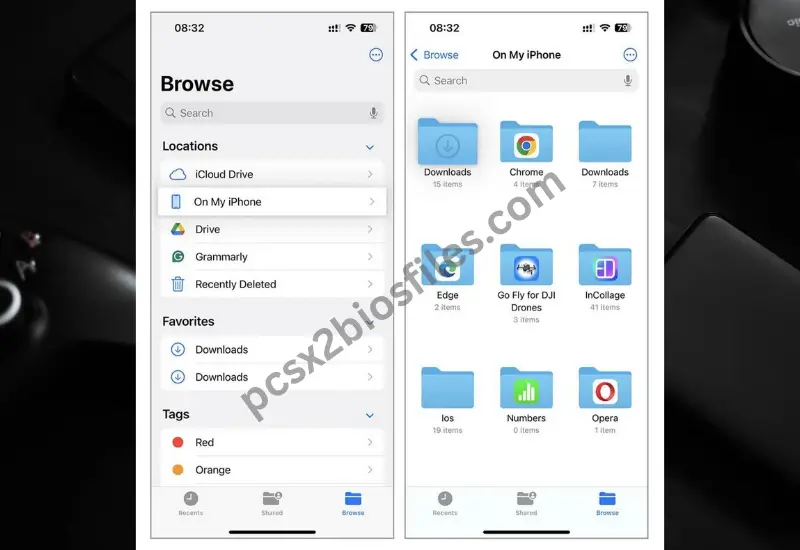
On many installations, you can use Apple’s Files app to access RetroArch’s accessible files.
- Open RetroArch once, then return to the Home Screen.
- Open the Files app.
- Tap Browse.
- Look under On My iPhone or On My iPad for the RetroArch folder, if your installation exposes one.
- Check for the
systemfolder.
The visible folder structure can vary by app version and installation method. If you can access RetroArch’s Settings > Directory > System/BIOS setting, use the configured path rather than relying on a tutorial’s assumed location.
If the folder is missing, check that RetroArch has been opened and that you are looking in the correct storage location. Some installations may not expose the expected folder in Files.
Step 3: Copy the BIOS Only if the Selected Core Requires It
This step is only for a compatible BIOS-based core.
If your installed core’s documentation specifies the ARMSX2 folder structure and the core is actually available on your device, follow its documented requirements. Do not assume that an Android-specific ARMSX2 setup is supported on iOS.
For another BIOS-based core, use its own documented path.
When the relevant directory is accessible:
- Find the BIOS files you obtained from your own console.
- Extract the archive if needed.
- Copy the files into the folder specified by the selected core.
- Check the spelling and folder levels.
- Confirm that any required supporting resources are present.
If you are using Play!, skip this step entirely.
Step 4: Troubleshoot Missing Folders or Unsupported Cores
If the RetroArch folder does not appear, open RetroArch again and recheck the Files app’s available locations. Confirm that you are looking under the app’s local storage rather than assuming that iCloud Drive contains the app’s files.
If a compatible PS2 core is missing, check the installation method and the cores included in that build. The official iOS installation guide explains the limitations of adding or updating bundled cores after installation.
Do not keep copying BIOS files into different folders when the required core is unavailable. Resolve core availability first.
ARMSX2 BIOS Folder Structure: Quick Reference
The following paths apply specifically to the ARMSX2 core documented by Libretro.
| Item | Location relative to System/BIOS | Purpose | Important note |
|---|---|---|---|
| BIOS files | pcsx2/bios/ | Supplies the PS2 BIOS required by ARMSX2 | Use a valid dump and the format expected by the core |
| Resources directory | pcsx2/resources/ | Provides supporting emulator resources | Use resources from a compatible release |
| Configured system directory | The root selected in RetroArch settings | Base location for the paths above | Do not add an accidental second system level |
ARMSX2 documentation describes Vulkan as its default renderer and OpenGL ES 3.2 support on Android. Actual performance depends on the device, graphics support, core build, and game.
Does the Play! Core Need a PS2 BIOS?
No. Play! does not require users to supply an external PS2 BIOS.
Its Libretro documentation does not list a required external BIOS file. You should therefore not follow ARMSX2 or PCSX2-based BIOS folder instructions when using Play!.
However, two separate issues remain:
- Core availability: Your RetroArch build must include Play!.
- Game compatibility: The core may not run every PS2 game correctly.
Play! is an experimental emulator, so some games may fail to boot, display glitches, or perform poorly. A missing BIOS file is not the first thing to investigate when using a core that does not require one.
How to Load a PS2 Game in RetroArch
Adding a BIOS does not launch a game. You must also load a compatible game image through a working PS2 core.
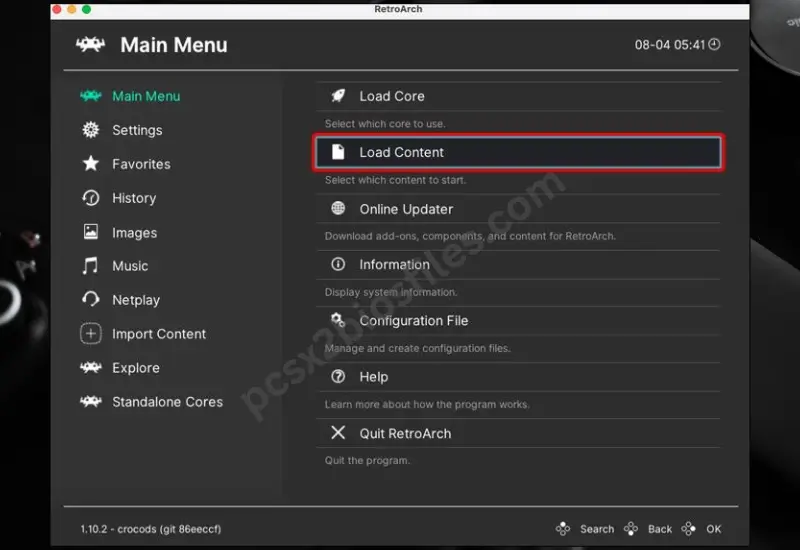
Follow these steps:
- Confirm the core is available. Open Main Menu > Load Core and select your intended PS2 core.
- Check the game format. Review the selected core’s documentation to confirm that it supports your game image.
- Open Load Content. Return to the main menu and select Load Content.
- Find your game image. Browse to the folder containing your own game backup.
- Select the image. Choose the file and follow any prompts provided by your installed core.
- Test the game. If it does not launch, investigate core compatibility, file format, BIOS requirements, and device performance separately.
The documented ARMSX2 core supports formats including .iso, .chd, .cso, .elf, and several others. Play! has its own supported-format list, including .iso, .chd, .cso, .cue, .elf, and .isz.
If a game still fails to launch, test another compatible game image where possible. This helps you determine whether the issue affects one game or the entire setup.
Common PS2 BIOS Problems in RetroArch and How to Fix Them
Not every PS2 emulation problem is caused by the BIOS. Check the core and game separately before changing your files.
| Problem | Likely cause | What to check and fix |
|---|---|---|
| RetroArch cannot find the BIOS | Incorrect System/BIOS directory | Check Settings > Directory > System/BIOS and confirm the full path |
| BIOS files are in the wrong folder | The core expects a specific subfolder | For ARMSX2, use pcsx2/bios/ inside the configured directory |
An extra system folder exists | Incorrect folder nesting | Remove the accidental extra level and follow the documented paths |
| BIOS files are still zipped | The archive has not been extracted | Extract the archive and place the required files in the correct folder |
| BIOS is not recognized | Invalid, corrupted, or incompatible dump | Check the file against the selected core’s documentation and use a valid dump |
| ARMSX2 fails to start | Required resources may be missing or incompatible | Check pcsx2/resources/ and use resources from a compatible release |
| No compatible PS2 core appears | The installed build does not include one | Check the build’s supported cores or consider a separate compatible emulator |
| A game fails even though the BIOS is present | Unsupported game format or compatibility issue | Review the core’s supported formats and compatibility notes, then test another game |
| PS2 emulation runs poorly | Hardware limitations or experimental core behavior | Check the core’s requirements, reduce rendering demands where supported, and close unnecessary background apps |
| The expected iOS folder is missing | The installation does not expose the expected location | Check the Files app’s available locations and RetroArch’s configured directory |
| A BIOS is being copied for Play! | Instructions for a different core are being followed | Skip BIOS installation and check Play!’s availability and game compatibility |
What if RetroArch still cannot detect the BIOS?
Start by checking the configured directory and the core’s documented folder structure. Then verify that the files have been extracted and that the dump is valid.
What if the PS2 core itself will not load?
Stop changing the BIOS folders and confirm that the core supports your platform and installation. A BIOS cannot make an unsupported core run on Android or iOS.
If the core loads but a game does not, investigate the game image, supported formats, compatibility, and device performance separately.
Frequently Asked Questions
Can I use RetroArch for PS2 emulation on Android?
Potentially, but your installed build must include a compatible PS2 core. Check the available core list and review the core’s platform and hardware requirements before copying BIOS files.
Can I add a PS2 BIOS to RetroArch on iPhone?
Yes, if your installed core requires an external BIOS and your iOS installation provides access to the required folder. First confirm that a compatible PS2 core is available. Play! does not require an external PS2 BIOS.
Does every PS2 core require a BIOS?
No. BIOS requirements depend on the emulator core. ARMSX2 requires a BIOS and supporting resources, while Play! does not require users to provide an external PS2 BIOS.
Can I play a PS2 game after adding the BIOS?
Not automatically. You also need a compatible PS2 core and a supported game image. Game compatibility and performance depend on the core, device, and individual game.
Why is my PS2 core missing from RetroArch?
Not every RetroArch build includes the same cores. Availability can depend on the platform, installation method, and distribution. Check your installed build before attempting BIOS setup.
Can I use the same BIOS folder instructions on Android and iOS?
Do not assume that you can. The correct path depends on the selected core and the directory exposed by your installation. Android and iOS also differ in how apps access files and how cores are distributed.
Can I add a PS2 BIOS without a computer?
You can transfer files directly on a phone if you already have a valid BIOS dump. Android users can use an accessible file manager, while iPhone and iPad users can use the Files app when the relevant app directory is exposed. You still need to follow the selected core’s requirements.
Can I use a BIOS from a different PS2 region?
Region compatibility depends on the core, BIOS, and game. Do not assume that every BIOS works in every setup. Consult the selected core’s documentation and check the requirements for the game you want to run.
Final Thoughts
The correct way to add a PS2 BIOS to RetroArch depends on your emulator core and platform. First, check which PS2 core your installation includes. If you use ARMSX2, follow its documented BIOS and resources folder structure. If you use Play!, you do not need an external PS2 BIOS.
After setup, load a compatible game image and troubleshoot core availability, file formats, BIOS detection, and performance as separate issues. This approach helps you avoid unnecessary file changes and makes PS2 emulation easier to troubleshoot on Android and iOS.